“Ryuzine Rack” is our new newsstand webapp built on the same foundation as Ryuzine Reader, but designed to act as a library, store, or promotions page on your website.
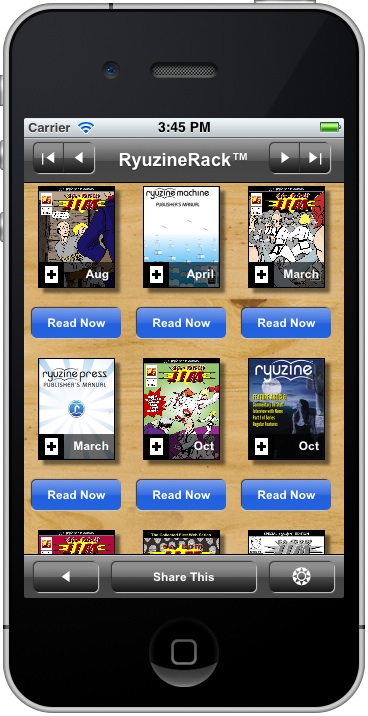
There is a “stand-alone” version that does not require a back-end database. It uses simple HTML “catalog” files with plain <TABLE> elements to store and organize the data. You can have as many catalogs as you need, organized however you please, and you can customize them with additional columns and decide which columns are sortable. Or just use our Ryuzine Writer authoring webapp to easily help you build standard catalog files. Our site is using this stand-alone version (also available under the “Library” button in the menu up top):
https://www.ryumaru.com/library/
The other version is “Ryuzine Rack for Ryuzine Press” which is integrated with the Ryuzine Press Plugin for WordPress blog sites. It optionally replaces the Ryuzine Press Editions archive page with Ryuzine Rack. The admin back-end also has a utility on the Ryuzine Press > Tools > Rack Builder that allows you to add content to the catalog that is not generated by Ryuzine Press or content that isn’t on your site. You can also use the utility to create additional catalogs. All of the data is stored in the WordPress database, but is still bundled into plain <TABLE> elements and sent with the webapp, so even on mobile devices sorts and searches occur almosts instantly. Jon Sloan’s comic web site is using the WordPress-driven version (also available under the “Store” button at the top of his site):
https://www.thedojahng.com/ryuzine-rack/
This is the first version of Ryuzine Rack and does not have any “Help” info in it yet. While we believe it’s fairly intuitive, here is a quick primer on some of the features:
Item Details (Grid View) – click the [+] in the corner of the cover thumbnail to open the item details info card (to prevent accidental mis-fires while scrolling on touch devices the entire cover is not a button).
Action Button – below each item (in Grid View) and to the right of each item (in List Views) is a button. It might say “Read Now,” “Buy Now,” “Download,” etc., depending on what the content is. These buttons take you away from the Ryuzine Rack webapp and to whatever content to which they point. For “Buy Now” items that is usually a product page on the site wherever the item is being sold (Ryuzine Rack is not e-commerce enabled itself).
Changing Pages – use the navigation buttons at the top of the screen, or on iOS and Android devices you can swipe left/right to change pages. Keyboard left/right arrows also change the pages, or Home and End keys go to the first and last page respectively.
Sorting List – The descriptors by which the items are sorted appear in the “Sort List” panel. Tapping the same heading more than once toggles the sorting of the list between ascending and descending by that heading. For example, all items are initially shown in descending order by date (newest to oldest). If you go to Sort List > Date it will toggle it to ascending (oldest to newest).
Alternate Views – the default is the newsstand-like cover grid view. Under the “Views” panel you can select “Detail List” or “Simple List.” The “Font” size adjustment only works with list views, not grid.
Options – in the bottom bar navigate as far to the right as you can and tap the Options “gear” button. In the Options panel you have several preferences you can set (which differ from the standard Ryuzine Reader options):
Featured Items – shows or hides the promotion carousel at the top of the first page of search results.
Items per Page – adjusts how many items to show on each page of search results, however this setting is not retained from one session to another.
Filter All – if you click the underlined “Media Type” or “Category” links in an item description it will sort the search results by that term. If “Filter All” is turned on it will look through the entire catalog for matches to the filter term. If it is turned off it will only look through the current page of search items for matches.
Page Animations – when you change pages they animate by sliding in and out to the left or right. If you just want the pages to “pop” into view you can turn off the animation.
iScroll Scrolling – the search results and panels use the iScroll scrolling add-on script. If this is causing problems you can disable it.
Theme UI – if the webapp is being themed you can turn that theme off and on here. Sometimes themes can cause performance issues on lower-end devices and disabling the theme will improve usability.
If you want to use Ryuzine Rack on your own website you can grab the stand-alone version with the Publisher Distribution Kit or the Ryuzine Press version if you use WordPress. You can use either Ryuzine Rack or Ryuzine Reader or both on your website.
Note: the Opera web browser is no longer officially supported by any of the “Ryuzine” webapps. Internet Explorer, Firefox, Chrome, or Safari should be used.