Creating a Ryuzine Press Edition with WordPress is really easy! Once an “edition” has been set up you can assign new or existing posts to it, creating a curated magazine-style version of your blog content. The posts will also still be available via your regular blog because the Ryuzine Press Editions exist alongside the blog, not in place of it.
Create an “Ryuzine Issue”
You need to create an Issue that defines each “edition” you want to publish. You can either use an existing issue or (preferably) create a new issue for each edition. Go to:
Ryuzine Press > Ryuzine Issues > Add New Issue
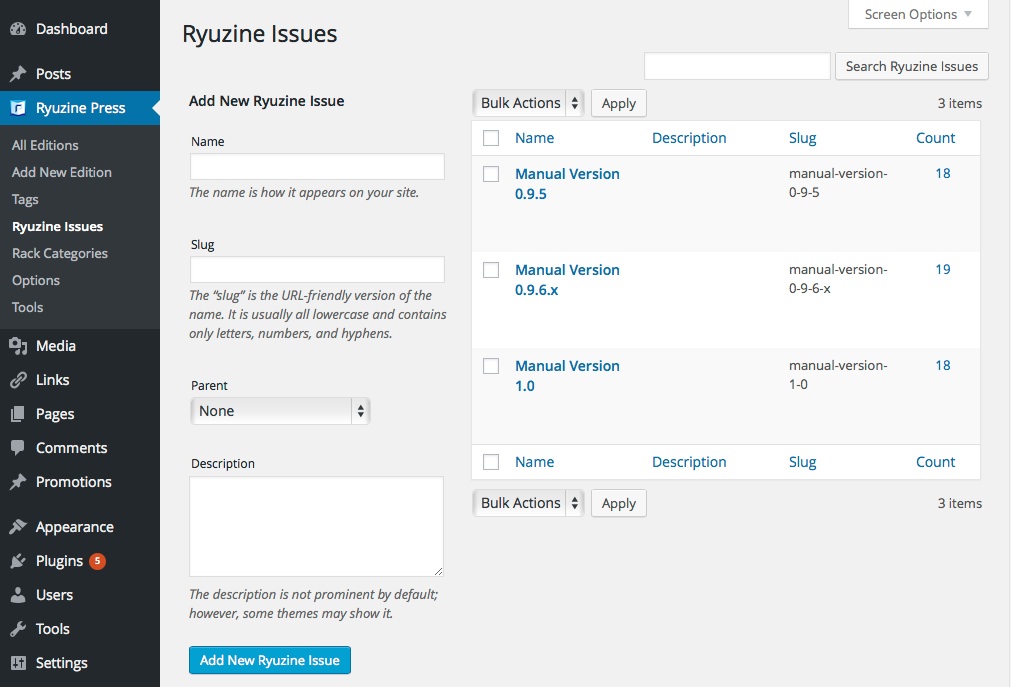
Enter something descriptive like “Issue #1” in the box (or however you want to list this edition). It can either be a top-level entry or the child of another entry, it doesn’t matter so organize things however you please. You can also create these in the Edition post composition window.
Create A New Edition
Ryuzine Press > Add New Edition
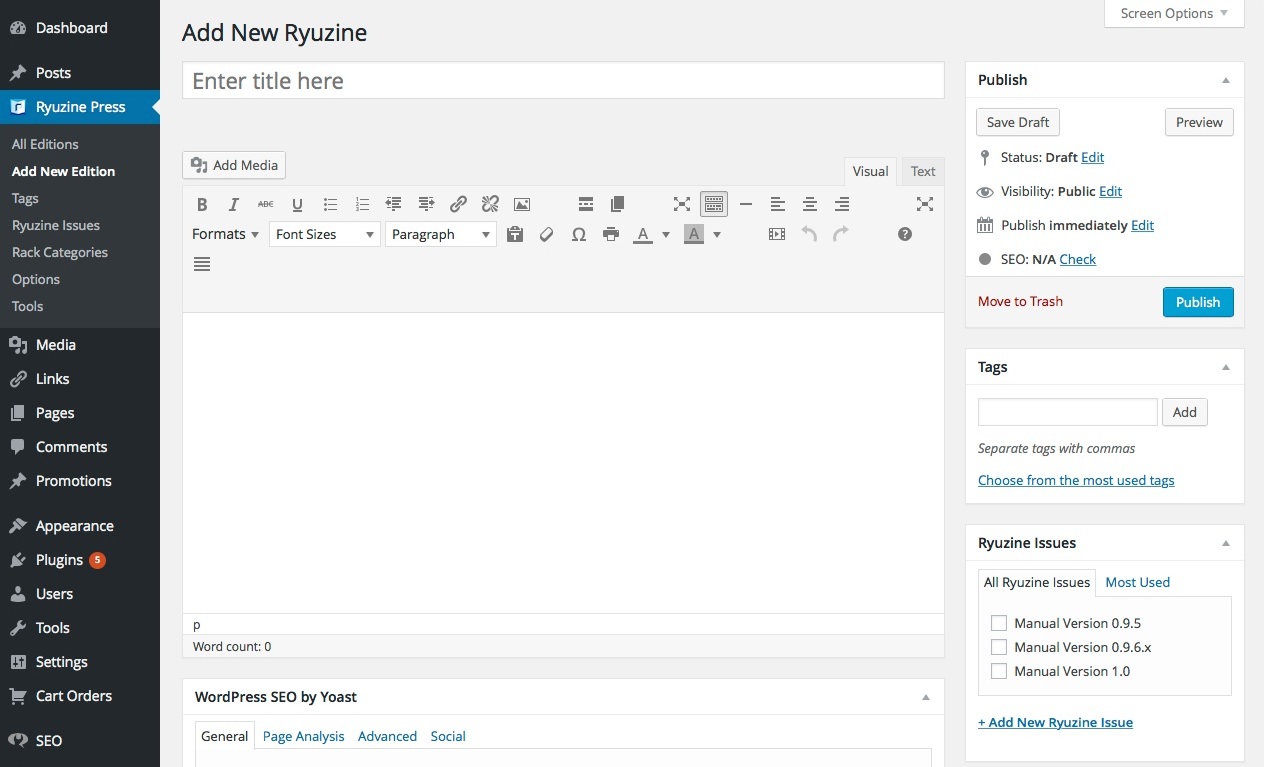
You’ll see a familiar looking “Post” compose window. Give this edition a title and, optionally, write a brief description or summary of what will be in this issue. This text doesn’t show up in the edition itself, but is used for excerpts on the archive page and will also be cataloged by search engines.
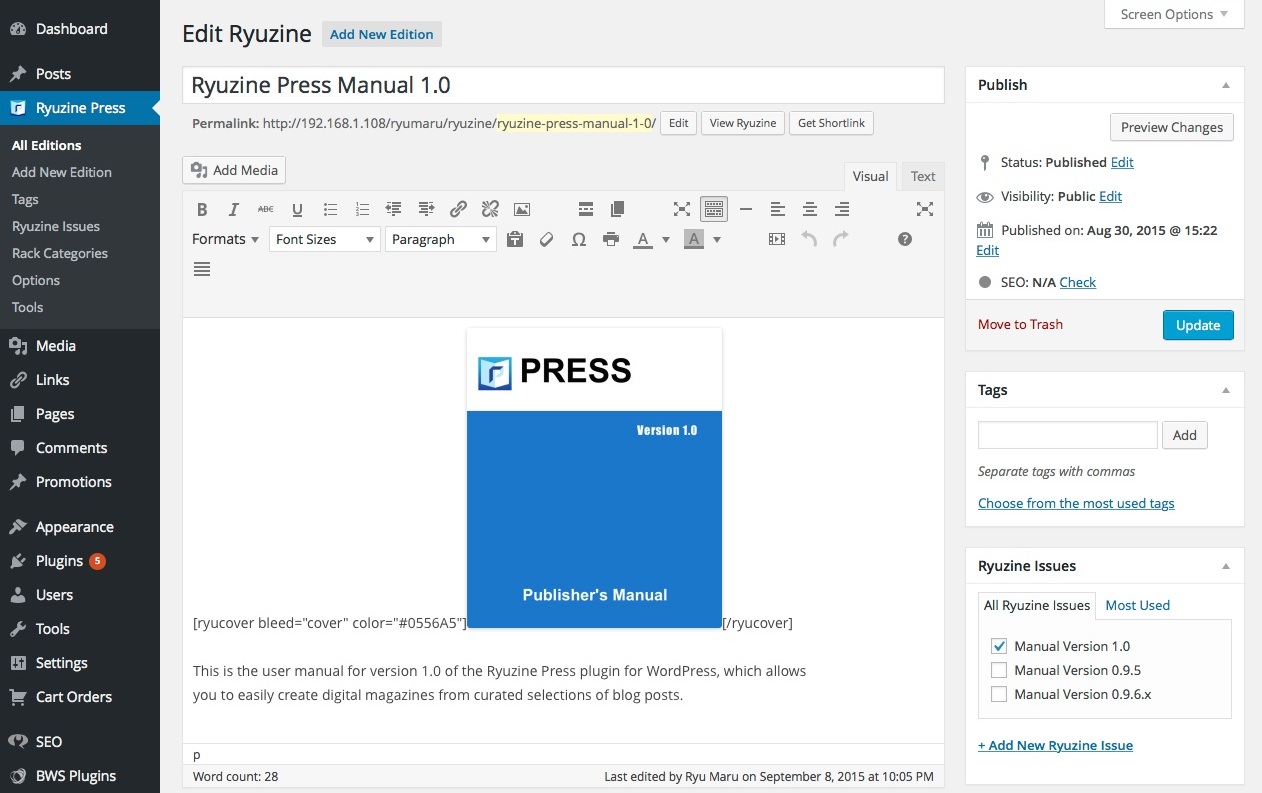
As of version 0.9.6.6 you could assign an Edition to multiple Ryuzine Issues, creating a “Collection” that includes all the posts assigned to each issue. Be careful with this! You can easily create very large Editions that take a long time to load and will most likely exceed browser cache limits and crash mobile browsers.
You can also enter content wrapped in shortcodes to create “gallery” items to display with the Ryuzine webapp’s built-in lightbox feature (more on that in another section).
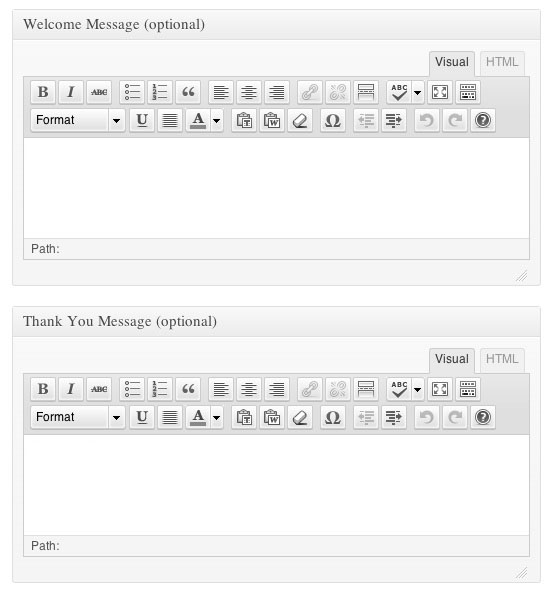
You’ll also notice two more text boxes below the main compose window. One is labeled “Welcome Message” and the other “Thank You Message.” When a Ryuzine Press Edition is viewed in a browser wider than 1024 pixels it enteres “two-page spread” mode. With the magazine closed to the front cover there is space next to it (on the “table top”) where you can display a short welcome message to your readers. When they finish reading and close the magazine to the back cover it reveals another adjacent space where you can put a similarly short “Thank You” message (this is also a good place for a quick “call to action,” sales pitch, or to tell them what the feature piece of the next edition will be.
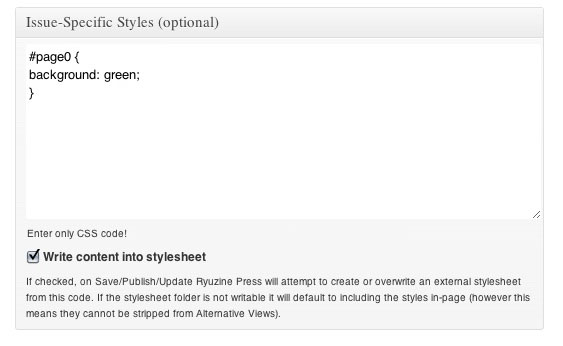
The last text box does not have a rich-text editor option and is labeled “Issue-Specific Styles.” This is where you add stylesheet classes specific to this Ryuzine Press Edition (this will be covered in the next section).
Featured Image Cover Art
You can also attach a “Featured Image” to use as cover art instead of using the  ryucover
 shortcode (however the shortcode offers more control of how the image is displayed as a cover).
Custom Configurations
There is a metabox at the bottom of the Edition edit post page that allows you to over-ride the global configurations set on Ryuzine Press > Options with settings applied specifically to that Edition. It doesn’t repeat all the options, but does offer you the ability to easily change the binding, page size, cover art source, language settings, and apply a theme that may be different from the rest of your Editions.
Assigning Content to Editions
This is where you get to select your curated content that will be assigned to the edition. Go to Posts > All Posts to assign existing posts or Posts > Add New to create new content for this edition.
Either through the “Quick Edit” option, or in the Post editor assign each post to the same Ryuzine Press Issue you previously selected for the Edition. If the “Ryuzine Issues” panel isn’t visible in the Post Editor you may need to press the “Screen Options” tab near the top of the window and tick the “Ryuzine Issues” box.
As you assign posts keep in mind that they will be displayed in the Ryuzine publication from oldest to newest (this is typically the opposite of the order in which Archive pages will display them). Posts you assign can belong to multiple issues at once, but they must belong to the same issue as an Edition to display within that edition. You can, of course, include a post in more than one Edition as well.
Now all these posts exist in two places – within your Ryuzine Press Edition AND within your regular blog. If you’ve enabled discussion for a post you can decide in the Ryuzine Press Options whether or not to show comments and the comment box within the pages of your Ryuzine Press Editions or not. However, if a reader does submit a comment they will be taken to the corresponding blog post page afterwards and away from your Ryuzine Press Edition. The pages, however, look a lot more clean and magazine-like if you disable comments.
Just like a real magazine the Ryuzine webapp expects page counts to be even numbers (the minimum number of posts you can assign is actually one page – the plugin will automatically add blank pages to make the count even. The added pages are dynamically generated code, not actual blog pages – so don’t worry the plugin does not add tons of blank pages to your blog.
Due to what is probably a bug in WordPress you are allowed to publish posts without titles. The Ryuzine Press plugin has a built-in fix for any such post where it will dynamically insert “Page” and the page number as the title on the page within the Ryuzine Press Edition and in the Ryuzine webapp “Table of Contents” (or you’d have no text to click). The actual post, though, remains unaltered. The Ryuzine Press plugin does not alter post content in your database.
Note: If the posts you have assigned are “Drafts” rather than “Published” they will not show up in the Ryuzine Edition to which they are assigned, even if you’re only viewing a “draft” version of the Edition itself. Posts MUST be published to be used in a Ryuzine Edition.
Managing Editions
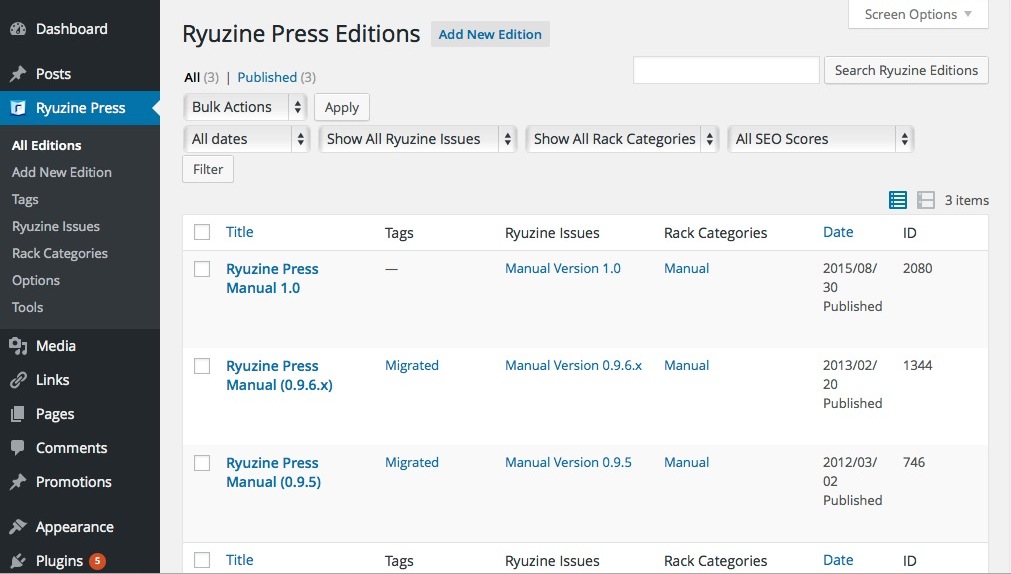
Once you’ve created a bunch of Ryuzine Press Editions you may need to go back and change something, fix a lightbox gallery item, or whatever. You manage your Ryuzine Press Editions in the same way as any other post, except you do so under Ryuzine Press > Editions. You’ll see a familiar looking post management list, the only difference is each item references one of your editions.
As of version 0.9.6.6 the “Categories” column is gone because it is no longer used. It has been replaced by the “Ryuzine Issues” column. You’ll also see that “Tags” are now available for Ryuzine Press Editions and another new column for “Rack Categories.”
“Tags” work for Ryuzine Press Editions just like they do for any other blog post, but these tags are ignored by the Ryuzine Press Plugin itself. The “Rack Categories” are used by the Ryuzine Rack newsstand (if it is installed to theme), because it uses it’s own non-hierarchical category system independent of WordPress categories. If you are not using Ryuzine Rack you can just ignore this column. If you are using Ryuzine Rack, though, there is now the capability to edit and add Rack Categories as easily as any other category in WordPress.
You’ll also notice there are two new drop-down selectors to filter your Ryuzine Press Editions by Issue and Rack Category. The Issue drop-down filter also appears on the regular Posts page and, if installed, the Comic Easel post management page.