Install the Ryuzine Press Plugin
The Ryuzine Press plugin is currently only available as a download directly from www.ryumaru.com. It is not currently available for automatic installation or updating from the www.wordpress.org official repository.
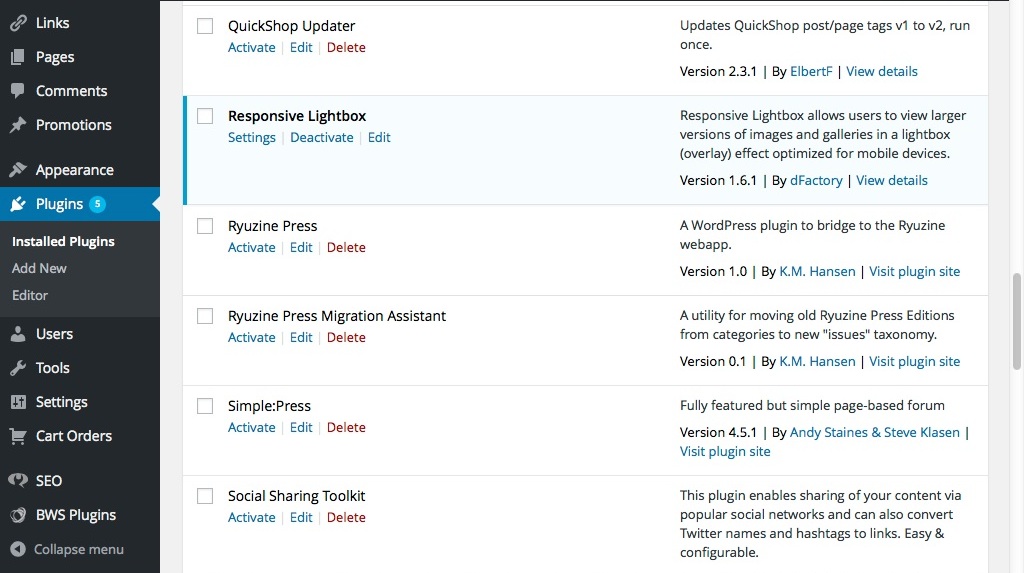
Download, unzip, and upload the “ryuzine-press” folder to your WordPress Plugins folder. Go to the Plugins section of your Admin menu and click the “Activate” link. There will be a “Ryuzine Press” admin menu under the “Posts” with several options.
Note: Once everything is installed, If clicking “View Ryuzine” shows a blank page you’ll need to manually flush the permalink rewrites by simply visiting your Settings > Permalinks page (you don’t have to change or save anything, just visiting the settings page will do the trick).
Updating the Plug-In
The plugin will tell you when an update is available from the Ryu Maru server just like any other WordPress plugin. The only difference is that it is served from our private plugin server instead of the official WordPress repository.
IMPORTANT: You may need to go through the Options and Tools and make sure every entry has a selection and save changes. Especially if you are updating from the beta version to 1.0 the global options have changed so some entries were dropped and new ones added. If your Ryuzine Press Edition is throwing an alert that the “config file could not be found” you need to re-submit your preference settings.
Migration Assistant Plugin (for Beta Testers)
If you have already been using the Ryuzine Press plugin and have published a number of Editions an update to 0.9.6.6 (or later) will break all of your existing, published Editions! This is because the old system that used the standard WordPress “Categories” has been replaced with a custom “Ryuzine Issues” taxonomy. If you have never installed Ryuzine Press before version 1.0 you do not need to use the Migration Assistant, you’re already good to go.
In order to properly update your existing Editions you will need to “migrate” them from the old Categories system to the new Issues system. If you have a lot of existing Editions or Editions with a lot of post assigned to them that would be a lot of work to migrate them manually.
Which is why we created the Ryuzine Press Migration Assistant plug-in. Download, unzip, and FTP this to your ~/wp-content/plugins folder and activate it. You’ll see the “Categories” column restored to the “All Editions” management page, and the Bulk Processing drop-down list now has a “Migrate” option. Simply tick the checkbox next to the Editions(s) to migrate, select “Migrate” from the drop-down, and press the “Apply” button. The Edition, and all the posts associated with it, will automatically be transferred from the old system to the new.
You should probably migrate Editions in small batches or you might have errors. You also should not manually create corresponding Ryuzine Issues entries, let the Migration Assistant automatically create them for you. Once everything is migrated you can deactivate and delete the migration plugin.
Install the Ryuzine Webapp (for Developers)
If you have installed Ryuzine Press from the source code at GitHub it doesn’t come bundled with the Ryuzine Reader and Rack webapps. As was the case with the beta versions, you will need to manually install the webapps to the plugin.
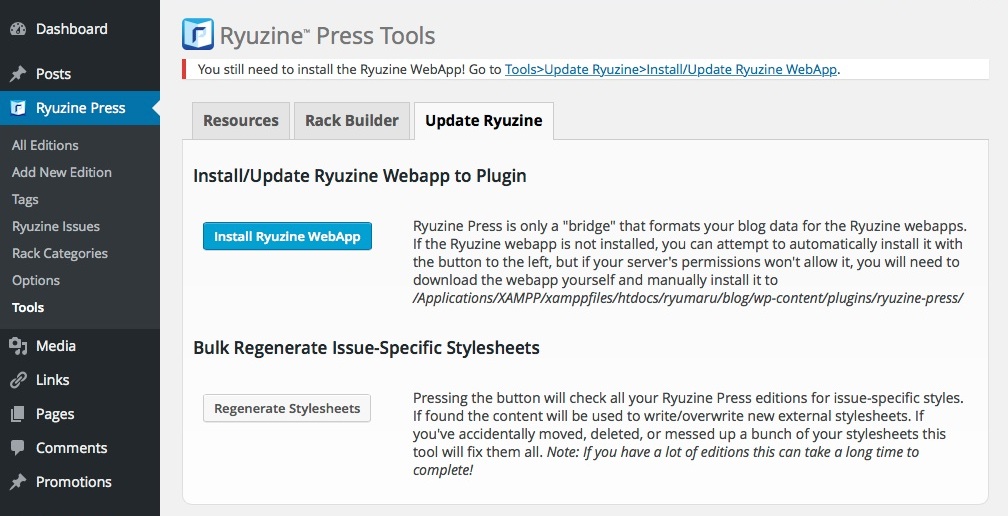
Once the “ryuzine” folder is properly installed, if your server is correctly configured, you will see a blue “Install Ryuzine WebApp” when you go to Ryuzine Press > Tools > Update Ryuzine. If the server is not set up to allow it you will, instead, see a green “Download Ryuzine WebApp” button.
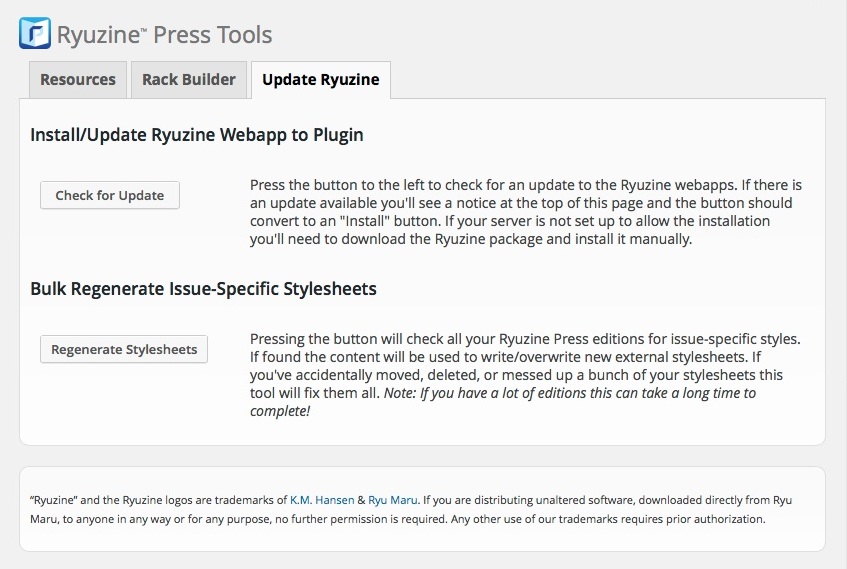
Development of the Ryuzine webapps and the plugin are not necessarily in sync so it is possible an update to the webapp may be available even when there isn’t one for the plugin. You can press the “Check for Update” button on the Tools > Update Ryuzine screen at any time to see if there is a newer version available, and if there is the button will change to a “Download” button again, giving you the option to update. There are no automatic checks, downloads, or installations of webapp updates.
The automatic method will attempt to download the Ryuzine webapp from the Ryu Maru server (not GitHub) and install install it to the Ryuzine Press plugin folder. If the automatic method does not work you will need to manually download, unzip, and then FTP upload the “ryuzine” folder into your wp-content/plugins/ryuzine-press/ path. If you also want to use the source code versions of the webapps you’ll need to manually assemble the “ryuzine” folder, plus any add-ons or themes you want to use, and then FTP it into the plugin.