The third tab of the “Options” section is where you configure any of the add-ons you may have may want to use. If you set an Add-On or Theme for use and it isn’t working double check that the add-ons and themes are actually installed to your server (they should be since Ryuzine Press now installs a webapp package that contains them all).
Language Settings

HTML Natural Language is used by auto-translation services and web browsers to recognize the native language in which a document is written and also to use the correct International character set. It does NOT automatically translate your document to another language, it is used to define the language in which the document was written.
UI Language Code is ignored unless you also load the “Localize” add-on. That add-on translates the webapp’s user interface into the selected language. Again, this does NOT translate the document itself, just the User Interface. It is intended to allow authors publishing in languages other than English and easy way to alter language on the automatically-generated user interface to match the language in which they’ve written the document. The UI translations were performed by Google Translate and may not be accurate.
Note: If you apply one language to the UI with the “Localize” add-on and the document is in some other language it can confuse auto-translation services.
Optional Add-Ons

The Ryuzine webapp has it’s own Add-On system. Enabling and disabling these Add-Ons for your publications is very similar to Activating/Deactivating WordPress plug-ins. The list of available add-ons in built from whatever is found in the /ryuzine/addons sub-folder and you can enable/disable them by ticking or un-ticking the checkboxes. Below the list you’ll also notice a line that says “Add-On Load Order” with a comma-separated list. The order in which you tick the checkboxes changes the actual Load order of the add-ons. This way, if you have one add-on that is dependent on another, you can make sure they load in the correct order.
Ryuzine Theme Settings
The Ryuzine webapp has its own theme system (which is completely independent of the WordPress theme). If you install the “Theme Pack” you can also configure different themes to be delivered to different platforms, for example, to give Android users and iOS users each a theme that gives a more “native app” appearance to the interface.
Page Shadows – As the page animations turn there is a “shadow” drawn under them to give a more realistic three-dimensional appearance. Some browsers and devices, however, may suffer performance issues trying to animate the semi-transparant layers. If you want to better accommodate legacy and low-end users turn the shadows off. Note that end users can enable/disable this on their own in the webapp’s “Options’ panel.
Default Theme – This drop-down allows you to select a default theme for your publications. If you are not using Swap Themes this is the only theme that will be used.
Swap Themes – Determines whether or not the Platform Themes will be used or not.
Platform Themes – You’ll see after each box it says what platform would receive that theme when “Swap Themes” is enabled.
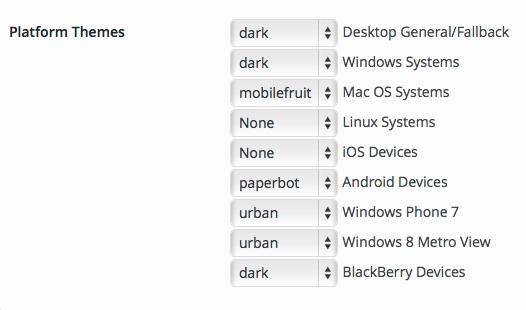
If you leave a box blank that platform will get the un-themed interface (Platform Themes over-ride any Default Theme setting). While you can, in theory, target different platforms with different themes you never know if a browser may be “spoofing” its user-agent string.