The fourth tab on the “Options” section is for configuration of any Advertising using the webapp’s built-in ad areas.
Ad Display Settings
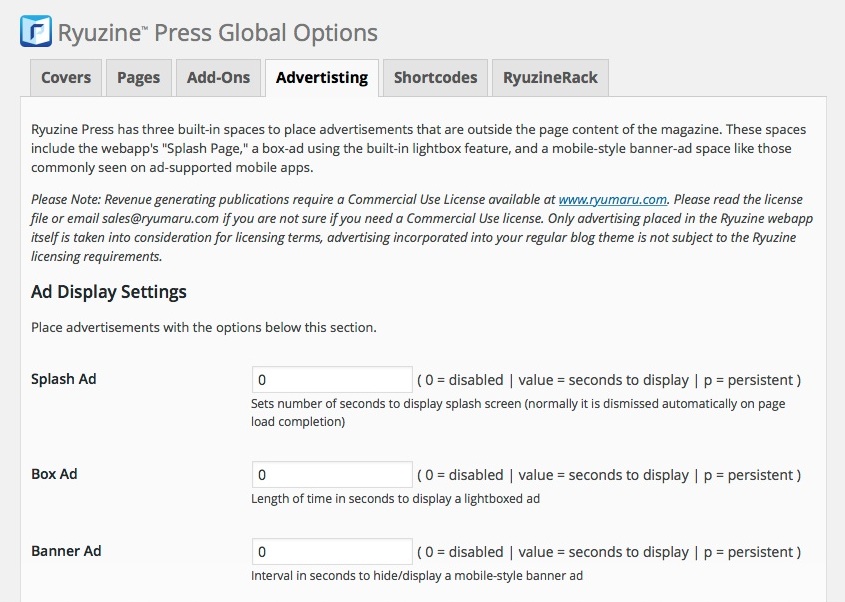
This is where you really enable each of the built-in ad areas by setting how long the ad(s) will display. Setting the duration to zero will disable them, any other values will be the number of seconds to display the ad before automatically moving on, entering a letter “p” will make the add “persistent” (meaning the reader will have to manually close the ad). Readers can always close an ad sooner than the duration you’ve set.
Ad Content Settings
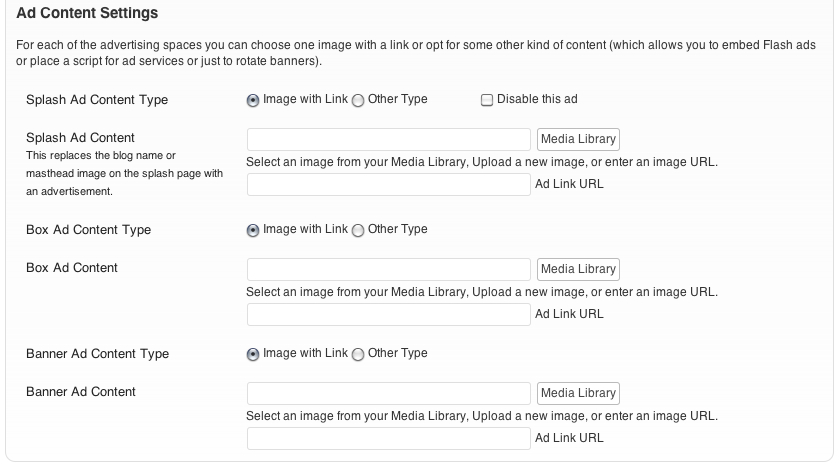
Each of the built-in advertising areas has a similar method of configuration.
Type – You can select whether to use an image from your WordPress Media Library or some other type of advertising content. If you select “Other Type” the image URL box is replaced by a text area box into which you can enter any kind of code. In particular this means you can add “ad rotator” scripts, code to embed a Flash ad, or a code snippet for some third-party ad service.
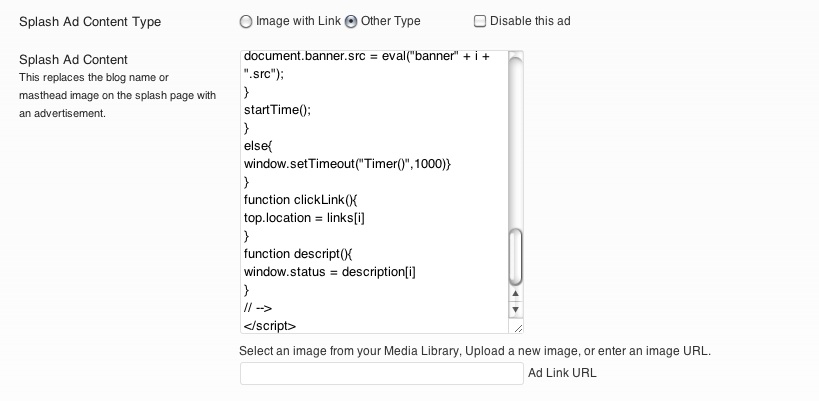
The “Disable this Ad” checkbox will keep the ad content (whatever it is) from displaying in your Ryuzine Press Editions. This option means you can set up various ads and have them ready to go and simply uncheck to box to make them go “live” in your magazines, for example, as part of a promotion or marketing campaign.
Ad Content – as noted above this will either be an image from your Media Library with or without a corresponding link entered in the “Ad Link URL” box or some other type of advertising code.
Keep in mind the available space for these ads within the webapp. While images are automatically scaled to fit by width, other ad types may not auto-adjust.