RyuzineRack is an optional newsstand webapp you can use to showcase your own Ryuzine Press Publications and other online content. If you are not using it you can safely ignore this settings tab. Otherwise this is where you can define the Media Types, Button Label text for each type, and the media categories.
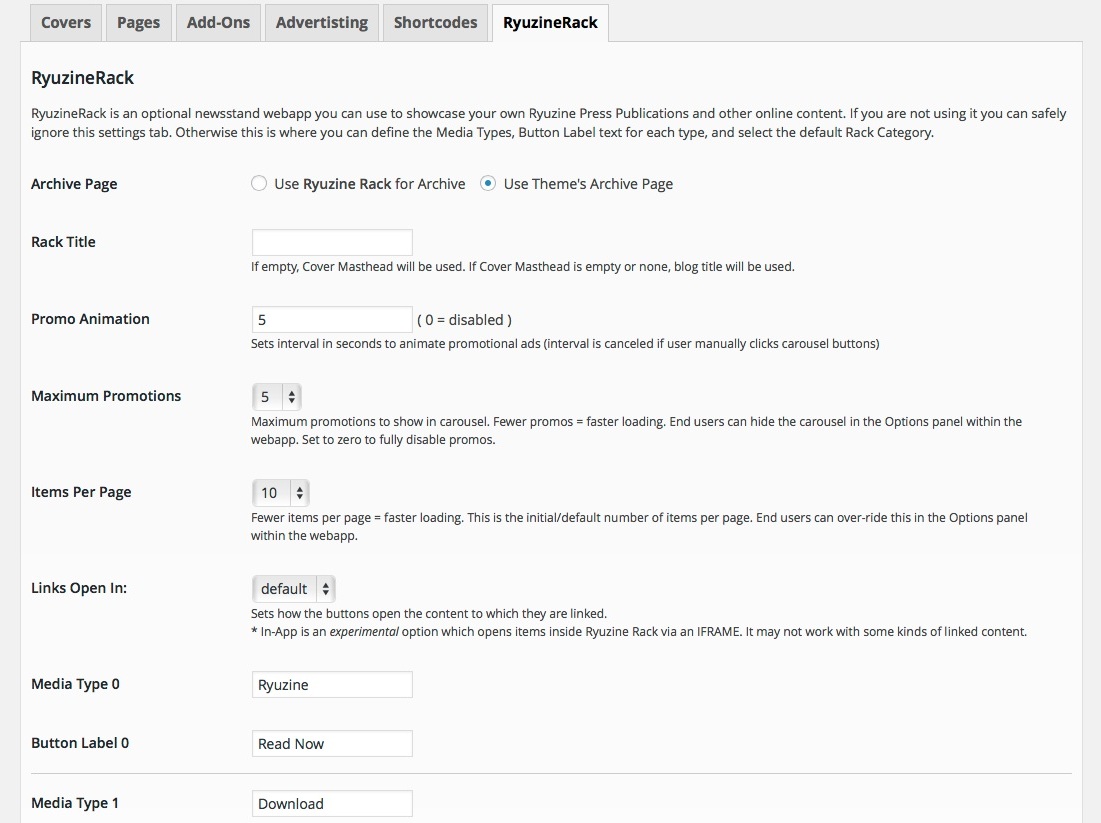
Promo Animation – if there are at least 5 promotions in the carousel at the top of the newsstand they will auto-rotate on whatever interval you set in seconds. If you want to disable the animation set it to zero.
Maximum Promotions – it obviously doesn’t make sense to make a promotion for everything. Ideally you only want it to promote your most recent and/or best content. Select the maximum number of promotions in the drop-down list. Note that the newest item in your catalog will always automatically be promoted.
Link Opens – option sets how linked content from Ryuzine Rack opens when a user presses the buttons below a cover thumbnail or in an information card. The default behavior can vary, for example:
- Within the web browser the default is to open links in the same window. This replaces Ryuzine Rack with the linked content. If a user goes back to
Ryuzine Rack it needs to reload the webapp. - Within iOS “app view” (when bookmarked to the Home Screen and run from there) the default is to open links in a new window within Mobile Safari. iOS
will switch from the “app view” Ryuzine Rack to the opened content in Mobile Safari.
The linkOpens option accepts a value corresponding to the following:
- 0 = default – usually within the same window, except as noted above.
- 1 = _self – forces link open in the same window, even in iOS “app view”
- 2 = _blank – forces link open in a new window.
- 3 = _parent – same as _self unless Ryuzine Rack was inside a frame in which case it opens in that frame’s parent frame.
- 4 = _top – same as _self unless Ryuzine Rack was inside a frame in which case it opens in the window holding the frame.
- 5 = an in-app experimental method that opens content within Ryuzine Rack
Older versions of Ryuzine Rack, and newer versions linked to an old configuration file, will simply ignore this setting and open content in the same window. On iOS devices if “native scrolling,” “iScroll,” and “Zoom & Pan” are all disabled a javascript method for linking is substituted.
The experimental “in-app” method (setting 5) builds an IFRAME within the Lightbox Gallery and then opens the linked content in that IFRAME. It also adds an overlay control at the center top allowing users to “Go Back to Rack” which closes the lightbox, unloads the IFRAME, and returns to the Ryuzine Rack list. If the document at which you are currently looking is not on your “Reading List” there is an “Add” button to do so. In tablet and desktop views it will also display thumbnail images of the covers of items that are on your “Reading List,” allowing you to click the cover images to load those items in the “in-app” window. Known problems include:
- May break some secure sites that will not work inside an IFRAME
- May require different touch gestures for interaction (depending on the device)
- Using the browser’s bookmark/favorites control will likely only mark Ryuzine Rack – not the opened content (though the in-app Bookmarking and Sharing will point to the correct document)
- The browser’s “Back” button will will load the site before Ryuzine Rack, not return the user to Ryuzine Rack from opened content.
- On low-end devices there may also be a serious performance hit because it is still running Ryuzine Rack underneath the other content
- May crash some mobile browsers by exceeding the cache limit
- It attempts to shift user focus to the opened content, but it is still possible in-app keyboard shortcuts will be controlling Ryuzine Rack (underneath) instead of the loaded Content (on top) until the user interacts with the opened content by mouse or touch
This method does, however, keep users at your web domain regardless of where the content you are linking to is hosted, and it also means returning to Ryuzine Rack doesn’t require reloading the entire webapp (as it was never closed). But the aforementioned possible issues are why we’re calling this method “experimental” right now. As with all the linkOpens options, earlier versions of Ryuzine Rack will simply ignore this setting.
Items Per Page – this sets the default number of items to show per page. The more items you show the longer it will take the app to load, but too few items may cause your catalog to have too many pages. End users have the ability to customize this to their own liking in the Options panel, you’re just declaring the starting number of items to display.
Media Types – the “Media Type/Button Label” pairs determine what types of media appear on the drop-down list in the “Rack Catalog Builder” and the button label determines what text appears on the button under the cover thumbnail for that type of media when it is shown in the newsstand’s sort results. The media type also appears as a link in the item details which users can select to search the catalog for only items of that type.
Rack Categories – You can define as many Rack Categories as you want (it’s under Ryuzine Press > Rack Categories). These will automatically appear as a drop-down list on the Rack Options page where you can set one of them as the default media category. These same drop-down options appear on the Rack Catalog Builder for each row, and as a meta-box with radio button selectors on the Edit page for Ryuzine Press Editions (but only if you’ve actually installed Ryuzine Rack to your current theme).