The RyuzineRack newsstand is an optional webapp which replaces the standard Ryuzine archive page in WordPress. It will automatically include all your published Ryuzine Press Editions. However, you can also include additional content by appending the main catalog and/or creating additional catalogs. There will always be one Catalog you cannot delete, but it doesn’t need to have anything in it either.
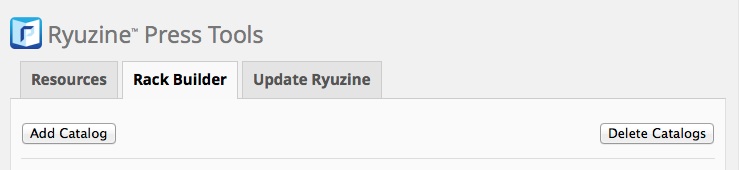
Adding and Deleting catalogs is as easy as anything else in WordPress. Just press the “Add Catalog” or “Delete Catalog” buttons. The default catalog will always be appended to the end of the automatically generated entries for your Ryuzine Press Editions. However, any catalogs you manually add offer the option to “append” them or make them a “separate” catalog:
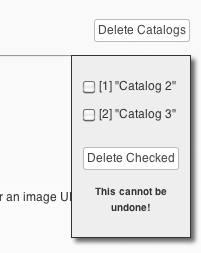 If you want to delete a catalog you’ve added press the “Delete” button at the top of the Tools section and a small box opens up with a list of all the extra catalogs by whatever names you gave them. Select the checkbox(es) for the one(s) you want to get rid of and press the “Delete Checked” button – and heed the warning that it cannot be undone!
If you “append” the tables to the main catalog the items listed in them will just be added to that main catalog. If you set them as a “separate” catalog, though, they will appear in the newsstand app’s “Sort List” panel. If an end-user selects them the main catalog is unloaded and the selected catalog is loaded. Users can only search or sort across a single catalog at a time.
Note: there is also a text link that reads “Hide Intro Text” which will hide the large block of explanatory text above the default Catalog table. Once you start adding items and catalogs it can be annoying to have all that text taking up space so just go ahead and hide it.
What goes into a Catalog?
A catalog might contain links to store pages for print publications, or downloadable PDF files, and you can divide up the content into individual catalogs focused on a single year, title, media type, etc. Each catalog can also have an optional “masthead” image, which is displayed above the first page of newsstand items.
Additional items might include links to other websites, Ryuzine publications on other websites, links to store pages for print publications, downloads, etc.
Below you can see the Data Builder for the default catalog (which is always appended to the Ryuzine Press Edition archive data). The Catalog Names appear in the reader’s “Sort List” panel, as do the sortable column names (in bold black text in the table headers).

The drop-down lists for “Category” and “Type” are defined in the Options panel, as they are part of the Configuration File.
The ▶ arrow button in the table item rows will open the “Media Library” to select an image for the Cover Thumbnail or a Promotion Banner. You can also simply enter the word “auto” and RyuzineRack will automatically build a promotional layout for that item. However, to prevent too many items from being shown as promos it will always show the newest item as a promo, and then up to five additional items with promos, selected newest to oldest (or however many promos you set as minimum in Options > Ryuzine Rack.
Note that the Catalog files do not contain any actual image or document files. Much like any database they can only hold text string data such as the URL to an image or a document type or category.
Cover and Promo images are scaled to fit the Ryuzine Rack layout, but they are scaled preserving the original aspect ratio. Cover thumbnails are scaled to 150 pixels wide and Promo Banners are scaled to 600 pixels wide (75px and 300px for mobile portrait view). If you are using the shortcode that cover image will be automatically used for the cover thumbnail of that Ryuzine Press Edition in Ryuzine Rack. The Rack Catalog Builder is for adding content that is not a Ryuzine Press Edition.