List Widget
Ryuzine Press has it’s own custom WordPress widget for displaying a list of Editions. It can also display a link to the Ryuzine Rack Newsstand (if you’ve installed it to the theme) and highlight the cover art for you latest Edition. You’ll find it under:
Appearance > Widgets > Ryuzine Press Editions
Just add it to the sidebar in which you want the list of published Editions to appear.
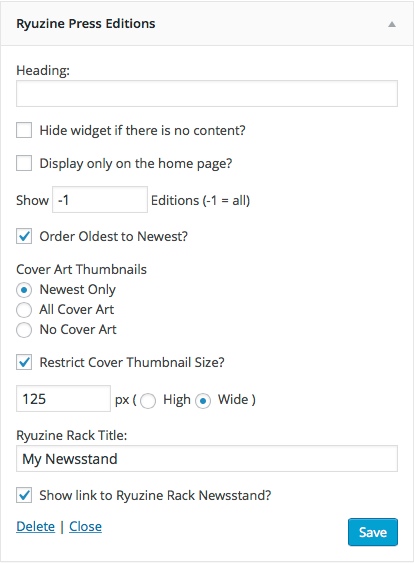
It has a few options:
- Heading: It normally has the header “Ryuzine Press Editions” but you can customize it to say something else here (particularly if you need it in another language).
- Hide widget if there is no content? If you don’t have any Editions published yet, or have deleted all your Editions for some reason checking this box will prevent it from showing an empty widget.
- Display only on the home page? – If you want to restrict this list so it is only shown on your blog’s home page tick this checkbox.
- Order Oldest to Newest (default) – determines if the list is ordered “ascending” or “descending”
- Show n Editions – Enter “-1” to show all Ryuzine Press Editions in the list, or some other specific number of them to show.
- Cover Art Thumbnails – determines which Editions show cover art thumbnails (if any):
- “Newest Only” will only show a cover for the most recent Edition (of those displayed).
- “All Cover Art” will show cover thumbnails for every Edition (of those being displayed).
- “No Cover Art” will show only text links for however many Editions are displayed.
- Restrict Cover Thumbnail Size? – if “Show Cover” is checked and this is checked too it will use the settings in the next row:
- Thumbnail Size (in pixels) either “High” or “Wide” – (NEW in 0.9.6.7) if size restriction is enabled the image will be scaled to whatever pixel size you set. If you size by width the height is automatic, if you size by height the width is automatic, to maintain the image aspect ratio. Note that this can be over-ridden by any CSS classes you might have set for images in your sidebar.
The following options only appear if you have “Ryuzine Rack” enabled on your blog:
- Ryuzine Rack Heading: Normally this says “Ryuzine Rack” but you can customize it to say something else (for example “Library” or “Store”). This becomes the link to your newsstand.
- Show link to Ryuzine Rack? – Tick this box to determine if the link to the Ryuzine Rack webapp is shown or not (over-rides any Ryuzine Rack Heading you set).
Note: If you restrict the size of a cover thumbnail but type non-numeric characters in the box it will use the default size (125 pixels). If you leave the box empty it ignores the restriction and uses the actual image size (unless CSS image classes for your sidebar over-ride it). The cover thumbnail is also given the class “ryucover” if you want to create custom styling for it.
Social Widget

The Ryuzine webapp has a built-in option for your readers to share your publications on social networks or via email in the “Share Panel.” If you don’t configure anything it will use the default “Social Widget” add-on which provides the social media sharing features you most likely want.
However, you can use any WordPress plugin social media widget instead. The “Share Panel” is set up as a “sidebar” in the WordPress Appearance > Widgets section and you can just drag and drop a social network widget into the Ryuzine Share Bubble box (technically you can put any widget you like in the bubble, but it was intended for social networking). In particular the share bubble works with Marijn Ronge’s Social Sharing Toolkit widget.
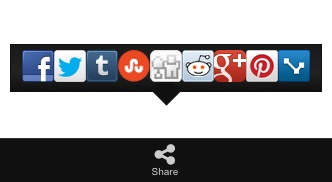
You can also paste social-networking code snippets into the box, for example those from Add This or Share This, and they should work. The “Share Bubble” will expand to contain whatever you drop into it, but you may not like the spacing or background color, etc., in which case you can also drop the “Text” widget into it and add <style>….</style> code to alter the appearance of the bubble or the widget content inside of it.
Note: you could also use other social media add-ons for the Ryuzine webapp itself, however at the time of this writing the default “Social Widget” add-on is the only one available. How to create your own Ryuzine add-ons is beyond the scope of this manual.