Note: This post is only relevant if you are using the Ryuzine “lightbox” (old format) add-on. If you are using the newer “ryulightbox” add-on details for that are in another post.
One of the biggest recent changes in WordPress has been the change from the TinyMCE “WYSIWYG” editor to the Gutenberg “Block” editor.
If you have existing Ryuzine Press Editions and associated posts there’s nothing you should need to do. Gutenberg automatically ports the content of old posts (the ones written with the TinyMCE editor) into a single “Classic” block. That should preserve any shortcodes you used in those posts. And your done!
For new posts you have three options for using the Ryuzine shortcodes (focusing on the “lightbox” shortcodes, ryuboxlink and ryubox which are the most likely ones you’d be using):
- Create a “Classic” block and type them inline just like you always have.
- Create a “Paragraph” block and type them inline just like you always have.
- Create a “Shortcode” block (for Ryuzine’s shortcodes you’d need one before and after the content block).
IMPORTANT: The thumbnail image or text inside a “ryubox” or “ryuboxlink” cannot have a link applied to it! It gets the link URL from the shortcode. If you also make the image/text into a regular link when it is converted to a lightbox link it will try to next a link inside a link.
Classic Block
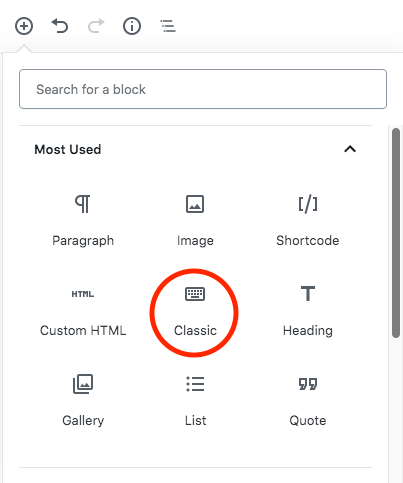
Click on the (+) to select a new block. If it’s not in your “Most Used” it will be under the “Formatting” sub-section. This should be a no-brainer as it works just like the old editor, except smaller:
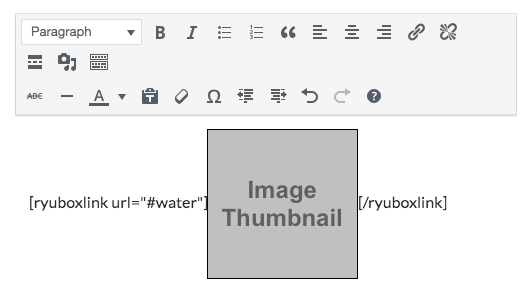
If you click on the image you get the old editing toolbar. Select the “Pencil” icon:
..and you get the old image options screen where you can select thumbnail, medium, large, full-size, or custom size options.
Paragraph Block
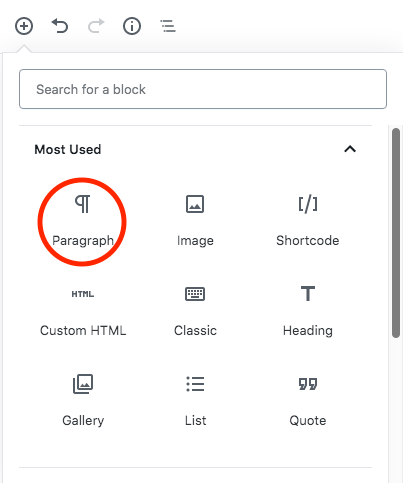
The Paragraph block is most likely already in your “Most Used” blocks. It’s also the default block Gutenberg creates. You have the option to place inline images in Paragraph Blocks:
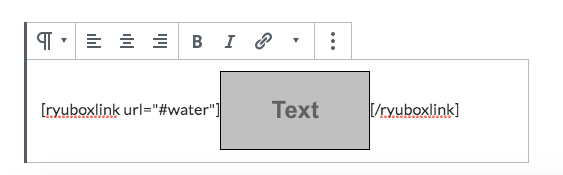
Currently Gutenberg automatically forces the inline images to 150 pixels wide with automatic height. There are no options to select a thumbnail, medium, large, full-size. Maybe the 150 pixel wide inline image is what you want, but if it isn’t use one of the other methods outlined here.
Shortcode Blocks

Click the (+) to add a new block and select “Shortcode.” Initially you’ll probably have to find it under the “Widgets” sub-section. That will add a shortcode block in which you enter the opening part for the Ryuzine shortcode. Then you have to create another block for the content inside that shortcode, in this case an Image Block, and then another Shortcode Block to close:
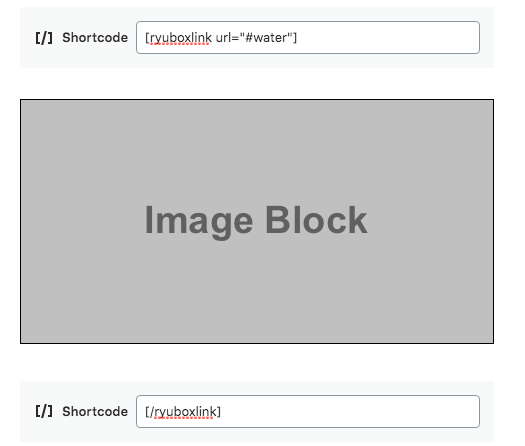
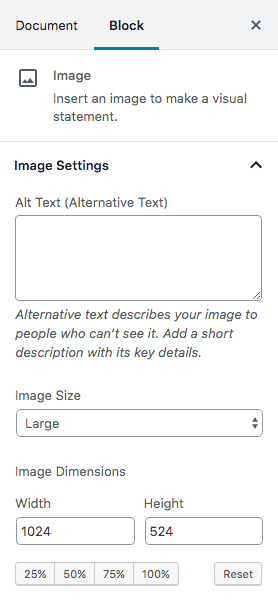
To change the image size you can either manually resize it by clicking on it and dragging the handles around or you can select “Block > Image Settings” in the sidebar:
DEPRECATION NOTICE
The old format “lightbox” add-on and the shortcodes are going to be phased out! Ryuzine 1.1 will still support using them but after that the the “lightbox” add-on will no longer be updated and the shortcodes information will be removed from Ryuzine Press (the shortcodes will still be processed, but the information page on how to use them will be removed and publishers should stop using them now). Ryuzine now has code to automatically convert old format embedded content to display in a generic Ryuzine dialog box if no lightbox add-on is loaded. The better solution, though, is to switch to the “ryulightbox” add-on, which is backwards-compatible and automatically converts old format lighbox links and embedded content to the new format.