Category Archives:

Options: Shortcodes

Ryuzine Press no longer requires the use of the shortcodes detailed below, but they were retained for backwards compatibility for anyone who had been using the beta releases.  They were used to customize the Edition cover art and create lightbox links and embedded content.

Lightbox Links

The new lightbox link method doesn’t require a shortcode, so you can enter links similar to this in your body text:

<a href=”your_url” rel=”lightbox” class=”lb_video“>…link text or thumbnail image…</a>

If the old format “lightbox” add-on is used, or no lightbox add-on is loaded at all, direct links to media will simply open in a new tab or window, while anchor links will be opened in either a lightbox or the standard Dialog box if no lightbox add-on is in use.  The new “ryulightbox” add-on can also open direct links to media in a lightbox.

If you still want to use the shortcode, though, (for example to hide the links on your regular blog front-end) you can enter them like this:

bracket_leftryuboxlink url=”your_url” type=”videobracket_right. . .link text or thumbnail image. . .bracket_left/ryuboxlinkbracket_right

Whether you use the <a> tags or the shortcode, you have a number of additional parameters you can enter:

<a rel=”lightbox”> bracket_leftryuboxlinkbracket_right Description
href url Use “#” for embedded lightbox content, or just enter any URL if not embedded.
data-linkid id “id” maps to href=”#[id]” (for backwards compatibility with existing links using old method)
data-layout layout whether image is “landscape” or “portrait” orientation which may or may not be used by the lightbox script.
title title Revealed on mouseover of link, some lightbox scripts may use it for the caption
class type Entered as class=”lb_video” in <a> tags, type=”video” in bracket_leftryuboxlinkbracket_right shortcode. Valid types are:
3d, document, info, larger, magnify, movie, photo, video, website, minus
Supplying no link type will use the standard plus icon.
data-caption caption Some scripts will use this to generate a caption. Useful for scripts that will lightbox offsite content.
data-gallery gallery An arbitrary name for the gallery to which this link content belongs (if any).
data-aspect aspect square (or omit) = 4:3 | wide = 16:9 | book = 3:4 | tall = 9:16

IMPORTANT: If you wrap a thumbnail image in a bracket_leftryuboxlinkbracket_right shortcode make sure that image does NOT have a link set for it! If it does it will try to nest an <a> tag inside another <a> which will prevent the wrapped content from being shown.

The “type=” parameter is completely optional, but allows you to control what kind of icon appears in the lower corner of the link.  The valid types are:

  • larger
  • magnify
  • photo
  • video
  • movie
  • info
  • 3d
  • website
  • document

If you are using the new <a> tag method simply prefix these with “lb_” (for “lightbox”) as the link’s class.

Normally any bracket_leftryuboxlinkbracket_right content will not be visible in the post when viewed in your regular blog theme. However, if you want them to appear in the blog as well (for example to trigger a regular WordPress plugin’s lightbox effect) change the setting on this Options setting  to “Show Lightbox Linkis content on blog.”  Lightbox links using the new <a> tag will always appear on your blog as well (and are much easier to tie into many WordPress lightbox plugins so they work both in your Ryuzine Press Editions and on your regular blog).

The “ryulightbox” add-on will look for “data-caption” text to display under non-embedded lightbox content.  If no “data-caption” is present it will then use any text in the “title” attribute for the link (not the image!), and if there is no title it will fall back to displaying the URI of the content as a link below the lightboxed content.

Note: the “ryulightbox” add-on allows you to customize what string it uses in the link “rel” attribute to identify it as a link to lightboxed content.  You have to edit the file at ~/wp-content/plugins/ryuzine-press/ryuzine/addons/ryulightbox/ryulightbox.config.js under the “reltxt” configuration setting.  The default is “lightbox” and even if you are using other lightbox plugins/scripts on your site it most likely won’t conflict (the “ryulightbox” add-on only looks for a match to the “rel” text string, and ignores anything else in the “rel” attribute value).

Built-In Lightbox

Even if you are using a lightbox plugin or script elsewhere on your blog it probably won’t work in your Ryuzine Press editions because they do not use the standard WordPress headers and footers (where the lightbox plugins typically enqueue their scripts). So Ryuzine Press has its own lightbox add-on, which is accessible through two WordPress shortcodes. Note that these only produce a lightbox effect if you also enabled a lightbox add-on in Ryuzine Press > Options > Add-Ons, otherwise the content will be displayed in a simple dialog box.

When you go to Ryuzine > Add New you can create your “lightbox gallery” in the post compose textbox. Define each item with the shortcode:

bracket_leftryubox id=”your_id” orient=”land|portbracket_right. . .whatever content you want in the lightbox. . .bracket_left/ryuboxbracket_right

You can use anything you want for the “id” value, you’ll just need to know what it is when you create the link to open it. The “orient” attribute is optional for landscape orientation content (“land” is automatically assumed), however if the content in the lightbox is portrait orientation set the value to “port” so it will fit by height, rather than width, in the webapp.

The lightbox is primarily intended for displaying images, but it can also be used to showcase other content. However, if you use non-image content either code it with max-width and max-height or percentages so it can scale, or add scaling by media-query in the issue stylesheet. If you don’t the content may not fit in the browser window on smaller screen devices.

Note: The bracket_leftryuboxbracket_right shortcode ONLY works inside Ryuzine Press posts

Lightbox Links

lightbox_links

In order to trigger the built-in lightbox you’ll need to add special links to your posts with this shortcode:

bracket_leftryuboxlink id=”your_id” type=”video”bracket_right. . .link text or thumbnail image. . .bracket_left/ryuboxlinkbracket_right

Match the “id” value to the same “id” value of a ryubox item.

The “type=” parameter is completely optional, but allows you to control what kind of icon appears in the lower corner of the link.  The valid types are:

  • larger
  • magnify
  • photo
  • video
  • movie
  • info
  • 3d
  • website
  • document

Normally any ryuboxlink content will not be visible in the post when viewed in your regular blog theme. However, if you want it to appear in the blog as well (for example to trigger a regular WordPress plugin’s lightbox effect) change the “Lightbox Links” setting to “Show” the links elsewhere on your blog.

Cover Images

Featured Image: The simplest, preferred method for creating a cover image for your Ryuzine Press Editions is to use the “Featured Image” function.  However, that doesn’t give you fine control over how the cover is displayed, in which case you may want to use the shortcode.

Shortcode: Surround an image placed from your Media Library with the “ryucover” shortcode. This image is used by the optional Ryuzine Rack newsstand webapp (which replaces the auto-generated Archive page) and is also used if you have set “Use ryucover shortcode image” as the Cover Source under the “Covers” tab above.  Syntax:

bracket_leftryucover bleed=”0|1|cover|2|contain|3|width|4|height” color=”white|blue|#ccc” shift=”Xpx Ypx”bracket_right…..bracket_left/ryucoverbracket_right

The ryucover shortcode now accepts up to three optional parameters, “bleed,” “color,” and/or “shift.” The “bleed” option accepts the following settings:

  • 0 | null : Set it to zero or no value (or omit the parameter entirely) and any image wrapped by the shortcode will be embedded in the page content, rather than set as the cover’s background.
  • 1 | cover : Fits the image, maintaining the aspect ratio, to the LARGEST size it can be that fits BOTH the width and height.
  • 2 | contain : Fits the image, maintaining the aspect ratio, to the SMALLEST size that will fit BOTH the width and height.
  • 3 | width : Will take any image wrapped in the shortcode and set it as the cover’s background, center it, and scale (maintaining the aspect ratio) by width. Any part of the image that does not fit spills beyond the borders of the page.
  • 4 | height : Will scale the background image (maintaining aspect ratio) to fit by height with any parts of the image that do not fit spilling beyond the borders of the page.

Generally the “cover” and “width” settings are similar and “contain” and “height” are similar, but they may render with slightly different bordering if they are not an exact fit for the space.

The “color” parameter, if omitted or left empty, defaults to “white.” Otherwise you can set it to any valid HTML color by name (such as “blue”), hex code (“#cccccc”), hex code shorthand (“#ccc”), or rgb/rgba color set. If you set an invalid value your background image also will not show

The “shift” parameter allows you to adjust the positioning of the background image. The default position is “center 0” if you omit this parameter, which is what you most likely want. However, if you want to change the positioning the syntax is “Xpx Ypx” with a space between the values, which need to be set in pixels. Other valid values include “center center” (may move top of image out of view), “0 0” (does not need “px”), “left top” (same as “0 0”), “right bottom” (or similar word combinations).

Promotions (Ryuzine Rack)

If you include a promotional image it is used by the optional Ryuzine Rack in the animated carousel at the top of the webapp. Ryuzine Rack will always grab the newest item and promote it (if there is no promo image it automatically builds a promotion using the catalog info). Additional promotions (if any) are displayed by date, newest to oldest, up to the maximum number of promotions you set on the Ryuzine Rack Options tab. The ryupromo shortcode has no additional parameters:

bracket_leftryupromobracket_right…..bracket_left/ryupromobracket_right

Cover & Promo Hints

Here are things to keep in mind when including a “ryucover” and “ryupromo” shortcodes:

Only the first instance of the shortcode will be used. Any additional ones for the same Edition are ignored by both Ryuzine Press and Ryuzine Rack. However they may still be displayed if you are using the auto-generated Archive page and a theme which displays full content in archive search results.

The shortcode-wrapped images are automatically scaled to fit their respective spaces. If they are too small or low resolution they’ll look terrible when scaled up.

Ideally place at least a “Medium” sized image that links to the full-size image. Ryuzine Rack will prefer the thumbnail, Ryuzine Press will prefer the full-size image. If you place an image without a link both will end up using the same image.

Cover images should be in “portrait” orientation, not “landscape.” The cover images are distorted to fit the aspect ratio of the cover thumbnail. Images used as Edition covers, though, are scaled to fit by width while maintaining the original aspect ratio of the image.

Promotional banners should be in “landscape” mode, not “portrait.” The promotional images are scaled to fit the carousel by width while maintaining the aspect ratio (i.e., they are not distorted).

The maximum display sizes are 150×230 pixels for Ryuzine Rack cover thumbnails and about 640×800 for Ryuzine Press Edition covers.

All promotional images should be 640×300 pixels. If you do not want to create one simply do this: ryupromoauto/ryupromo and Ryuzine Rack will automatically construct a promotion for that item.

For better image quality on high-density displays (like on the iPad 3 and iPhone 4 or 5) you need to use images around 2x larger than the dimensions given immediately above.

To make Ryuzine Rack load more quickly you can sacrifice image quality and use smaller images that will load faster. You can also reduce the maximum number of promotions and promotional images.

Embed Ryuzine

This shortcode allows you to easily embed any Ryuzine Press Edition in a blog post or page (similar to how you can embed videos) by just using the Edition’s title.

bracket_leftryuzine title=”Ryuzine Press Edition Title”bracket_right

The shortcode accepts the following parameters:

  • title: The actual title of a Ryuzine Press Edition or “ryuzine-rack” to embed the newsstand (assuming it is installed to the current theme).
  • url: Allows entering a raw URL (over-rides any “title” setting) but is restricted to YOUR site and only Ryuzine Press Editions*
  • page: On load flip the Edition to a specific page number.
  • height: The height of the embedded publication in pixels or percent (add “%” sign if percentage)
  • width: The width of the embedded publication in pixels or percent (add “%” sign if percentage)
  • size: small|medium|large|spread enter one of these preset sizes (if present over-rides height and width)
  • class: a stylesheet class name to apply to the iframe
  • style: inline styles to apply to the iframe

Everything other than the “title” is optional. You can also style the different elements of the embed by the following classnames:

  • ryuzine_embed – the DIV container for the embed
  • ryu_embed_tab – the links below the embedded Ryuzine
  • ryu_embed_tabbox” – the main container for the “Embed Code” form (div container not form tag)
  • ryu_embed_input – the Height and Width text inputs

* Embedding off-site Ryuzine URLs is blocked by design. Because you do not control a third-party site embedding represents a security risk. If you want to cross-promote with other Ryuzine publishers use the Ryuzine Rack Catalog Builder to create an entries for their content and install Ryuzine Rack to your theme.
Options: Advertising

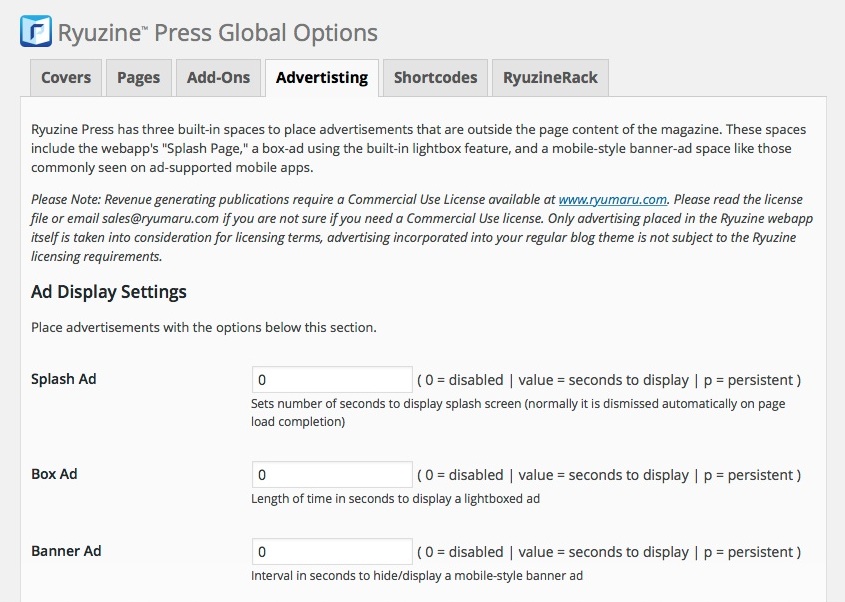
The fourth tab on the “Options” section is for configuration of any Advertising using the webapp’s built-in ad areas.

Ad Display Settings

ad_display_settings

This is where you really enable each of the built-in ad areas by setting how long the ad(s) will display.  Setting the duration to zero will disable them, any other values will be the number of seconds to display the ad before automatically moving on, entering a letter “p” will make the add “persistent” (meaning the reader will have to manually close the ad).  Readers can always close an ad sooner than the duration you’ve set.

Ad Content Settings

ads2

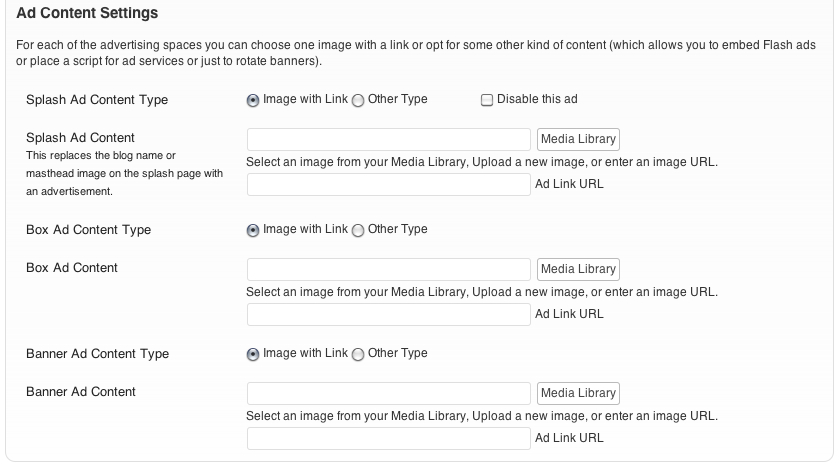
Each of the built-in advertising areas has a similar method of configuration.

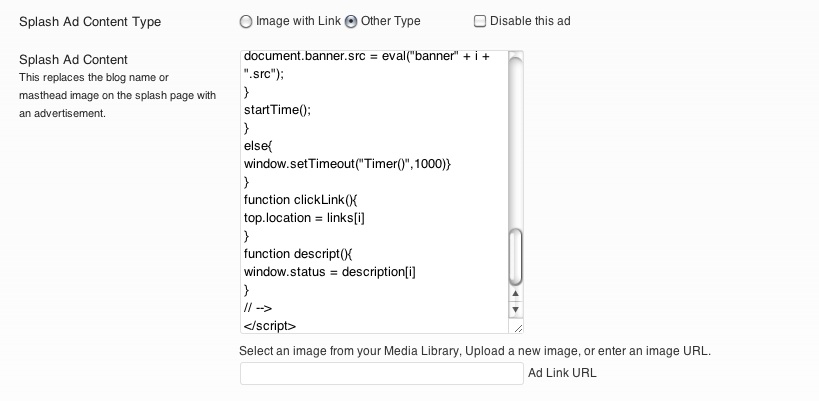
Type – You can select whether to use an image from your WordPress Media Library or some other type of advertising content.  If you select “Other Type” the image URL box is replaced by a text area box into which you can enter any kind of code.  In particular this means you can add “ad rotator” scripts, code to embed a Flash ad, or a code snippet for some third-party ad service.

Options_Ads3

The “Disable this Ad” checkbox will keep the ad content (whatever it is) from displaying in your Ryuzine Press Editions.  This option means you can set up various ads and have them ready to go and simply uncheck to box to make them go “live” in your magazines, for example, as part of a promotion or marketing campaign.

Ad Content – as noted above this will either be an image from your Media Library with or without a corresponding link entered in the “Ad Link URL” box or some other type of advertising code.

Keep in mind the available space for these ads within the webapp.  While images are automatically scaled to fit by width, other ad types may not auto-adjust.

Options: Add-Ons

The third tab of the “Options” section is where you configure any of the add-ons you may have may want to use.  If you set an Add-On or Theme for use and it isn’t working double check that the add-ons and themes are actually installed to your server (they should be since Ryuzine Press now installs a webapp package that contains them all).

Language Settings

Press_Language

HTML Natural Language is used by auto-translation services and web browsers to recognize the native language in which a document is written and also to use the correct International character set.  It does NOT automatically translate your document to another language, it is used to define the language in which the document was written.

UI Language Code is ignored unless you also load the “Localize” add-on.  That add-on translates the webapp’s user interface into the selected language.  Again, this does NOT translate the document itself, just the User Interface.  It is intended to allow authors publishing in languages other than English and easy way to alter language on the automatically-generated user interface to match the language in which they’ve written the document.  The UI translations were performed by Google Translate and may not be accurate.

Note: If you apply one language to the UI with the “Localize” add-on and the document is in some other language it can confuse auto-translation services.

Optional Add-Ons

ryuzine_press_addons

The Ryuzine webapp has it’s own Add-On system.  Enabling and disabling these Add-Ons for your publications is very similar to Activating/Deactivating WordPress plug-ins.  The list of available add-ons in built from whatever is found in the /ryuzine/addons sub-folder and you can enable/disable them by ticking or un-ticking the checkboxes.  Below the list you’ll also notice a line that says “Add-On Load Order” with a comma-separated list.  The order in which you tick the checkboxes changes the actual Load order of the add-ons.  This way, if you have one add-on that is dependent on another, you can make sure they load in the correct order.

Ryuzine Theme Settings

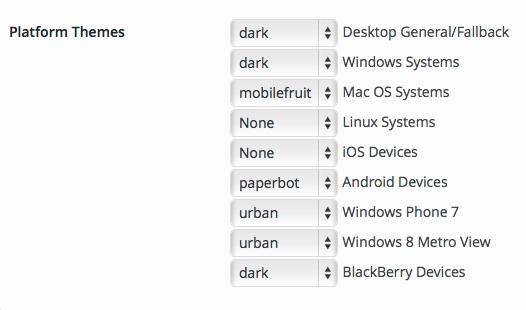
The Ryuzine webapp has its own theme system (which is completely independent of the WordPress theme).  If you install the “Theme Pack” you can also configure different themes to be delivered to different platforms, for example, to give Android users and iOS users each a theme that gives a more “native app” appearance to the interface.

Page Shadows – As the page animations turn there is a “shadow” drawn under them to give a more realistic three-dimensional appearance.  Some browsers and devices, however, may suffer performance issues trying to animate the semi-transparant layers.  If you want to better accommodate legacy and low-end users turn the shadows off.  Note that end users can enable/disable this on their own in the webapp’s “Options’ panel.

Default Theme – This drop-down allows you to select a default theme for your publications.   If you are not using Swap Themes this is the only theme that will be used.

Swap Themes – Determines whether or not the Platform Themes will be used or not.

Platform Themes – You’ll see after each box it says what platform would receive that theme when “Swap Themes” is enabled.
Press_Themes

If you leave a box blank that platform will get the un-themed interface (Platform Themes over-ride any Default Theme setting).  While you can, in theory, target different platforms with different themes you never know if a browser may be “spoofing” its user-agent string.

Options: Pages

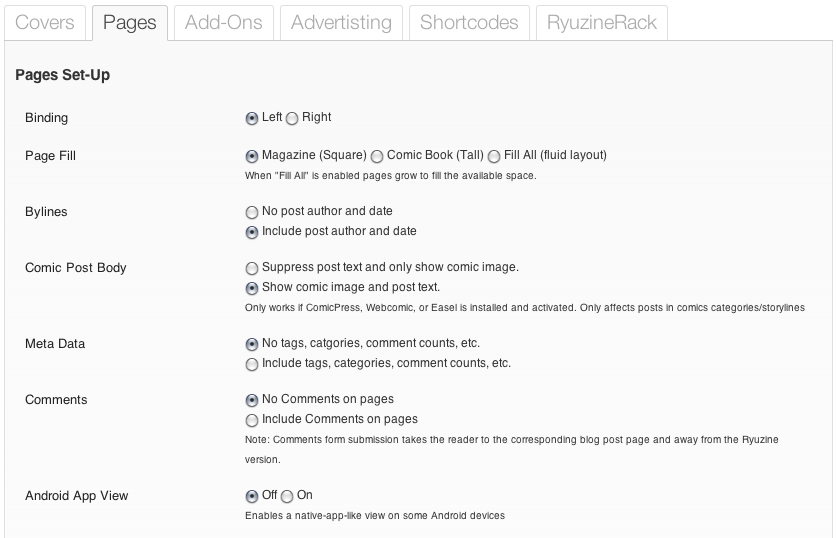
The “Pages” tab of the “Options” section allows you to do global configuration of how pages behave in all your Ryuzine Press Editions.

Pages Set-Up

Binding

The Ryuzine webapp is designed to support virtualization of right or left bound books.  In particular right-hand binding was added to accommodate a realistic simulation of Japanese Manga style comics.

Page Fill

This option controls the size of the virtual Ryuzine magazine pages.

Magazine (Square) – is more like a traditional magazine in shape.  If you’re publishing a newsletter or magazine style Ryuzine use this setting.

Comic Book (Tall) – if you are publishing a webcomic consisting of pages drawn in a typical, traditional comic book format this option will best fit your artwork and provide a more “authentic” comic book reading experience.

Fill All (fluid layout) – causes the pages to literally fill ALL the available space in the browser window.  This should only be used for “fluid” layouts (i.e., those that use percentages instead of set widths and heights).

Bylines

Normally WordPress posts who the screen name of a post’s author and the date it was published.  If you’re doing more of a magazine-style publication it makes sense to include these, but if you’re publishing a webcomic where all the posts are by the same author and the publication date isn’t really important you can suppress display of the author and date.

Comic Post Body

If you are using the ComicPress, Webcomic, or Comic Easel plugin on your blog this option allows you to selectively show or hide any post text associated with a comic post.  If you want your Ryuzine Press Edition web comic to be more like a real comic you’ll probably want to suppress the text and just show the comic on each page.

Meta Data

Regular WordPress blog posts are usually accompanied by “meta data” such as the category or categories to which the post belongs, tags, comment counts, etc.  Some of which are links to blog post archive pages, but those links within a Ryuzine publication page will take your readers away from the magazine version and to the blog.  If you don’t want that to happen you can simply suppress display of all this meta data.

Comments

If the reader feedback to an article is important you can opt to show those comments right in the Ryuzine Press Edition pages.  You’ll also see a comment box, but (like the Meta Data links) submission will take your readers away from the Ryuzine edition and to the corresponding post on your blog.  For a cleaner, more magazine-like appearance and to prevent users inadvertently leaving the magazine format you can turn commenting off.

Page Slider

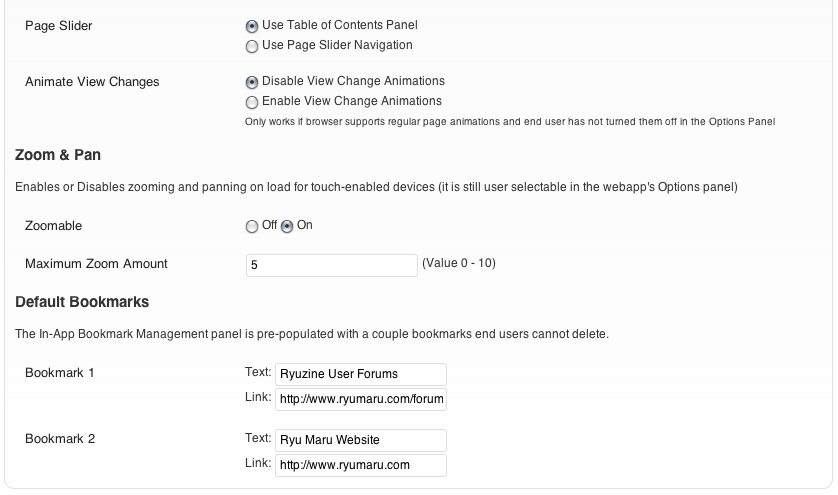
Ryuzine Reader normally uses a “Table of Contents” panel showing the titles of all the blog posts you included in the Edition.  If your content is something that doesn’t really need page titles (for example, a webcomic) the “Page Slider” navigation may be more appropriate.  Simply select which kind of navigation you would like to be set as the default (your readers can set their own preference in the Options Panel too).

Animate View Changes

Normally when a reader changes the View the webapps animate the current view sliding out and the new view sliding in.  When this is disabled the view “snaps” from one change to another (readers can set their own preference for this in the Options Panel too).

Zoom & Pan

Touch-enabled devices typically allow users to zoom in and out on web content and pan/drag the content while zoomed.  Mobile apps, however, often are not zoomable.  The Ryuzine webapp can do both and this option determines whether your magazines will have zooming enabled by default (like any other web page) or if they will have it disabled (like most mobile apps).  You can also set the maximum zoom factor between 0 – 10 (zero effectively disables zooming even if the feature is enabled, 5 is the default, 10 is the maximum).   End users, however, can selectively enable and disable this feature in the webapp’s “Options” panel, so this is just the initial setting the first time someone opens the magazine.

Default Bookmarks

The Ryuzine webapp includes an in-app multi-bookmarking and a Bookmark Management Panel to add, delete, and access those bookmarks.  There are also two “default” bookmarks which end users cannot delete that are configurable by publishers.  Normally they point to the Ryuzine User Forums and Ryu Maru Website, but you can change them to point to your own resources instead.

Options: Covers

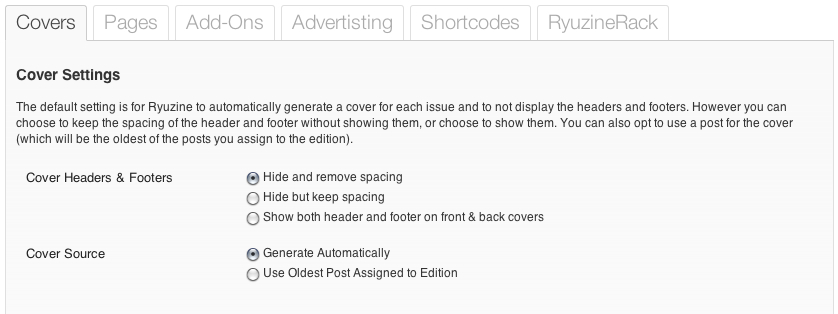
If you go to Ryuzine Press > Options you’ll see several tabs for global configuration of your Ryuzine Press Editions.

Cover Settings

Cover Headers & Footers

You have three options for what to do with the front and back cover Headers and Footers:

  1. Hide and remove spacing – This is the default setting allowing for a more “magazine-like” appearance.
  2. Hide but keep spacing – suppresses the display of the header and footer content, but keeps their heights as top and bottom margins.
  3. Show both Header & Footer – if you prefer a more newspaper/newsletter style format, and especially if you are using a post as your cover, this will show both headers and footers.

Cover Source

The default setting is to “Generate Automatically” which takes your Masthead settings and Featured Articles posts to construct a cover page with a list showing the titles of the featured posts (if any) that are also active links to their page within the Ryuzine Press Edition.

Alternatively you can opt to show the oldest post (of those assigned to the edition) as the front cover.  This may be preferable for a more newspaper/newsletter type presentation.  You may also want to do this for webcomics if, for example, each volume/chapter/issue begins with a “cover art” style post.

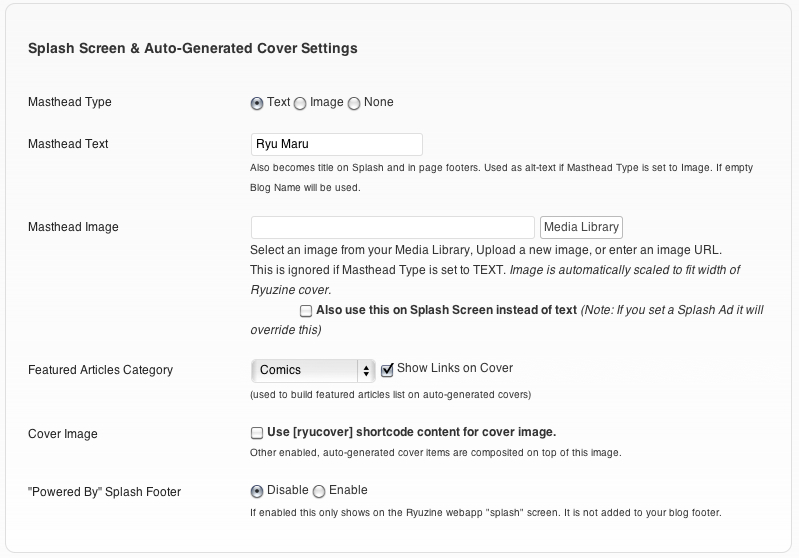
If you set the Cover Source to generate the cover automatically for you then the settings in the “Splash Screen & Auto-Generated Cover Settings” section are used:

Update: New with version 0.9.6.8 you can select whether the auto-generated covers should prefer an image inside of the shortcode or if it should use the “Featured Image” attached to the Edition.  You can also change this in the Custom Configuration settings for each Edition.

Mastheads

The next section deals with the Masthead settings for automatically generated covers.  You can go with just plain text if you like, or use an image.

Text – If you do not opt to use a Masthead Image this will be the text on the cover of your Ryuzine Press Edition. Enter the text in the “Masthead Text” box (the Blog Title is automatically inserted for you).  This text is also used on the webapp’s “Spash” screen and in the footers of pages next to the page numbers.

Image – is optional and you can select anything in your WordPress Media Library with the button next to the “Masthead Image” entry field.  There is also a checkbox allowing you to use this image on the webapp’s “Splash” screen instead of text (note that if you set a “Splash Ad” it will over-ride the Masthead Image in favor of the advertisement).

None – means you do not need a masthead of any kind composited onto your cover.

Featured Articles

You can also have Ryuzine Press automatically generate a set of “featured” links on your cover.  Select the category from the drop-down list and then tick the “Show Links on Cover” box.  The FIVE most recent post in the selected category will have their titles shown on the cover as links to the page on which those posts appear within the Ryuzine Press Edition.

Cover Image

If you already have an image you’d prefer to use as your publication’s cover art you can tick the box.  Then, in the Ryuzine Press Edition post simply place the image you want to use in between the [ryucover]… shortcode.  If you are also using the optional Ryuzine Rack newsstand that same cover image is used for the thumbnail there.

The shortcode also accepts parameters that control the background color and coverage settings for the image without having to add it to your issue-specific stylesheets (see the section of this manual on “Shortcodes” for full details).

Powered By Splash Footer

If you would like the words “Powered By Ryuzine Press” to appear in the footer area of the Splash Screen “Enable” this option and show our webapp and plugin some love!

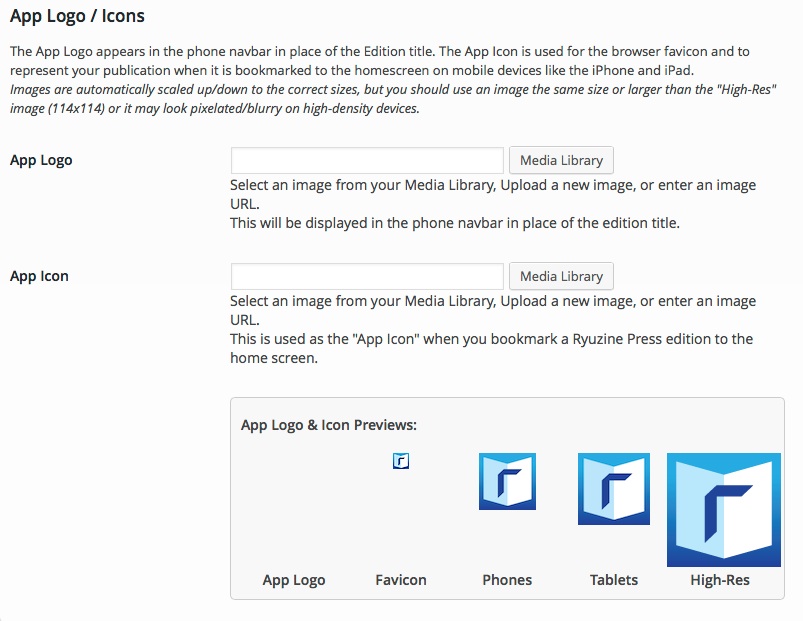
App Logo & Icons

app_logo_icons

The “App Logo” is an image used on Reader navbar on phones and on the Rack navbar for all platforms, which allows you to “brand” the navbar with your own logo or icon (note: Rack catalogs can over-ride this with catalog-specific branding).

The Ryuzine webapp is coded to use an “App Icon” if it is bookmarked to the home screen on iOS and Android devices.  Many other browsers will use the “favicon” in the address bar and if the Ryuzine publication is added to the browser’s bookmarks.

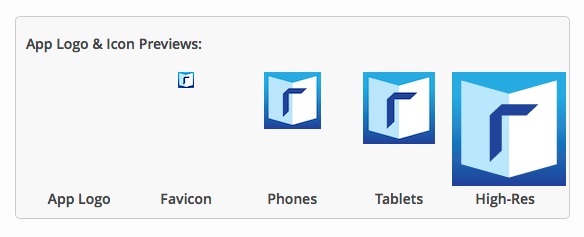
This section of the Options allows you to custom “brand” your Ryuzine Press Editions with your own icon or logo.  Select an appropriate image from your Media Library and “Save” the changes.  You will see previews of the images scaled to the required sizes (no App Logo is set so it is blank):

App_Icons_Press

Reset to Defaults

You’ll also notice there is a checkbox at the bottom of the Options section that says “Reset to Defaults on Activation/Deactivation.”  If you check this box and then go to the “Plugins” section and click “Deactivate” and then “Activate” under the Ryuzine Press plugin in the list it will clear all custom settings in the database and replace them with the original default settings upon initial installation of the plugin.  Note: clicking the checkbox automatically submits the change to the database as well.

Important!  When you update the Ryuzine Press Plugin you do not usually need to wipe your settings.  However, if you don’t you’ll need to go through all the tabbed Options sections and make sure every options has some kind of selection, in case new options were added by the update they’ll need you to set them or the Ryuzine webapp may stop working until you do.

Issue-Specific Styles

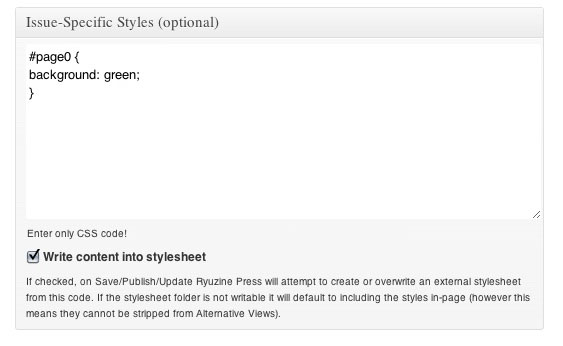
The third extra text box on the Ryuzine Press > Add New or post edit page is labeled “Issue Specific Styles.”  If you want to style something specifically for the currently selected Ryuzine Press Edition this is where you do it.

Edit3

In the box enter styles without <style>….</style> tags.  Each element of the Ryuzine publication is already tagged with a unique ID and a general class.  For example, the cover is always ID=0 and the parts can be references as follows:

#folio0 – this is the container that determines page width and height
#page0 – the actual page.
#shadow0 – the shadow (if enabled) under the page as it turns.
#header0 – the header on the page.
#live0 – the “live area” is between the header, footer, and left/right margins.
#column0 – the actual page content ends up in this container.
#footer0 – the page footer showing the publication title and page number
#margin-left0 – page turn button in the left margin (disabled for the cover)
#margin-right0 – page turn button in the right margin

Each of these elements is also part of a generic class similarly named:

.folio, .page, .shadow, .header, .footer, .live, .column, .footer,
.margin-left, .margin-right

Let’s say you wanted the background of your cover to be green and didn’t want the headers or footers to show anywhere in the magazine, but you did want to keep their spacing.  Here’s what you’d put in that “Issue-Specific Styles” box:

#page0{ background: green; }
.footer, .header { visibility: hidden; }

If you wanted to style the back cover without having to figure out what the id number for it is you can reference it by the “covercorners-back” class, which is always attached exclusively to the back cover.  For example to set the back cover’s background:

.covercorners-back .page { background: lightblue; }

You probably also noticed the “Write Content Into Stylesheet” checkbox.  If that box is checked AND the ~/wp-content/plugins/ryuzine-press/generated_css/ folder is writable, the Ryuzine Press plugin will attempt to create an external stylesheet using whatever styles are in the “Issue-Specific Styles” box when you save or update the Edition post.

Beta Testers: note that the location has moved from ~/wp-content/plugins/ryuzine-press/ryuzine/css to -/wp-content/plugins/ryuzine-press/generated_css/ so updates to the webapps do not require regenerating stylesheets, only updates to the plugin itself.

If the directory is not writable or you did not tick the checkbox an external stylesheet is not generated.  In that case any styles in the “Issue-Specific Styles” box will be written directly into the Ryuzine webapp page.  When viewing a Ryuzine Press Edition it will check for the existence of an external stylesheet.  If it doesn’t find one it writes the styles into the page with the content.  This means you can also create the external stylesheet for an edition yourself and upload it manually to the Ryuzine webapp “css” folder.  Just name the file in the format of “issue_id.css” where “id” is the Ryuzine Press Edition’s ID number (which is shown on the Ryuzine Press > All Posts table).

Why external stylesheets?  The Ryuzine webapp has alternative viewing modes, one of which is labeled “HTML Only” and is intended to strip out all issue-specific styles and deliver just raw text and images.  When the styles are written directly into the page they cannot be stripped out.  So, the only downside if you don’t have the external stylesheets is if your readers want to use the “HTML Only” alternative viewing mode (which some may need if they are using low-end mobile devices).  If that’s not a huge concern to you, though, you can simply never check the “Write Content Into Stylesheet” box.

Note: If you accidentally move, rename, or delete issue-specific external stylesheets and your server is set up to allow auto-generating them there is a button in Ryuzine Press > Tools > Update Ryuzine “Regenerate Stylesheets” which will create/recreate the external stylesheets in a bulk process.  This is an easy way to make sure every Edition with issue-specific styles has corresponding stylesheet, but if you have published a lot of Editions it can take a while to complete the operation.

One of the best uses of the issue-specific styles is to tile a pattern or color into the background of a specific page, or do a “full bleed” background image.  Here is a sample stylesheet for something like that:

.page { background: tan url('https://www.myblog.com/blog/wp-content/uploads/2012/02/parchment.jpg'); }
#page0 { background: #ccc url('https://www.myblog.com/blog/wp-content/uploads/2012/02/covershot_medium.jpg') 0 0 no-repeat; }
/* Widescreen Monitor */
@media only screen and (min-width: 1600px) {
#page0 { background: #ccc url('https://www.myblog.com/blog/wp-content/uploads/2012/02/covershot_xlarge.jpg') 0 0 no-repeat; }
}
/* Desktop Screen 1280 to 1600 px */ 
@media only screen and (min-width: 1280px) and (max-width: 1599px) { 
#page0 { background: #ccc url('https://www.myblog.com/blog/wp-content/uploads/2012/02/covershot_large.jpg') 0 0 no-repeat; }
}
/* iPad in Landscape */
@media only screen and (min-width: 1024px) and (max-width: 1279px) {
#page0 { background: #ccc url('https://www.myblog.com/blog/wp-content/uploads/2012/02/covershot_medium.jpg') 0 0 no-repeat; }
}
/* iPad + Android Tablet in Portrait */
@media only screen and (min-width: 768px) and (max-width: 1023px) {
#page0 { background: #ccc url('https://www.myblog.com/blog/wp-content/uploads/2012/02/covershot_xlarge.jpg') 0 0 no-repeat; }
}
/* Android HVGA and WVGA in Landscape */
@media only screen and (min-width: 600px) and (max-width: 767px) {
#page0 { background: #ccc url('https://www.myblog.com/blog/wp-content/uploads/2012/02/covershot_large.jpg') 0 0 no-repeat; }
}
/* iPhone + iPod Touch + Android Phone in Landscape */
@media only screen and (min-width: 480px) and (max-width: 599px) {
#page0 { background: #ccc url('https://www.myblog.com/blog/wp-content/uploads/2012/02/covershot_medium.jpg') 0 0 no-repeat; }
}
/* iPhone + iPod Touch + Android Portrait */
@media only screen and (max-width: 479px) {
#page0 { background: #ccc url('https://www.myblog.com/blog/wp-content/uploads/2012/02/covershot_small.jpg') 0 0 no-repeat; }
}

What that does is tiles a “parchment.jpg” image as the background of all pages (and uses a tan color if the image isn’t loaded).  Except on the cover where we load an image designed to fill the background of the page.  Since the page changes sizes depending on the screen size we need to “scale” our background image too by using “media queries” to send a differently sized image depending on the screen size.  The first declaration is a “fall back” image if the browser doesn’t understand media queries.  If our background images isn’t loaded the cover will be a light gray color, rather than tan.

Typically you don’t need a new image for every screen size.  If you are using background images that need to be scaled it is recommended you create them like so ( minimum width x height):

  • xlarge: 768 x 1024 .  Used for large widescreen monitors in two-page spread view and for iPad in portrait single-page view.
  • large: 600 x 800.  Used for “Desktop” two-page spread view and many Android tablets in portrait mode.
  • medium: 550 x 750.  Used for iPad landscape two-page spreads and phone landscape views.
  • small: 480 x 550. Used for phone portrait views.

Obviously if it’s not important that parts of the image be cut off you can get away with using even fewer images.

Getting Started

Creating a Ryuzine Press Edition with WordPress is really easy!  Once an “edition” has been set up you can assign new or existing posts to it, creating a curated magazine-style version of your blog content.  The posts will also still be available via your regular blog because the Ryuzine Press Editions exist alongside the blog, not in place of it.

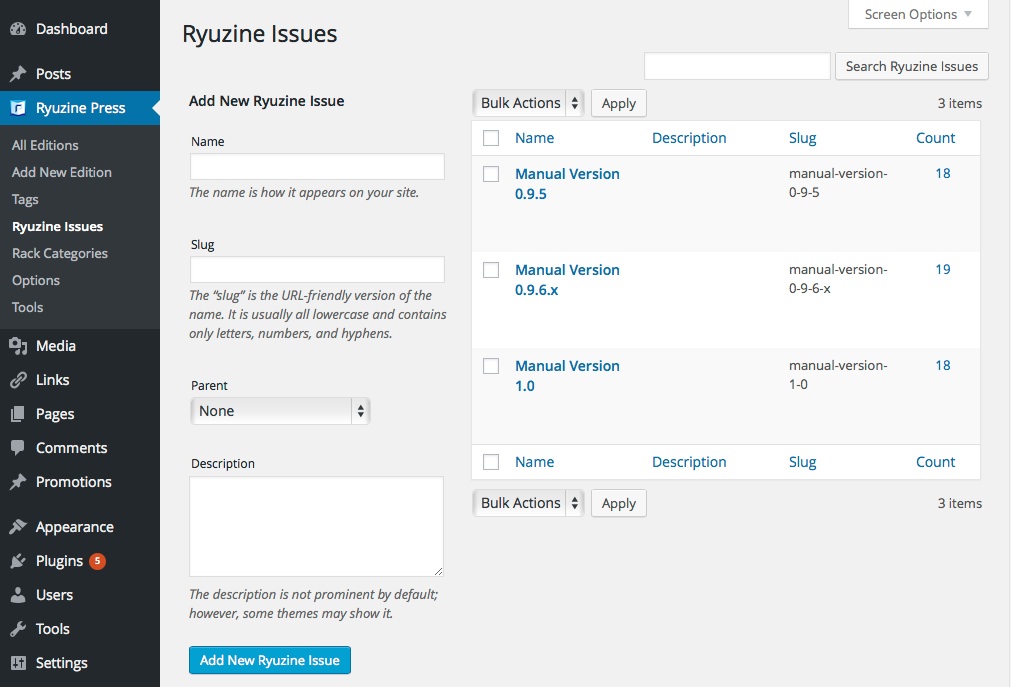
Create an “Ryuzine Issue”

You need to create an Issue that defines each “edition” you want to publish.  You can either use an existing issue or (preferably) create a new issue for each edition. Go to:

Ryuzine Press > Ryuzine Issues > Add New Issue

edit_issues

Enter something descriptive like “Issue #1” in the box (or however you want to list this edition).  It can either be a top-level entry or the child of another entry, it doesn’t matter so organize things however you please.  You can also create these in the Edition post composition window.

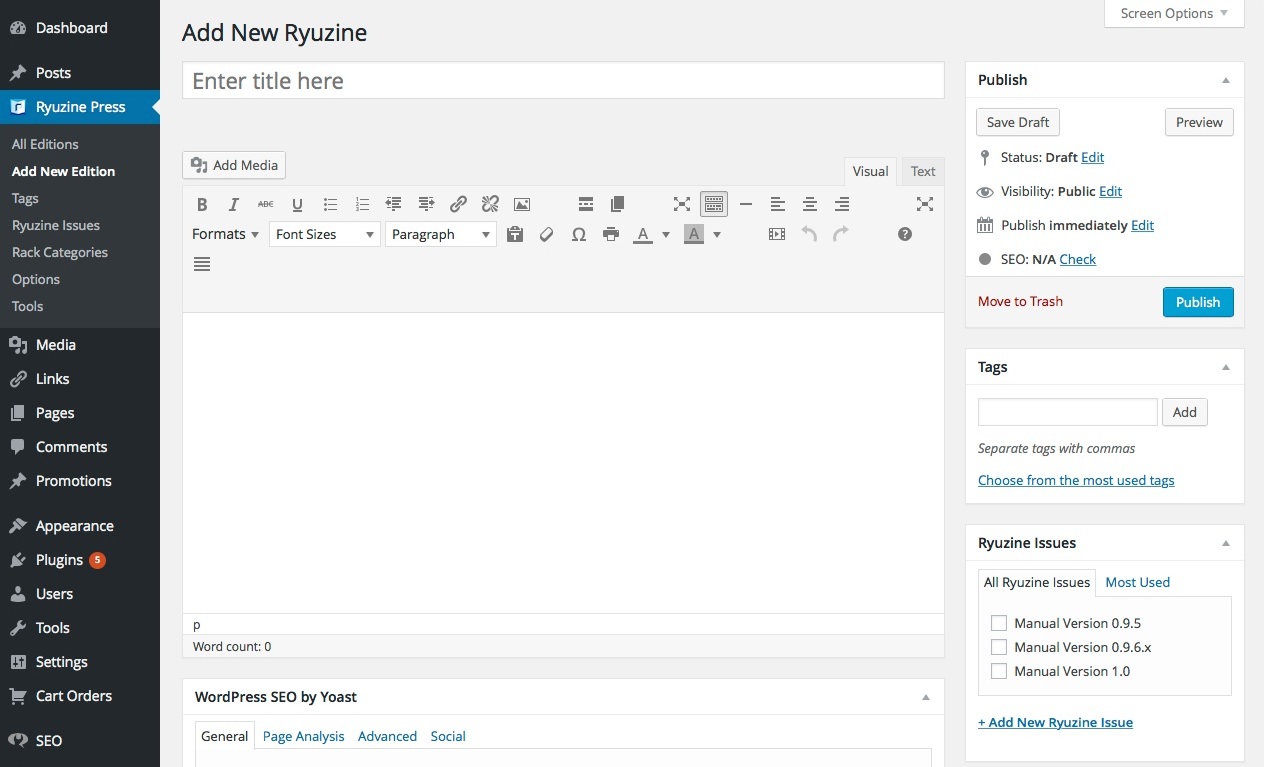
Create A New Edition

Ryuzine Press > Add New Edition

add_new_edition

You’ll see a familiar looking “Post” compose window.  Give this edition a title and, optionally, write a brief description or summary of what will be in this issue.  This text doesn’t show up in the edition itself, but is used for excerpts on the archive page and will also be cataloged by search engines.

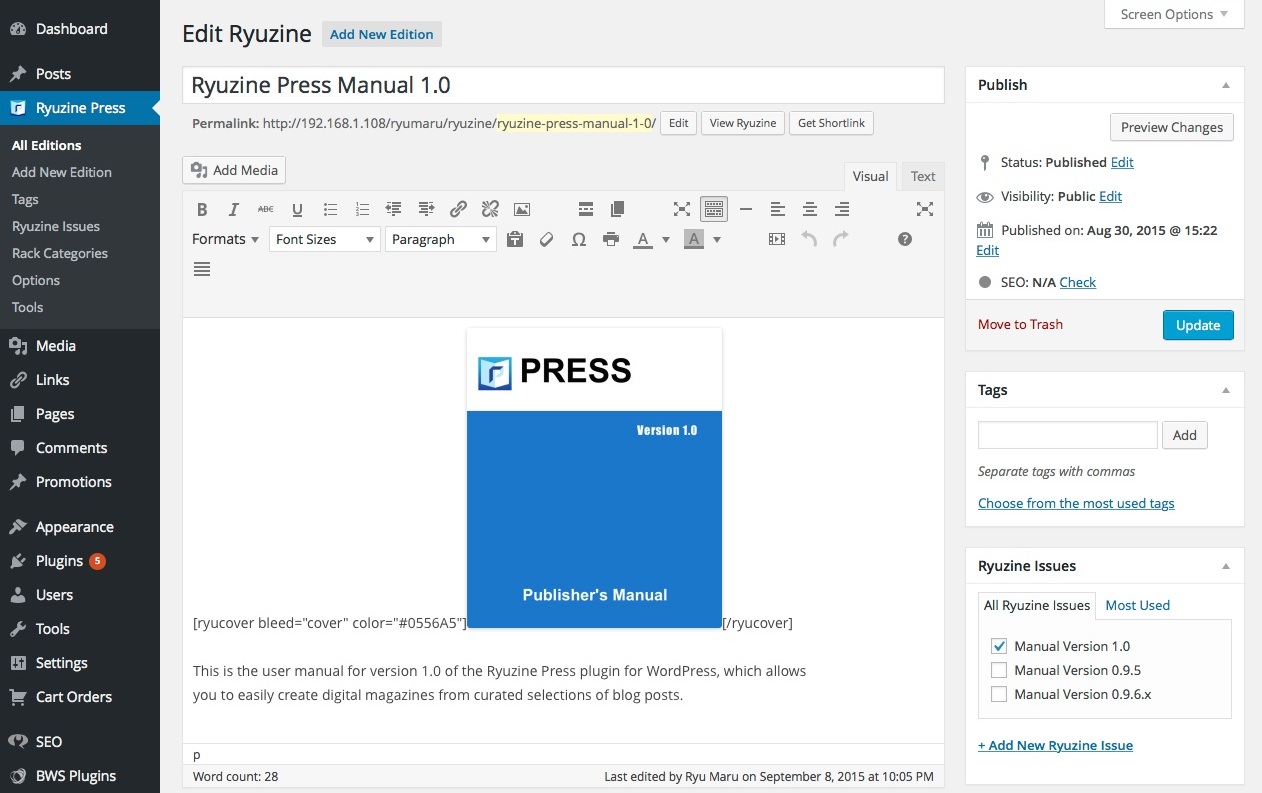
edit_edition

As of version 0.9.6.6 you could assign an Edition to multiple Ryuzine Issues, creating a “Collection” that includes all the posts assigned to each issue.  Be careful with this!  You can easily create very large Editions that take a long time to load and will most likely exceed browser cache limits and crash mobile browsers.

You can also enter content wrapped in shortcodes to create “gallery” items to display with the Ryuzine webapp’s built-in lightbox feature (more on that in another section).

Edit2

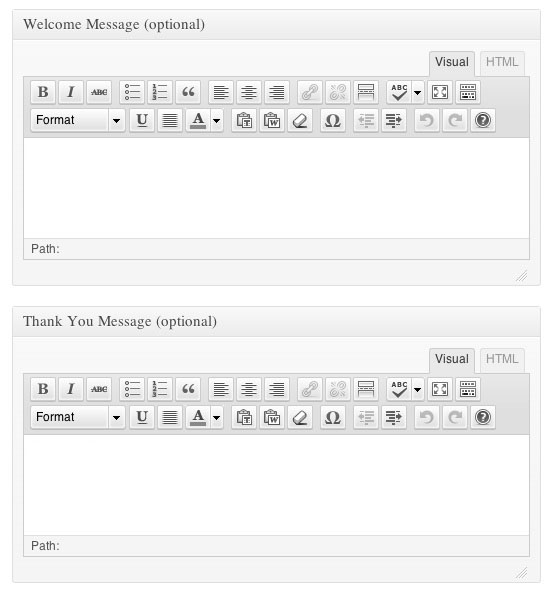
You’ll also notice two more text boxes below the main compose window.  One is labeled “Welcome Message” and the other “Thank You Message.”  When a Ryuzine Press Edition is viewed in a browser wider than 1024 pixels it enteres “two-page spread” mode.  With the magazine closed to the front cover there is space next to it (on the “table top”) where you can display a short welcome message to your readers.  When they finish reading and close the magazine to the back cover it reveals another adjacent space where you can put a similarly short “Thank You” message (this is also a good place for a quick “call to action,” sales pitch, or to tell them what the feature piece of the next edition will be.

Edit3

The last text box does not have a rich-text editor option and is labeled “Issue-Specific Styles.”  This is where you add stylesheet classes specific to this Ryuzine Press Edition (this will be covered in the next section).

Featured Image Cover Art

You can also attach a “Featured Image” to use as cover art instead of using the bracket_leftryucoverbracket_right shortcode (however the shortcode offers more control of how the image is displayed as a cover).

Custom Configurations

There is a metabox at the bottom of the Edition edit post page that allows you to over-ride the global configurations set on Ryuzine Press > Options with settings applied specifically to that Edition.  It doesn’t repeat all the options, but does offer you the ability to easily change the binding, page size, cover art source, language settings, and apply a theme that may be different from the rest of your Editions.

Assigning Content to Editions

This is where you get to select your curated content that will be assigned to the edition.  Go to Posts > All Posts to assign existing posts or Posts > Add New to create new content for this edition.

Either through the “Quick Edit” option, or in the Post editor assign each post to the same Ryuzine Press Issue you previously selected for the Edition.  If the “Ryuzine Issues” panel isn’t visible in the Post Editor you may need to press the “Screen Options” tab near the top of the window and tick the “Ryuzine Issues” box.

As you assign posts keep in mind that they will be displayed in the Ryuzine publication from oldest to newest (this is typically the opposite of the order in which Archive pages will display them).  Posts you assign can belong to multiple issues at once, but they must belong to the same issue as an Edition to display within that edition.  You can, of course, include a post in more than one Edition as well.

Now all these posts exist in two places – within your Ryuzine Press Edition AND within your regular blog.  If you’ve enabled discussion for a post you can decide in the Ryuzine Press Options whether or not to show comments and the comment box within the pages of your Ryuzine Press Editions or not.  However, if a reader does submit a comment they will be taken to the corresponding blog post page afterwards and away from your Ryuzine Press Edition.  The pages, however, look a lot more clean and magazine-like if you disable comments.

Just like a real magazine the Ryuzine webapp expects page counts to be even numbers (the minimum number of posts you can assign is actually one page – the plugin will automatically add blank pages to make the count even.  The added pages are dynamically generated code, not actual blog pages – so don’t worry the plugin does not add tons of blank pages to your blog.

Due to what is probably a bug in WordPress you are allowed to publish posts without titles.  The Ryuzine Press plugin has a built-in fix for any such post where it will dynamically insert “Page” and the page number as the title on the page within the Ryuzine Press Edition and in the Ryuzine webapp “Table of Contents” (or you’d have no text to click).  The actual post, though, remains unaltered.  The Ryuzine Press plugin does not alter post content in your database.

Note: If the posts you have assigned are “Drafts” rather than “Published” they will not show up in the Ryuzine Edition to which they are assigned, even if you’re only viewing a “draft” version of the Edition itself.  Posts MUST be published to be used in a Ryuzine Edition.

Managing Editions

all_editions

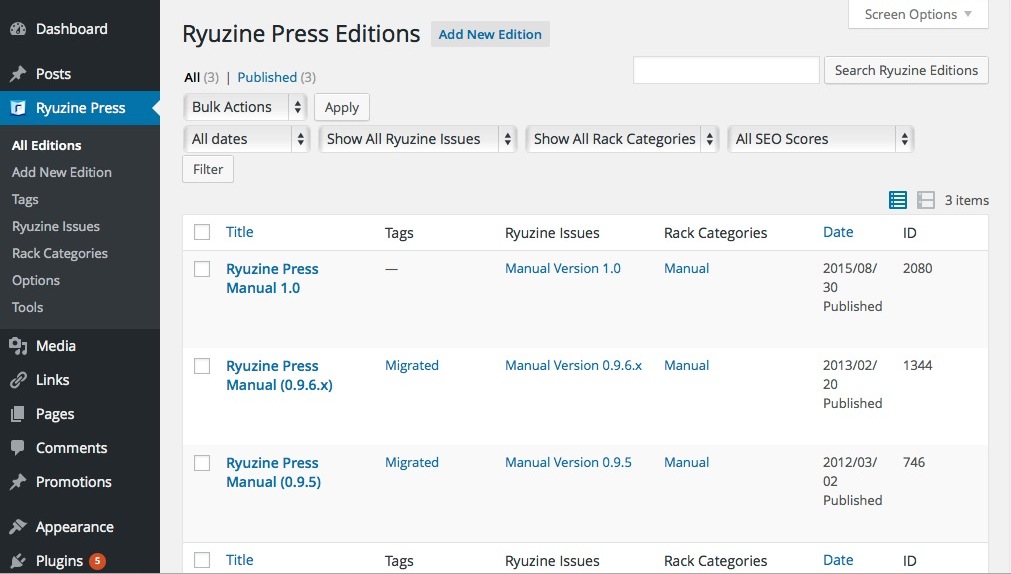
Once you’ve created a bunch of Ryuzine Press Editions you may need to go back and change something, fix a lightbox gallery item, or whatever.  You manage your Ryuzine Press Editions in the same way as any other post, except you do so under Ryuzine Press > Editions.  You’ll see a familiar looking post management list, the only difference is each item references one of your editions.

As of version 0.9.6.6 the “Categories” column is gone because it is no longer used.  It has been replaced by the “Ryuzine Issues” column.  You’ll also see that “Tags” are now available for Ryuzine Press Editions and another new column for “Rack Categories.”

“Tags” work for Ryuzine Press Editions just like they do for any other blog post, but these tags are ignored by the Ryuzine Press Plugin itself.  The “Rack Categories” are used by the Ryuzine Rack newsstand (if it is installed to theme), because it uses it’s own non-hierarchical category system independent of WordPress categories.  If you are not using Ryuzine Rack you can just ignore this column.  If you are using Ryuzine Rack, though, there is now the capability to edit and add Rack Categories as easily as any other category in WordPress.

You’ll also notice there are two new drop-down selectors to filter your Ryuzine Press Editions by Issue and Rack Category.  The Issue drop-down filter also appears on the regular Posts page and, if installed, the Comic Easel post management page.

Installation

Install the Ryuzine Press Plugin

The Ryuzine Press plugin is currently only available as a download directly from www.ryumaru.com.  It is not currently available for automatic installation or updating from the www.wordpress.org official repository.

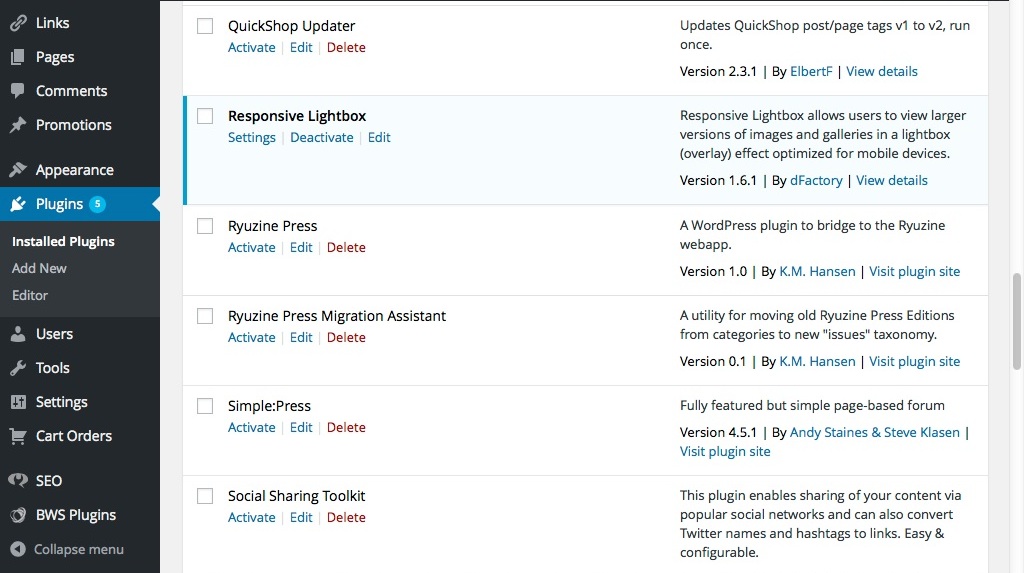
Download, unzip, and upload the “ryuzine-press” folder to your WordPress Plugins folder. Go to the Plugins section of your Admin menu and click the “Activate” link. There will be a “Ryuzine Press” admin menu under the “Posts” with several options.
activate_plugin

Note: Once everything is installed, If clicking “View Ryuzine” shows a blank page you’ll need to manually flush the permalink rewrites by simply visiting your Settings > Permalinks page (you don’t have to change or save anything, just visiting the settings page will do the trick).

Updating the Plug-In

The plugin will tell you when an update is available from the Ryu Maru server just like any other WordPress plugin.  The only difference is that it is served from our private plugin server instead of the official WordPress repository.

IMPORTANT:  You may need to go through the Options and Tools and make sure every entry has a selection and save changes.  Especially if you are updating from the beta version to 1.0 the global options have changed so some entries were dropped and new ones added.  If your Ryuzine Press Edition is throwing an alert that the “config file could not be found” you need to re-submit your preference settings.

Migration Assistant Plugin (for Beta Testers)

If you have already been using the Ryuzine Press plugin and have published a number of Editions an update to 0.9.6.6 (or later) will break all of your existing, published Editions!  This is because the old system that used the standard WordPress “Categories” has been replaced with a custom “Ryuzine Issues” taxonomy.  If you have never installed Ryuzine Press before version 1.0 you do not need to use the Migration Assistant, you’re already good to go.

In order to properly update your existing Editions you will need to “migrate” them from the old Categories system to the new Issues system.  If you have a lot of existing Editions or Editions with a lot of post assigned to them that would be a lot of work to migrate them manually.

Which is why we created the Ryuzine Press Migration Assistant plug-in.  Download, unzip, and FTP this to your ~/wp-content/plugins folder and activate it.  You’ll see the “Categories” column restored to the “All Editions” management page, and the Bulk Processing drop-down list now has a “Migrate” option.  Simply tick the checkbox next to the Editions(s) to migrate, select “Migrate” from the drop-down, and press the “Apply” button.  The Edition, and all the posts associated with it, will automatically be transferred from the old system to the new.

You should probably migrate Editions in small batches or you might have errors.  You also should not manually create corresponding Ryuzine Issues entries, let the Migration Assistant automatically create them for you.  Once everything is migrated you can deactivate and delete the migration plugin.

Install the Ryuzine Webapp (for Developers)

If you have installed Ryuzine Press from the source code at GitHub it doesn’t come bundled with the Ryuzine Reader and Rack webapps.  As was the case with the beta versions, you will need to manually install the webapps to the plugin.
install_webapp

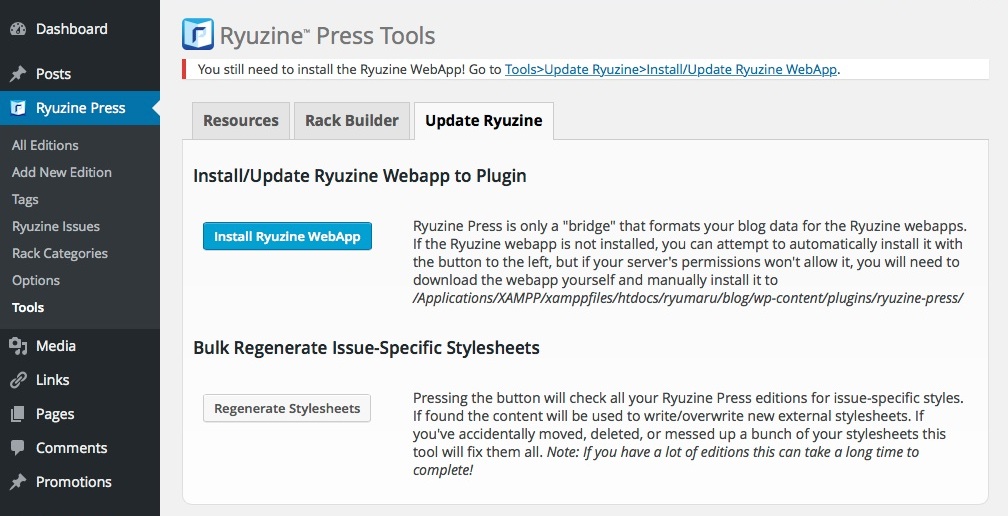
Once the “ryuzine” folder is properly installed, if your server is correctly configured, you will see a blue “Install Ryuzine WebApp” when you go to Ryuzine Press > Tools > Update Ryuzine.  If the server is not set up to allow it you will, instead, see a green “Download Ryuzine WebApp” button.

check_update_webapp

Development of the Ryuzine webapps and the plugin are not necessarily in sync so it is possible an update to the webapp may be available even when there isn’t one for the plugin.  You can press the “Check for Update” button on the Tools > Update Ryuzine screen at any time to see if there is a newer  version available, and if there is the button will change to a “Download” button again, giving you the option to update.  There are no automatic checks, downloads, or installations of webapp updates.

The automatic method will attempt to download the Ryuzine webapp from the Ryu Maru server (not GitHub) and install install it to the Ryuzine Press plugin folder.  If the automatic method does not work you will need to manually download, unzip, and then FTP upload the “ryuzine” folder into your wp-content/plugins/ryuzine-press/ path.  If you also want to use the source code versions of the webapps you’ll need to manually assemble the “ryuzine” folder, plus any add-ons or themes you want to use, and then FTP it into the plugin.


Introduction

ryuzine_logo

Ryuzine™ is a family of webapps built on HTML5, CSS3, and Javascript designed to deliver a rich “app experience” publishing platform to mobile and desktop browser. Because they run inside the web browser there is no native app to download and install, no app store needed, no DRM, and the “responsive” interface adapts to different screen sizes allowing you to publish once for multiple platforms. The Ryuzine family of webapps includes:

ryuzine-icon-02Ryuzine Reader – a publication format that doesn’t require a separate e-reader app because the browser you already use is the e-reader. It offers numerous features including multiple bookmarks, font size adjustment, high-contrast and sepia page color options, integrated “mobile style” advertising options, alternate views, and highly customizable User Interface through a simple “theme” file plus targeting different platforms with different themes. Ryuzine publications can be hosted “in the cloud” on any website, packaged into archives for distribution as downloads for offline reading, or packaged as a native Android app1.

rack-icon-02Ryuzine Rack – a “newsstand” style webapp designed to make it easy to promote your Ryuzine publications (or anything else you want to promote). The stand-alone version uses simple HTML files for the “catalogs” of items, can host unlimited additional catalogs organized however the publisher wants (different titles, years, languages – it’s up to you!), user defined “Reading List” feature, items which can be sorted by multiple aspects, and an animated “promotion” carousel. Building the data catalogs for the “stand alone” version is really easy with Ryuzine Writer and the Ryuzine Press Plugin (see below) also has a utility for WordPress-powered catalogs.

ryuzinewriter-icon-02Ryuzine Writer – a powerful cross-platform, cross-browser “authoring” webapp for creating Ryuzine publications, custom configuration files, and Ryuzine Rack data catalogs. Compose from scratch in the rich-text editor, start with the Template Wizard, or import and edit existing files. There is also a multi-device “simulator” in which you can see how your publication will look and work across a variety of screen sizes. Ryuzine Writer works in most modern desktop browsers.

ryuzine-press-icon-02Ryuzine Press – a plugin for WordPress blog sites which “bridges” the blog content to a Ryuzine installation on the same server. Create unlimited “editions” from your blog content presented in the engaging Ryuzine format. Promote your editions – and other items – with the (optional) bundled version of Ryuzine Rack. The Ryuzine Press Plugin replaces Ryuzine Writer with the WordPress backend for creating, editing, and organizing your content. It is also compatible with the ComicPress, Easel, and Webcomic plugins for building dynamic online comic books and manga from your existing WordPress-powered webcomic archives.

This manual covers authoring with Ryuzine Press for publishers creating publications and newsstands created from curated selections of WordPress blog posts. This manual is not intended for end users of Ryuzine Reader, it is intended for authors and publishers. All of the Ryuzine products are now free, open source software released under either the Mozilla Public License 2.0 or GNU General Public License 3.0.

Notice

Copyright 2015 K.M. Hansen & Ryu Maru.

All rights reserved. Reproduction and adaptation of this manual is prohibited without prior written permission, except as allowed under copyright laws. Automatic translation through online methods or devices is allowed. The programs that control this product are copyrighted.

Software Release Information

Version 1.0
Released August 2015

This manual was created in Ryuzine format with Ryuzine Press & WordPress.

Notice of Liability

The information in this manual is distributed on an “As Is” basis, without any warranty, and subject to change without notice. Neither the author nor publisher shall have any liability to any person or entity with respect to any loss or dmange caused or alleged to be caused directly or indirectly by the instruction contained in this manual or by the computer software products described in it. In the event that you do experience any undocumented problems with this software, we would like to hear about it and will do our best to fix the problem in a future release. You can let us know about bugs at www.ryumaru.com or on GitHub.

Trademarks

Internet Explorer® is a registered trademark of Microsoft® Corporation. iOS®, iPhone®, iPod®, iPad®, and Safari® are registered trademarks of Apple Inc. Firefox® is a registered trademark of Mozilla Corporation. Opera™ is a trademark of Opera Software ASA. InDesign® is a registered trademark of Adobe Systems Inc. Scribus Copyright 2001-2011 Franz Schmid and rest of the members of the Scribus Team. Ryuzine™ is a trademark of K.M Hansen & Ryu Maru.

Ryuzine Press Publisher’s Manual

First Edition (October 2011)

Second Edition (August 2015)