Ryuzine Press no longer requires the use of the shortcodes detailed below, but they were retained for backwards compatibility for anyone who had been using the beta releases. They were used to customize the Edition cover art and create lightbox links and embedded content.
Lightbox Links
The new lightbox link method doesn’t require a shortcode, so you can enter links similar to this in your body text:
<a href=”your_url” rel=”lightbox” class=”lb_video“>…link text or thumbnail image…</a>
If the old format “lightbox” add-on is used, or no lightbox add-on is loaded at all, direct links to media will simply open in a new tab or window, while anchor links will be opened in either a lightbox or the standard Dialog box if no lightbox add-on is in use. The new “ryulightbox” add-on can also open direct links to media in a lightbox.
If you still want to use the shortcode, though, (for example to hide the links on your regular blog front-end) you can enter them like this:
 ryuboxlink url=”your_url” type=”video“
 . . .link text or thumbnail image. . ./ryuboxlink
Whether you use the <a> tags or the shortcode, you have a number of additional parameters you can enter:
| <a rel=”lightbox”> |
ryuboxlink |
Description |
| href |
url |
Use “#” for embedded lightbox content, or just enter any URL if not embedded. |
| data-linkid |
id |
“id” maps to href=”#[id]” (for backwards compatibility with existing links using old method) |
| data-layout |
layout |
whether image is “landscape” or “portrait” orientation which may or may not be used by the lightbox script. |
| title |
title |
Revealed on mouseover of link, some lightbox scripts may use it for the caption |
| class |
type |
Entered as class=”lb_video” in <a> tags, type=”video” in ryuboxlink shortcode. Valid types are:
3d, document, info, larger, magnify, movie, photo, video, website, minus
Supplying no link type will use the standard plus icon. |
| data-caption |
caption |
Some scripts will use this to generate a caption. Useful for scripts that will lightbox offsite content. |
| data-gallery |
gallery |
An arbitrary name for the gallery to which this link content belongs (if any). |
| data-aspect |
aspect |
square (or omit) = 4:3 | wide = 16:9 | book = 3:4 | tall = 9:16 |
IMPORTANT: If you wrap a thumbnail image in a ryuboxlink shortcode make sure that image does NOT have a link set for it! If it does it will try to nest an <a> tag inside another <a> which will prevent the wrapped content from being shown.
The “type=” parameter is completely optional, but allows you to control what kind of icon appears in the lower corner of the link. The valid types are:
- larger
- magnify
- photo
- video
- movie
- info
- 3d
- website
- document
If you are using the new <a> tag method simply prefix these with “lb_” (for “lightbox”) as the link’s class.
Normally any ryuboxlink content will not be visible in the post when viewed in your regular blog theme. However, if you want them to appear in the blog as well (for example to trigger a regular WordPress plugin’s lightbox effect) change the setting on this Options setting to “Show Lightbox Linkis content on blog.” Lightbox links using the new <a> tag will always appear on your blog as well (and are much easier to tie into many WordPress lightbox plugins so they work both in your Ryuzine Press Editions and on your regular blog).
The “ryulightbox” add-on will look for “data-caption” text to display under non-embedded lightbox content. If no “data-caption” is present it will then use any text in the “title” attribute for the link (not the image!), and if there is no title it will fall back to displaying the URI of the content as a link below the lightboxed content.
Note: the “ryulightbox” add-on allows you to customize what string it uses in the link “rel” attribute to identify it as a link to lightboxed content. You have to edit the file at ~/wp-content/plugins/ryuzine-press/ryuzine/addons/ryulightbox/ryulightbox.config.js under the “reltxt” configuration setting. The default is “lightbox” and even if you are using other lightbox plugins/scripts on your site it most likely won’t conflict (the “ryulightbox” add-on only looks for a match to the “rel” text string, and ignores anything else in the “rel” attribute value).
Built-In Lightbox
Even if you are using a lightbox plugin or script elsewhere on your blog it probably won’t work in your Ryuzine Press editions because they do not use the standard WordPress headers and footers (where the lightbox plugins typically enqueue their scripts). So Ryuzine Press has its own lightbox add-on, which is accessible through two WordPress shortcodes. Note that these only produce a lightbox effect if you also enabled a lightbox add-on in Ryuzine Press > Options > Add-Ons, otherwise the content will be displayed in a simple dialog box.
When you go to Ryuzine > Add New you can create your “lightbox gallery” in the post compose textbox. Define each item with the shortcode:
ryubox id=”your_id” orient=”land|port. . .whatever content you want in the lightbox. . ./ryubox
You can use anything you want for the “id” value, you’ll just need to know what it is when you create the link to open it. The “orient” attribute is optional for landscape orientation content (“land” is automatically assumed), however if the content in the lightbox is portrait orientation set the value to “port” so it will fit by height, rather than width, in the webapp.
The lightbox is primarily intended for displaying images, but it can also be used to showcase other content. However, if you use non-image content either code it with max-width and max-height or percentages so it can scale, or add scaling by media-query in the issue stylesheet. If you don’t the content may not fit in the browser window on smaller screen devices.
Note: The ryubox shortcode ONLY works inside Ryuzine Press posts
Lightbox Links

In order to trigger the built-in lightbox you’ll need to add special links to your posts with this shortcode:
ryuboxlink id=”your_id” type=”video”. . .link text or thumbnail image. . ./ryuboxlink
Match the “id” value to the same “id” value of a ryubox item.
The “type=” parameter is completely optional, but allows you to control what kind of icon appears in the lower corner of the link. The valid types are:
- larger
- magnify
- photo
- video
- movie
- info
- 3d
- website
- document
Normally any ryuboxlink content will not be visible in the post when viewed in your regular blog theme. However, if you want it to appear in the blog as well (for example to trigger a regular WordPress plugin’s lightbox effect) change the “Lightbox Links” setting to “Show” the links elsewhere on your blog.
Cover Images
Featured Image: The simplest, preferred method for creating a cover image for your Ryuzine Press Editions is to use the “Featured Image” function. However, that doesn’t give you fine control over how the cover is displayed, in which case you may want to use the shortcode.
Shortcode: Surround an image placed from your Media Library with the “ryucover” shortcode. This image is used by the optional Ryuzine Rack newsstand webapp (which replaces the auto-generated Archive page) and is also used if you have set “Use ryucover shortcode image” as the Cover Source under the “Covers” tab above. Syntax:
ryucover bleed=”0|1|cover|2|contain|3|width|4|height” color=”white|blue|#ccc” shift=”Xpx Ypx”…../ryucover
The ryucover shortcode now accepts up to three optional parameters, “bleed,” “color,” and/or “shift.” The “bleed” option accepts the following settings:
- 0 | null : Set it to zero or no value (or omit the parameter entirely) and any image wrapped by the shortcode will be embedded in the page content, rather than set as the cover’s background.
- 1 | cover : Fits the image, maintaining the aspect ratio, to the LARGEST size it can be that fits BOTH the width and height.
- 2 | contain : Fits the image, maintaining the aspect ratio, to the SMALLEST size that will fit BOTH the width and height.
- 3 | width : Will take any image wrapped in the shortcode and set it as the cover’s background, center it, and scale (maintaining the aspect ratio) by width. Any part of the image that does not fit spills beyond the borders of the page.
- 4 | height : Will scale the background image (maintaining aspect ratio) to fit by height with any parts of the image that do not fit spilling beyond the borders of the page.
Generally the “cover” and “width” settings are similar and “contain” and “height” are similar, but they may render with slightly different bordering if they are not an exact fit for the space.
The “color” parameter, if omitted or left empty, defaults to “white.” Otherwise you can set it to any valid HTML color by name (such as “blue”), hex code (“#cccccc”), hex code shorthand (“#ccc”), or rgb/rgba color set. If you set an invalid value your background image also will not show
The “shift” parameter allows you to adjust the positioning of the background image. The default position is “center 0” if you omit this parameter, which is what you most likely want. However, if you want to change the positioning the syntax is “Xpx Ypx” with a space between the values, which need to be set in pixels. Other valid values include “center center” (may move top of image out of view), “0 0” (does not need “px”), “left top” (same as “0 0”), “right bottom” (or similar word combinations).
Promotions (Ryuzine Rack)
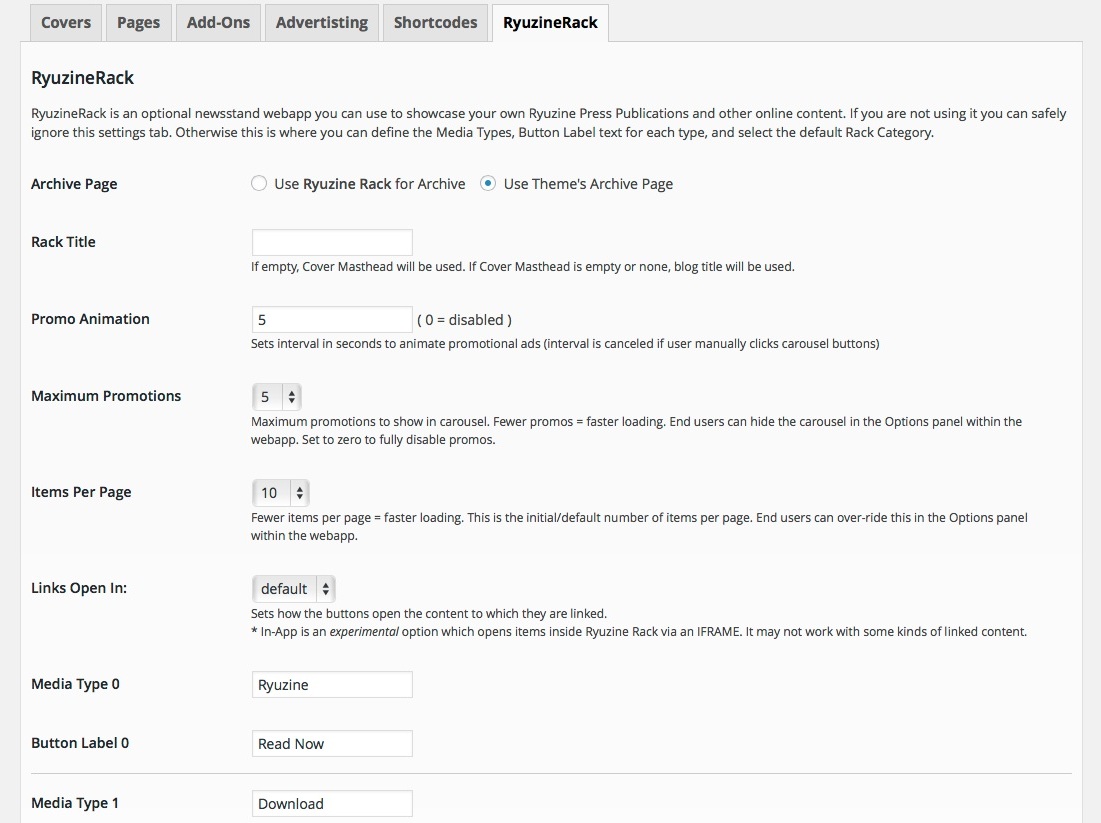
If you include a promotional image it is used by the optional Ryuzine Rack in the animated carousel at the top of the webapp. Ryuzine Rack will always grab the newest item and promote it (if there is no promo image it automatically builds a promotion using the catalog info). Additional promotions (if any) are displayed by date, newest to oldest, up to the maximum number of promotions you set on the Ryuzine Rack Options tab. The ryupromo shortcode has no additional parameters:
ryupromo…../ryupromo
Cover & Promo Hints
Here are things to keep in mind when including a “ryucover” and “ryupromo” shortcodes:
Only the first instance of the shortcode will be used. Any additional ones for the same Edition are ignored by both Ryuzine Press and Ryuzine Rack. However they may still be displayed if you are using the auto-generated Archive page and a theme which displays full content in archive search results.
The shortcode-wrapped images are automatically scaled to fit their respective spaces. If they are too small or low resolution they’ll look terrible when scaled up.
Ideally place at least a “Medium” sized image that links to the full-size image. Ryuzine Rack will prefer the thumbnail, Ryuzine Press will prefer the full-size image. If you place an image without a link both will end up using the same image.
Cover images should be in “portrait” orientation, not “landscape.” The cover images are distorted to fit the aspect ratio of the cover thumbnail. Images used as Edition covers, though, are scaled to fit by width while maintaining the original aspect ratio of the image.
Promotional banners should be in “landscape” mode, not “portrait.” The promotional images are scaled to fit the carousel by width while maintaining the aspect ratio (i.e., they are not distorted).
The maximum display sizes are 150×230 pixels for Ryuzine Rack cover thumbnails and about 640×800 for Ryuzine Press Edition covers.
All promotional images should be 640×300 pixels. If you do not want to create one simply do this: ryupromoauto/ryupromo and Ryuzine Rack will automatically construct a promotion for that item.
For better image quality on high-density displays (like on the iPad 3 and iPhone 4 or 5) you need to use images around 2x larger than the dimensions given immediately above.
To make Ryuzine Rack load more quickly you can sacrifice image quality and use smaller images that will load faster. You can also reduce the maximum number of promotions and promotional images.
Embed Ryuzine
This shortcode allows you to easily embed any Ryuzine Press Edition in a blog post or page (similar to how you can embed videos) by just using the Edition’s title.
ryuzine title=”Ryuzine Press Edition Title”
The shortcode accepts the following parameters:
- title: The actual title of a Ryuzine Press Edition or “ryuzine-rack” to embed the newsstand (assuming it is installed to the current theme).
- url: Allows entering a raw URL (over-rides any “title” setting) but is restricted to YOUR site and only Ryuzine Press Editions*
- page: On load flip the Edition to a specific page number.
- height: The height of the embedded publication in pixels or percent (add “%” sign if percentage)
- width: The width of the embedded publication in pixels or percent (add “%” sign if percentage)
- size: small|medium|large|spread enter one of these preset sizes (if present over-rides height and width)
- class: a stylesheet class name to apply to the iframe
- style: inline styles to apply to the iframe
Everything other than the “title” is optional. You can also style the different elements of the embed by the following classnames:
- ryuzine_embed – the DIV container for the embed
- ryu_embed_tab – the links below the embedded Ryuzine
- ryu_embed_tabbox” – the main container for the “Embed Code” form (div container not form tag)
- ryu_embed_input – the Height and Width text inputs
* Embedding off-site Ryuzine URLs is blocked by design. Because you do not control a third-party site embedding represents a security risk. If you want to cross-promote with other Ryuzine publishers use the Ryuzine Rack Catalog Builder to create an entries for their content and install Ryuzine Rack to your theme.

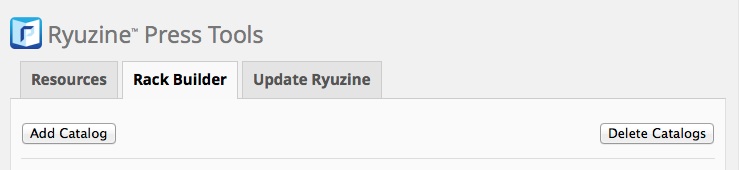

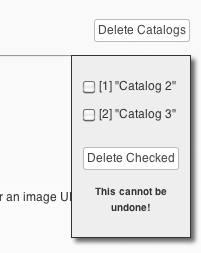 If you want to delete a catalog you’ve added press the “Delete” button at the top of the Tools section and a small box opens up with a list of all the extra catalogs by whatever names you gave them. Select the checkbox(es) for the one(s) you want to get rid of and press the “Delete Checked” button – and heed the warning that it cannot be undone!