Category Archives:

Ryuzine Press 1.2 and Ryuzine Reader+Rack 1.1 Released

Hey, it’s been a while hasn’t it?  Five years in fact since the last update.

Well, this afternoon Ryuzine Press 1.2 and Ryuzine Reader+Rack 1.1 both dropped.

Ryuzine Press 1.2 fixes an issue when you install the Ryuzine webapp from scratch (instead of just updating it) where the unzipped folder wasn’t getting renamed properly.  This update also adds support for the ComicPost plugin.

Ryuzine Reader+Rack 1.1 updates the built-in Social Widget to remove several defunct social platforms and adds support for sharing to Threads, Bluesky, and Mastodon. Oh, and the “iScroll” add-on was removed because it has been abandoned and doesn’t work right anymore anyway. So if you enabled the “iScroll Add-on” in your installation you’ll want to disable it or you may experience a JS stop error.

For developers the other big change is that the Ryuzine projects are now in “maintenance and compatibility” status. No new features are planned, just keeping the webapp and plugin working with their current feature set. If you want to contribute fixes to the projects it’s a lot simpler now as they’ve been converted from GitHub subtrees to just FOUR monolithic repositories.

Ryuzine Press 1.1 Released!

Ryuzine Press version 1.1 is now available!  If you already have version 1.0 of the plugin installed you should see the update notice in WordPress.  New installations can grab the plugin ZIP from here: https://github.com/ryumaru/ryuzine-press/archive/1.1.zip.

Please note that after the upgrade you will need to reinstall the Ryuzine Webapps!

a. from the Ryuzine Press -> Tools -> Ryuzine Update page.

b. If your server file permissions won’t allow that you will need to manually upload the unzipped webapp “ryuzine” folder into ~/wp-content/plugins/ryuzine-press/

While the licenses for Ryuzine Press and the Ryuzine Webapps are technically compatible they are no longer being bundled together due to their combined size exceeding some user’s PHP server file size limits.  It is still possible the the webapps might exceed them, in which case the webapp would have to be installed via FTP.

Also note that the Ryuzine Webapp version will still be 1.0, the plugin and webapp versions are not always the same.

While this was primarily a maintenance release to ensure compatibility with WordPress 5.5 and PHP 7.4 there were some other code fixes and changes, including that both the plugin and the webapps are now updated directly from the GitHub releases rather than from the Ryu Maru website.  Here is the full changelog for version 1.1:

  • Requires PHP 5.6 or later (tested up to PHP 7.4.8)
  • Version check updated to also check PHP
  • Version check no longer produces unexpected characters on activation.
  • Activation now auto updates database with new options.
  • Plugin now updates from GitHub releases using WP update system.
  • Plugin Update Checker updated to version 4.10
  • Fixed “undefined index” error in Rack Builder
  • Replaced deprecated STYLESHEETPATH constant with WP “get” function.
  • Auto-creates “Ryuzine” Rack Category. If you delete it the category is automatically restored on page reload. This is to prevent undefined array offset PHP errors if no default category is defined.
  • Fixed widget undefined index errors.
  • Options Page
    • Options sanitization fixed
    • Reset to Defaults checkbox replaced with button method
    • Default Rack Category is now auto-populated with “Ryuzine” type.
    • Fixed issue where “localization” setting was stuck on zero (off).
    • Fixed issue where admin script caused unknown index PHP error on Ads tab.
  • Tools Page
    • Fixed issue where “Check for Updates” button would not turn into
      “Install Ryuzine Webapp” button if version check found an update.
    • Updated version check and update to pull from GitHub releases
      and automatically delete previous Webapp installation.
  • Changes to Templates
    • single-ryuzine.php:
      • Added filter to remove notes at bottom of every page.
      • Added filter to prevent posts being hidden from loop
    • archive-ryuzine.php: separate Share Bubble sidebar code added.

Ryuzine Press Lightboxes in Gutenberg Editor

NOTE: If you are using the ryuboxlink and ryubox shortcodes and the old format Ryuzine “lightbox” add-on there is a separate post about using the shortcodes in Gutenberg.

The Gutenberg “block” editor is one of the biggest changes in the newer versions of WordPress.  If you’ve only ever used the TinyMCE “WYSIWYG” editor it can be a bit confusing.  Here is how to use the newer lightbox format in Ryuzine Press running the “ryulightbox” add-on.

In a Classic Block
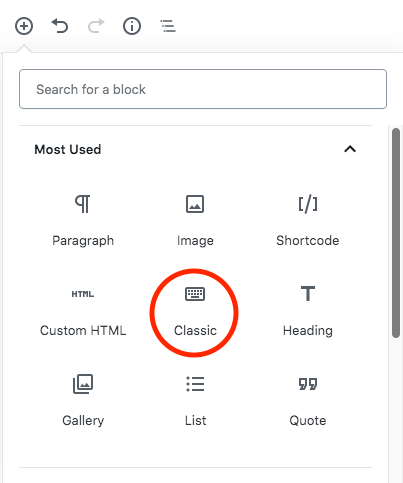
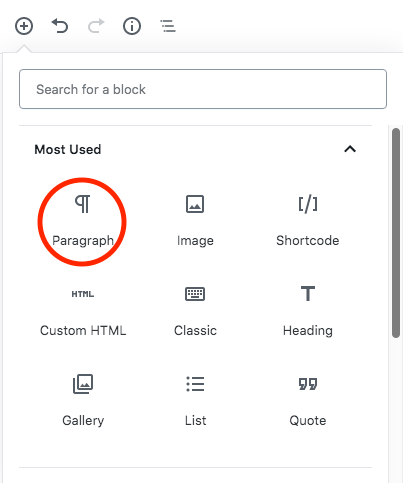
Go to the (+) to add a new block and select “Classic.”  If it’s not in your “Most Used” yet it will be in the “Formatting” sub-section.  Once you have the Classic Block it’s just like using the old TinyMCE editor:
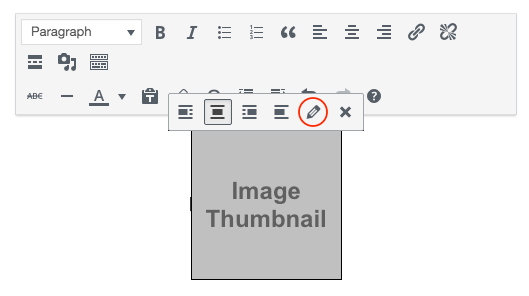
If you click on the image you’ll get the old Image Edit toolbar above it.  Select the “Pencil” icon and it will open the old Image Options dialog box.  If you need to you can adjust the size of the image from thumbnail, medium, large, full-size, or custom-size from there.  But to make it work with the “ryulightbox” add-on you need to click on the “Advanced” to expand the section (if it’s not already expanded):


Rather importantly the thumbnail has to LINK to something!  When the “ryulightbox” add-on isn’t loaded (as it won’t be when viewing the post elsewhere on your WordPress blog) the thumbnail will just be a regular link, that either opens the target content in a new tab (if you checked the “Open link in a new tab” box) or in the same window.

Then, in the “Advanced” section you need the Link Rel to be “lightbox” and (optionally) the Link CSS Class to be one of the ryulightbox types.

It can also be an anchor link to something embedded in the Ryuzine Press Edition, but then the link will be broken if the post is read elsewhere on your WordPress blog.  If you prefer to embed the target content in the Ryuzine Press Edition you should consider using the ryuboxlink and ryubox shortcodes instead, because the links and the content can be conditionally hidden elsewhere on your blog where they don’t work.

In an Image Block
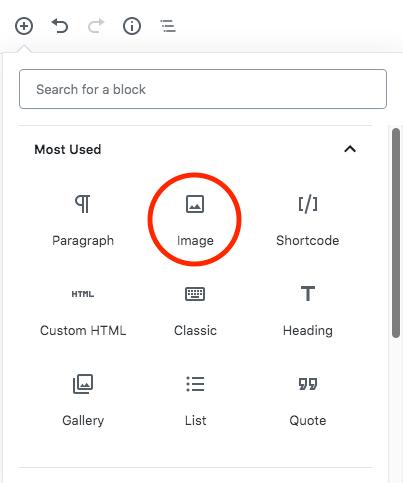
Click the (+) and select “Image” block.  That will give you an empty one where you choose the Image Source:
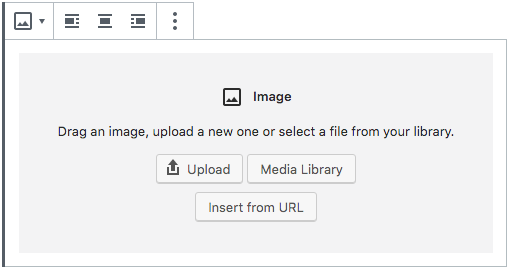
Once you’ve place your image you need to look in Gutenberg’s right sidebar area, under the “Block” tab scroll down to the “Link Settings” sub-section:
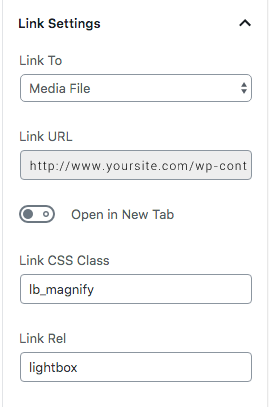
For the Lighbox to work the image MUST link to something!  Typically the “Media File” (aka, the larger version of the image) will be the target.  The Link Rel to be “lightbox” and (optionally) the Link CSS Class to be one of the ryulightbox types. When the “ryulightbox” add-on isn’t loaded (as it won’t be when viewing the post elsewhere on your WordPress blog) the thumbnail will just be a regular link, that either opens the target content in a new tab (if you turned on the “Open link in a new tab” switch) or in the same window.

The valid content types are:

lb_3d, lb_document, lb_info, lb_larger, lb_magnify, lb_minus, lb_movie, lb_photo, lb_plus, lb_video, lb_website, or lightboxbutton.  If you leave it blank the generic “lightboxbutton” will be inserted by the “ryulightbox” add-on.  This only changes the style of the lightbox link icon in the lower corner of the thumbnail, it doesn’t set the type of content, which can be anything.

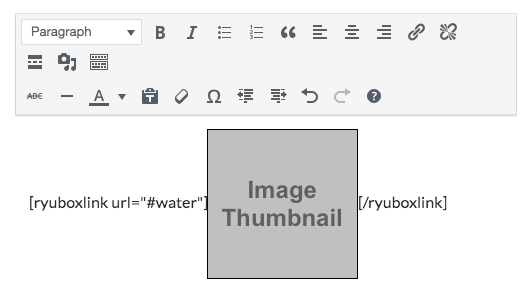
Ryuzine Press Shortcodes in Gutenberg

Note: This post is only relevant if you are using the Ryuzine “lightbox” (old format) add-on.  If you are using the newer “ryulightbox” add-on details for that are in another post.

One of the biggest recent changes in WordPress has been the change from the TinyMCE “WYSIWYG” editor to the Gutenberg “Block” editor.

If you have existing Ryuzine Press Editions and associated posts there’s nothing you should need to do.  Gutenberg automatically ports the content of old posts (the ones written with the TinyMCE editor) into a single “Classic” block.  That should preserve any shortcodes you used in those posts.  And your done!

For new posts you have three options for using the Ryuzine shortcodes (focusing on the “lightbox” shortcodes, ryuboxlink and ryubox which are the most likely ones you’d be using):

  1. Create a “Classic” block and type them inline just like you always have.
  2. Create a “Paragraph” block and type them inline just like you always have.
  3. Create a “Shortcode” block (for Ryuzine’s shortcodes you’d need one before and after the content block).

IMPORTANT: The thumbnail image or text inside a “ryubox” or “ryuboxlink” cannot have a link applied to it!  It gets the link URL from the shortcode.  If you also make the image/text into a regular link when it is converted to a lightbox link it will try to next a link inside a link.

Classic Block

Click on the (+) to select a new block.  If it’s not in your “Most Used” it will be under the “Formatting” sub-section.  This should be a no-brainer as it works just like the old editor, except smaller:

If you click on the image you get the old editing toolbar.  Select the “Pencil” icon:

..and you get the old image options screen where you can select thumbnail, medium, large, full-size, or custom size options.

Paragraph Block

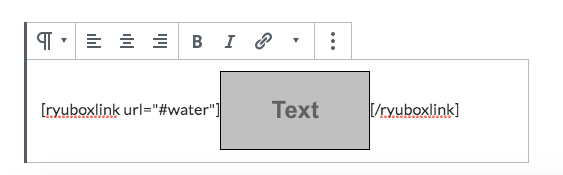
The Paragraph block is most likely already in your “Most Used” blocks.  It’s also the default block Gutenberg creates.  You have the option to place inline images in Paragraph Blocks:

Currently Gutenberg automatically forces the inline images to 150 pixels wide with automatic height.  There are no options to select a thumbnail, medium, large, full-size.  Maybe the 150 pixel wide inline image is what you want, but if it isn’t use one of the other methods outlined here.

Shortcode Blocks

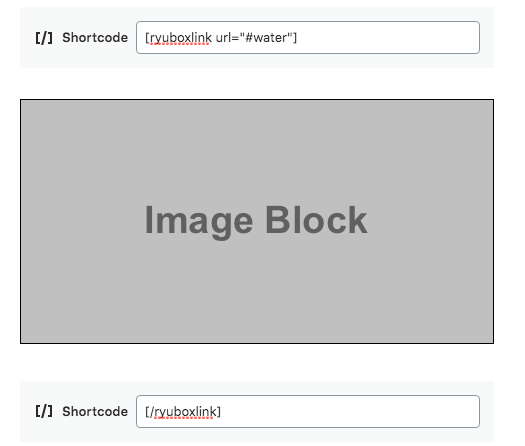
Click the (+) to add a new block and select “Shortcode.”  Initially you’ll probably have to find it under the “Widgets” sub-section.  That will add a shortcode block in which you enter the opening part for the Ryuzine shortcode.  Then you have to create another block for the content inside that shortcode, in this case an Image Block, and then another Shortcode Block to close:

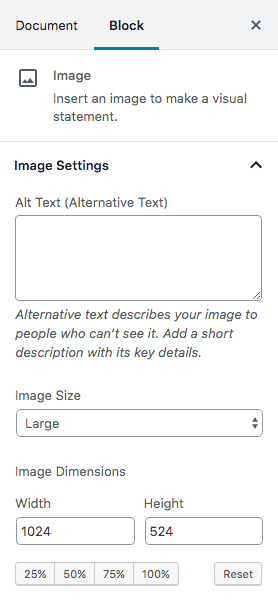
To change the image size you can either manually resize it by clicking on it and dragging the handles around or you can select “Block > Image Settings” in the sidebar:

DEPRECATION NOTICE

The old format “lightbox” add-on and the shortcodes are going to be phased out!  Ryuzine 1.1 will still support using them but after that the the “lightbox” add-on will no longer be updated and the shortcodes information will be removed from Ryuzine Press (the shortcodes will still be processed, but the information page on how to use them will be removed and publishers should stop using them now).  Ryuzine now has code to automatically convert old format embedded content to display in a generic Ryuzine dialog box if no lightbox add-on is loaded.  The better solution, though, is to switch to the “ryulightbox” add-on, which is backwards-compatible and automatically converts old format lighbox links and embedded content to the new format.

Ryuzine Press in WordPress 5

Ryuzine Press 1.0 works as expected in WordPress 5 (tested in 5.0.2).  If you upgrade to WP 5 your existing Ryuzine Press Editions should remain unaffected.  We updated one of our development server WordPress installs from version 3.8 directly to 5.0.2 without any problems.

In a new installation, however, you still have to make sure to go through the Ryuzine Press > Options and “Save” even if you didn’t make any changes, just to make sure all the entries are written to the database.  You should always do this after a Ryuzine Press version update as well, in case any options have been added or changed since the previous install.

Note that Ryuzine Press 1.0 still needs to use the TinyMCE “Classic” post editor.  If you upgrade from an earlier version of WordPress or install the “Classic” editor plugin there should be no problem.  Ryuzine Press will still be able to use the classic editor even if you’ve set other posts and pages to use the new Gutenberg editor.  In a new WP 5 installation you will probably have to install the “Classic” editor plugin.

There IS an update to the Ryuzine and Ryuzine Press in the works, though the release keeps getting pushed back, but the currently available version will still work until the update becomes available.

Sa-Bom Jim FINALE Ryuzine Releases!

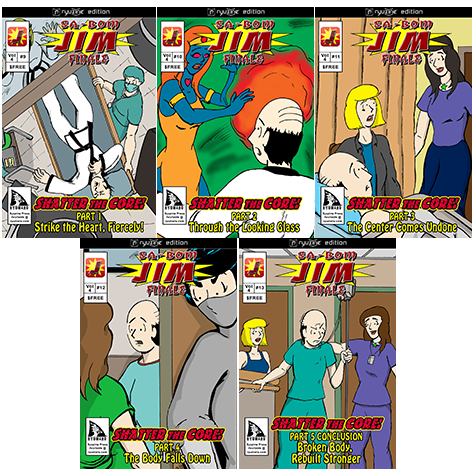
The FINAL five-chapter “Shatter the Core!” story arc under Jon D. Sloan’s “Sa-Bom Jim” title has been bundled for release in Ryuzine™ Press format.  A new FREE digital issue will become available each weekday from October 23 – 27, 2017!

RELEASE SCHEDULE

This post will be updated with links as the issues become available.  Or check the “Sa-Bom Jim” Store every day this week!

While this brings the “Sa-Bom Jim” title to an end, the story continues every weekday in Jon’s new title “The Do-Jahng.”  It picks up right where the previous title leaves off, however this new story is more focused on the lives of Jim’s students both in, and out of, the Training Hall.


Ryuzine Press is a free, open-source WordPress plugin for creating digital magazines and comics from curated blog posts.  The code is available on GitHub.  Ryuzine is a trademark of Ryu Maru.

Next version of Ryuzine?

“When will the next version of Ryuzine be released?”

This is a question that has come up a couple of times recently, especially from those who’ve noted that none of the files on GitHub have been updated since August or September of 2015.

Well, the simple answer is, “when it’s necessary.”

We don’t follow the software development idea of “release early, release often.”  Ryuzine updates have historically been driven by updates to the web browsers in which it runs, either to fix something the browser update broke or to take advantage of a new browser feature.  Since the release of Ryuzine 1.0 we haven’t become aware of any browser updates breaking the webapps, nor have any “killer” features been introduced that we think Ryuzine should take advantage of.

Furthermore, Ryuzine 1.0 heavily modularized the webapps, with more formerly integrated features now made optional in add-ons.  The flexibility of the Add-Ons API would allow the webapps to utilize new browser features without requiring the core code to be updated.

In conclusion: If it ain’t broke, don’t fix it. 😉

Ryuzine + Chrome + Mac = System Freeze [FIX!]

There is an issue being experienced by some users of Chrome on Mac OS X when viewing a Ryuzine publication.  What happens is the publication displays with glitchy graphics and any attempt to interact with it will cause the entire screen to glitch and the system to freeze, requiring a hard reset.

This is a known, recurring bug in Google Chrome involving hardware acceleration on some versions of Mac OS X, beginning with Mavericks.  Note that this is not a problem with Ryuzine or exclusive to viewing Ryuzine publications.  Other hardware accelerated web content can also trigger this problem.

Here is the work-around to prevent it from happening in the future:

  1. Type “chrome://settings/” in your browser’s address bar.
  2. Scroll to the bottom and click “Advanced Settings” to expand it.
  3. Find the “System” section and UNCHECK the “Use hardware acceleration when available” if it was already checked or CHECK it if it wasn’t (in other words try it both ways).
  4. Restart Google Chrome
  5. Return to the Ryuzine that crashed your system, it should no longer cause screen freezing.

However, the display of the Ryuzine publication may still be very blocky/glitchy!  This has also been observed in Google Chrome for Android.  Here’s how to fix that:

  1. Open the “Options” panel and look for “Depth FX” in the Add-Ons section.
  2. Make sure the switch is set to “OFF”
  3. If it’s still glitchy turn “Page Shadows” off as well.
  4. If it’s still glitchy turn “3D Page Turns” off too.
  5. The absolute last ditch effort is to turn off “Page Animations” as well.

You may need to change these settings for multiple publications if they are on different domain servers.


Restore Ryuzine Writer Full Screen View

When Ryuzine Writer 1.0 was released the “Maximize/Minimize Editor” button was removed from the toolbar.  This was like the “Fullscreen” or “Distraction Free” modes in various word processors.  It was removed because there were some reflow errors when you’d pop out of that mode that require you to resize the browser window or hide/unhide the sidebars.  Rather than requires people to do this (and know this) the problematic button was removed.

We didn’t actually remove it from the program entirely, just disabled it.  So if you liked it and want it back it’s fairly easy to re-enable it.  It’s actually a Xinha module and you can re-enable it by finding the file in:

ryuzine –> ryuzinewriter –> js –> editor.config.js

Change line 280 to:

[“htmlmode”],[“undo”,”redo”],[“popupeditor”],

That “popupeditor” will add back the view-fullscreen Fullscreen button.  It will be available in both WYSIWYG and HTML Editor modes.  To return from Fullscreen mode press the view-restore Restore button.  However, the Editor workspace may be squished into a narrow band across the center of the window.  If that happens panels Toggle Sidebars off/on or resize the browser window.
Note that the Sidebars no longer automatically toggle off/on when you (respectively) enter/exit Fullscreen mode as they did in earlier versions of Ryuzine Writer.

Ryuzine 1.0 is HERE!

Reader_1x_Promo

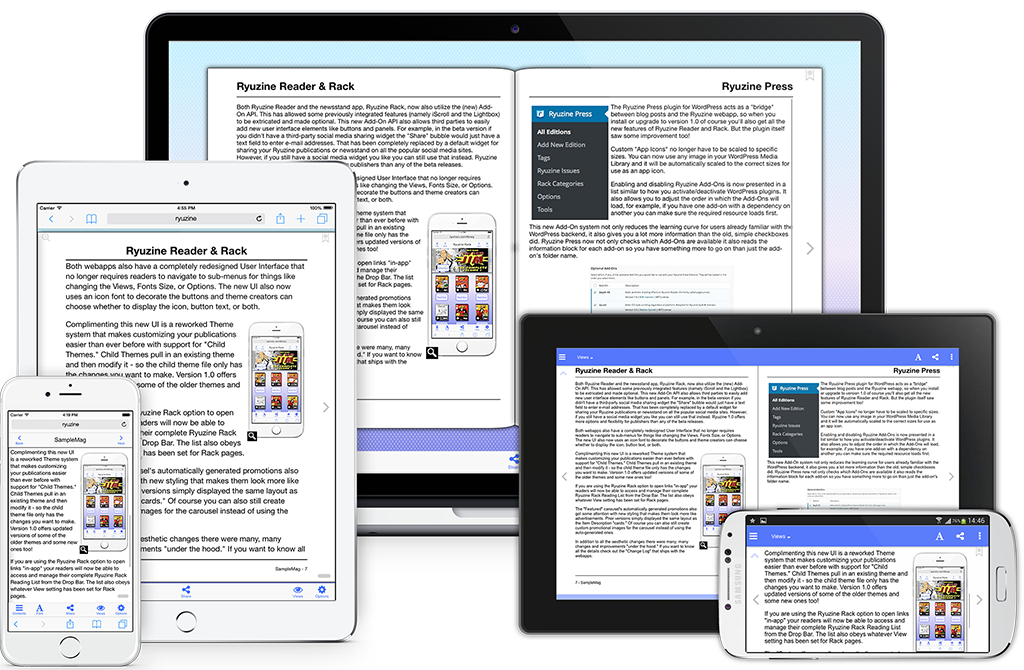
It has been a long time in the making, but Ryuzine 1.0 is finally HERE!  Not only is is practically a complete rewrite of all the Ryuzine apps, they are now completely OPEN SOURCE and FREE for personal and commercial use.

DOWNLOAD PUBLISHERS KIT

Rack_v1_Promo

Almost 100 Changes!

This massive update has been in the works since February 2014 and fixed or changed so many things we decided to just skip over a bunch of “beta” versions and jump right to version 1.0 – in total there were nearly 100 changes to the three Ryuzine webapps and the Ryuzine Press plugin.  For more details make sure to check out the individual product pages:

ryuzine-icon-02
Ryuzine Reader
ryuzinewriter-icon-02
Ryuzine Writer
rack-icon-02
Ryuzine Rack
ryuzine-press-icon-02
Ryuzine Press

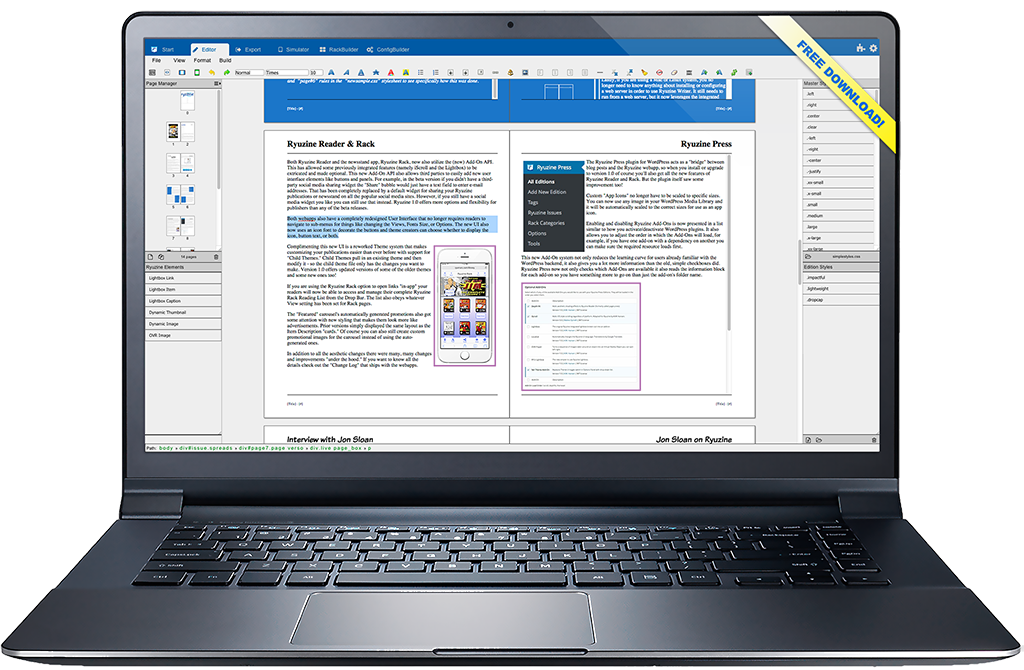
Writer_Laptop_1024

TRY ONLINE DEMO

The Write Stuff

The biggest changes came to our Ryuzine Writer authoring webapp bringing it more in line with the features you’d expect from a page layout program.  Not only is there better handling of styles and stylesheets, the new “Page Manager” makes it easy to add, delete, and rearrange the pages of your publications.  The “RackBuilder” can also now preview newsstand catalogs in the Simulator, the Simulator has been updated with profiles for newer, popular devices, and when everything looks the way you want the “Package Builder” has more and smarter options than every before.

The Ryuzine Press plugin has also seen some improvements that make it easier than ever to turn curated blog posts into engaging Ryuzine Press Edition publications.  The plugin has also been updated and tested with WordPress 4.3.  The Ryuzine Reader and Ryuzine Rack webapps are now bundled with the Ryuzine Press plugin download from our website – you are no longer required to do a separate installation of the webapps.

DOWNLOAD PLUGIN

Publishers can learn all about how to use either the stand-alone Ryuzine Writer or the Ryuzine Press plugin by reading the manuals – which were written WITH their respective programs and presented in Ryuzine format:

Press_cover_v1
Ryuzine Press 1.0 Publishers Manual
Writer_v1_Cover
Ryuzine Writer 1.0 Publishers Manual

Refined User Interface

All of the Ryuzine apps now have a much simpler user-interface that no longer requires users to “slide” through multiple toolbars to get to the button they want.  Those buttons all now use an “icon font” instead of images for crisp display regardless of the device resolution.  Ryuzine Reader has better swipe detection and the “Page Slider” has also been improved.

Updated Phone UI Nav Bar

Updated Phone UI Nav Bar

New Themes

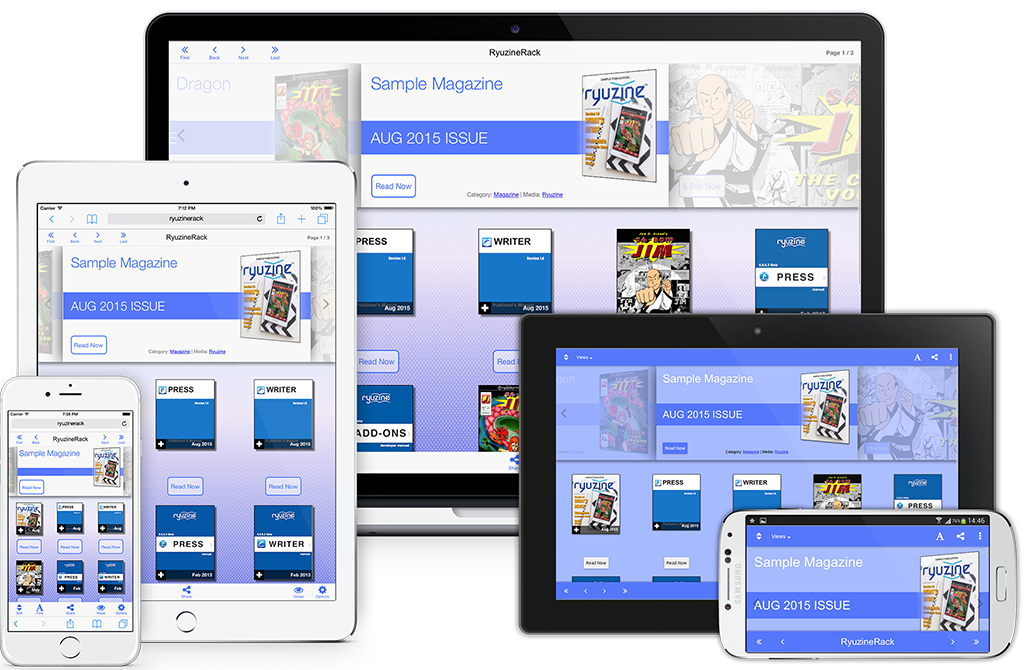
Ryuzine Rack with custom theme and branding.

Ryuzine Rack with custom theme and branding.

All the changes to the User Interface required rewriting the existing themes and creating new ones.  The “Urban” Windowsand “Mobile Fruit” iOS themes got much-needed updates, and Android gets the new “Paperbot” theme.  Some of the older “Platform Themes” have been dropped since they not only looked outdated but few people even use those devices anymore.

Ryuzine Writer also now gets its own themes and theme creators can choose whether or not they want to support Writer with their themes or not.  Moving the Writer styles into their own stylesheet allows the Reader/Rack themes to be simpler and the smaller files load and render more quickly than the old themes did.

The theme system now also supports creating “child themes” that build upon another theme, so you don’t have to write styles for everything in your custom themes.

New Add-On API

In the beta versions only Ryuzine Writer had optional add-ons.  In version 1.0 the Add-Ons API has been completely rewritten and is now part of both Ryuzine Reader and Ryuzine Rack too!  Features that were previously “baked in” have been broken out into optional add-ons and it’s never been easier to extend and customize Ryuzine.

Free & Open Source

One of the biggest changes to Ryuzine is that now everything is completely open source.  Ryuzine Reader, Writer, and Rack are released under the MPL 2.0 license, Ryuzine Press is under a GPL 3.0 license.  All the code is available for developers in our GitHub Repository.  Non-Developers can continue downloading preconfigured, bundled versions from our website.