Category Archives:

Ryuzine Press Missing Editions Work-Around

It has come to our attention that the current version of the Ryuzine Press plugin for WordPress will only automatically add the first 10 Ryuzine Press Editions to the plug-in’s Ryuzine Rack (Archive) page.

If you’ve noticed older Editions falling off your Rack/Archive newsstand page the current work-around  is to manually move/copy the “archive-ryuzine.php” file from:

~/wp-content/plugins/ryuzine-press/templates/ => ~/wp-content/themes/[current theme]/

The Ryuzine version 1.0 release is coming soon and will fix this problem, but in the meantime the work-around above will make sure your readers see all the Editions you want them to see.

Ryuzine 1.0 Update Later in 2015

ryuzine_icons_2015

This post is to reassure you that we haven’t forgotten about the promised major update to the Ryuzine webapps – in fact they are well on their way for a release sometime later in 2015!  Instead of releasing the incremental changes this upcoming release will jump right to version 1.0!

Above you can see the app icons have also undergone a visual overhaul, but the webapps themselves are all undergoing massive rewrites – with so many changes and new features the change-log already goes on for pages.  What sort of changes?  Well, for starters the User Interfaces have all undergone a lot of simplification.

User Interface Updated

You’ll no longer need to hit the “More”  and “Less” buttons to slide controls left and right – all the buttons are now presented on one Navigation Bar:

Updated Phone UI Nav Bar

Updated Phone UI Nav Bar

Behind that “Share” button is also a completely rewritten social media sharing widget, and in addition to still being able to drop in your own widget the third-party “Add-Ons” API from Ryuzine Writer has been completely rewritten and will also available in both Ryuzine Reader and Ryuzine Rack.  That means adding your own custom dialogs and panels, but previously built-in features like the “Lightbox” are also going to be broken out into optional add-ons, making it easier for third-party developers to expand or replace them.

Page Manager & More

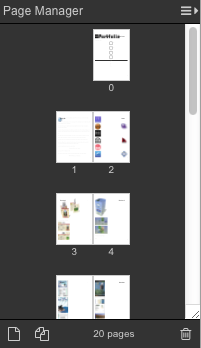
One of the biggest changes coming to Ryuzine Writer is the new “Page Manager!”  Here’s a look at it in action:

"Page Manager" panel in Ryuzine Writer's Editor

“Page Manager” panel in Ryuzine Writer’s Editor

 Professional page layout programs used in the print media industry allow the designer to easily see how their pages lay out in relation to one another, and easily add/delete and drag-to-reorder the pages.  All of those features will be available in the new Page Manager panel, as well as the ability to change the size of the page thumbnails, show individual or facing pages (either left or right bound), and a “continuous” view in the editor that is a much better representation of the same view within Ryuzine Reader.

The editor will also support “Master Styles” which can be changed without having to refresh the browser and reload Ryuzine Writer.  Issue-specific styles can also be loaded, previewed, and unloaded within the editor.  If you are using PHP File Operations in the editor the Image Insert no longer creates a pop-up window that may be blocked by browsers.

The “Package Builder” has also undergone a major rewrite and will also offer the option of packaging into a plain folder instead of a ZIP archive.  This is useful if you want to make manual additions or changes to the package or plan to immediately FTP it up to a website for viewing rather than offering it as a downloadable publication.

We could literally go on and on listing everything in the change-log but we’ll hold off until the actual release.

Ryuzine is Going Open Source!

We’re still looking through the various open source licenses to find the one that fits us best, but you read that correctly – version 1.0 of all the Ryuzine webapps will be released under an open source license.  This will completely replace the current  Commercial and Non-Commercial Use licenses.  That means with version 1.0 there will no longer be a requirement to purchase a license for commercial use!  ALL of the source code will eventually be available on GitHub, with each webapp and add-on in its own repository.  Once that has happened anyone and everyone can contribute to making Ryuzine even better!  Since it will be a little confusing for non-developers to grab and assemble all the files from multiple repositories, www.ryumaru.com will remain the place to download the pre-packaged webapps.

So When Can You Get It?

One of the factors in deciding to take Ryuzine open source is that, since the beginning, there has only been ONE developer working on it as a side-project, even as the “family” of webapps has grown.  The first step was a “code audit” to make sure all the code that will be released CAN be released under an open source license.  Then there were all the UI changes, updating themes broken by the UI changes, bug fixes, adding new features, breaking built-in functions out into add-ons, rewriting the Add-On API, and lots and lots more that still needs to happen.  Our best guess is that it will be ready sometime in the Spring or Summer of 2015.  Until then you can still download version 0.9.6.7 of Reader/Rack and Writer and 0.9.6.8 of the Ryuzine Press plugin for WordPress.

Ryuzine Edition Cover Art: 3 Methods

As of version 0.9.6.8 Ryuzine Press now has three different ways to create covers for your Editions.

1. Oldest Post

This one is pretty easy.  If you plan to have ALL your Edition covers work this way you go to:

Ryuzine Press > Options > Covers and set “Cover Source” to “Use Oldest Post.”

cover-source-oldest
As the setting implies, the oldest post assigned to the Edition’s Ryuzine Issue(s) will be used as the cover of the Edition.  For regular posts just use the “Add Media” button to place an image to be used as cover art into the post body, assign it to the same Issue as the Edition, and (if necessary) edit the post date to make sure it is the oldest post.

If you are using one of the supported comic plugins that creates its own custom post_type you’d just need to “Add” a new comic and attach your cover art as the Featured/Comic Image for the post.  Again, make sure it is assigned to the same Issue as the Edition and the posting date will make it the “oldest” post.

If you want to over-ride the global setting mentioned above, you can now do so by using a Custom Configuration (it’s in the new section at the bottom of the post editing page for the Edition).
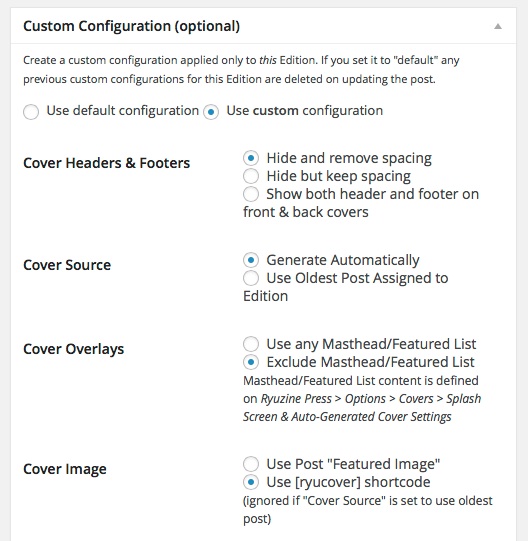
custom_config

2. Edition Featured Image

If you intend ALL your Edition covers to use this method, go to:

Ryuzine Press > Options > Covers and set “Cover Source” to “Generate Automatically.”

cover-source-auto

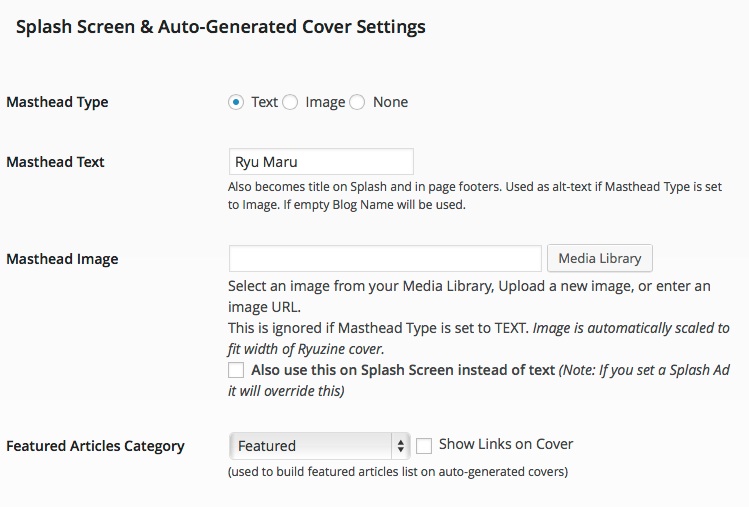
If you also want other things – such as a Masthead Image or a list of “Featured Articles” superimposed on your cover image set those in the Options section named “Splash Screen & Auto-Generated Cover Settings.”  Setting these items is optional, but if you do use them remember they are “global” and will be applied to all Editions that use the default settings.
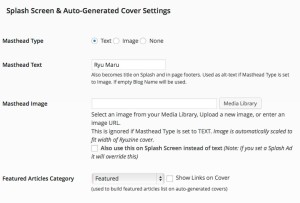
auto-cover-overlays

If you don’t plan to use the shortcode option (covered in the next section) you can also let the plugin know not to even look for it, or in a Edition-specific custom configuration to prefer the Featured Image:

cover-image-use-featured

On the post editing page for your Edition scroll down and look for the standard “Featured Image” section.

featured_image

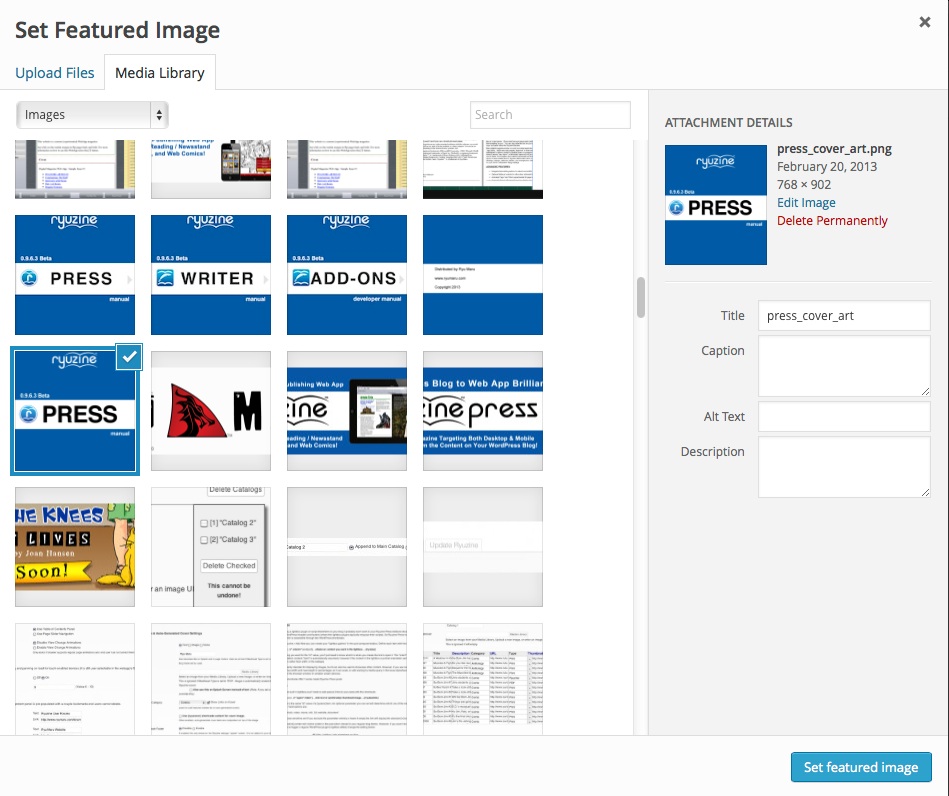
Click the link to open the Media Manager and select the image you would like to use for the cover art on this Edition.
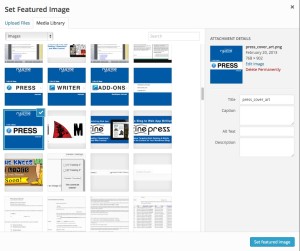
select_featured_image

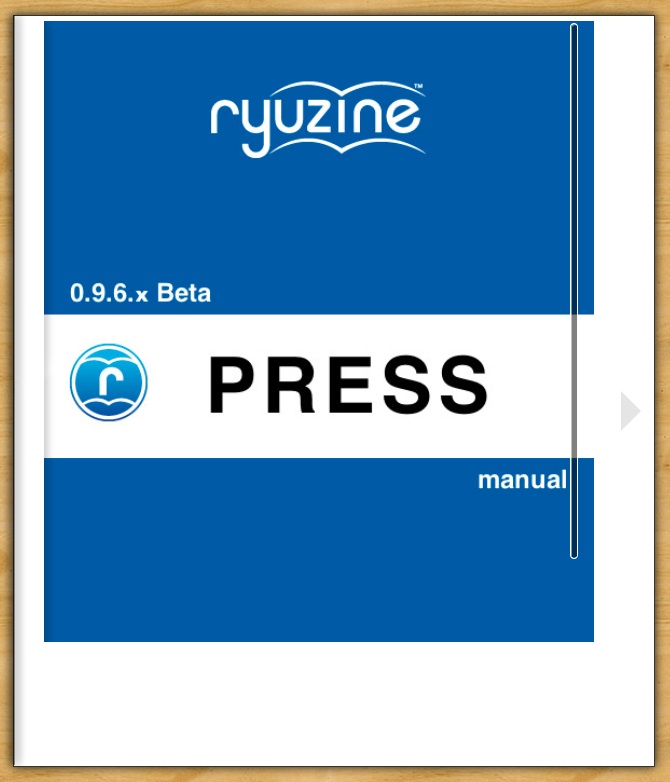
That’s it!  Now that cover art will show up as the cover of the Edition and as the thumbnail in Ryuzine Rack (or if you are using the regular archive page it will appear in that list).
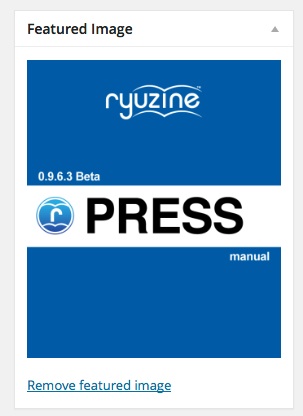
featured_image_set

Again, you can over-ride the Cover settings on a per-Edition basis with the “Custom Configuration” section on the Edition edit page.  Result:
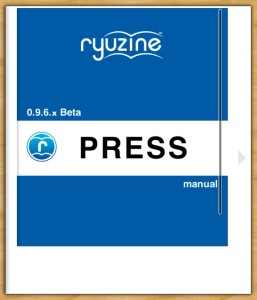
featured-no-bleed

While this is easy, it doesn’t give you much control over how your cover art is displayed within the Edition.  For more control use the next method…

3. Cover Shortcode

Like method two above this one requires that the “Cover Source” is set to “Generate Automatically” but you’ll also need to go down into the “Splash Screen & Auto-Generated cover Settings” and find the item labeled “Cover Image” and make sure it is set to “Use [ryucover] shortcode.”

cover-image-use-ryucover

Now, on the edit page for your Edition, in the main post body section type out the opening and closing shortcodes:

[ryucover] [/ryucover]

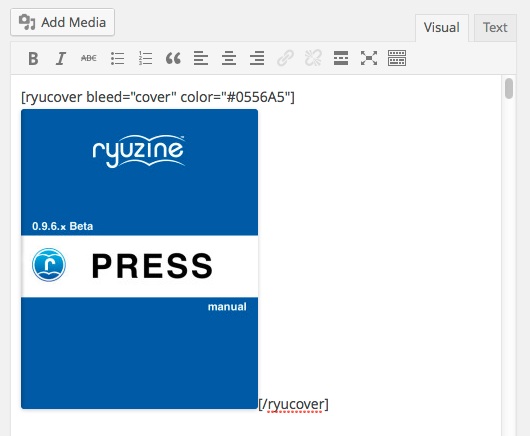
Place the cursor in between the two bracketed items and use the “Add Media” button to select your cover art from the Media Manger.  You only need to place the “Medium” size image (do not place the “Thumbnail” since that will be cropped).
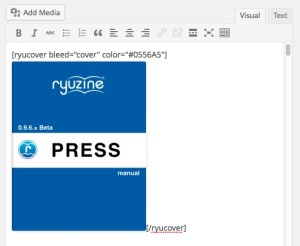
ryucover

Without any parameters the shortcode will embed an image as the cover in the same way as the “Featured Image” method does.  However the shortcode has other options for how to display the image:

Example: [ryucover bleed=”cover” color=”blue” shift=”top left”] [/ryucover]

The “bleed” parameter will set it as a background image using CSS:

0 | null : zero or no value (or omitting “bleed” entirely) embeds the image with the <img> tag.

featured-no-bleed

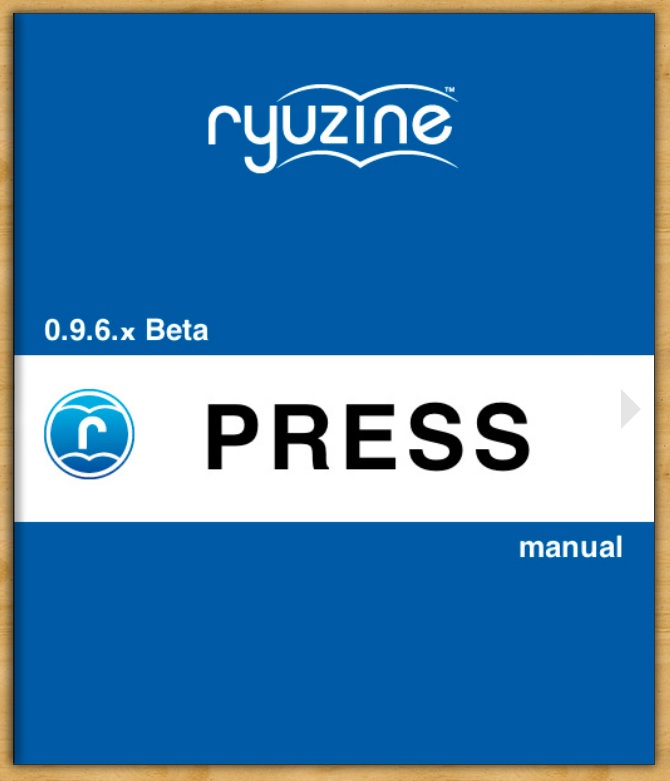
1 | cover : fits the image, maintaining the aspect ratio, so that it completely covers the entire page container, leaving no white space or border around it (the image may extend beyond either the right or the bottom edges).
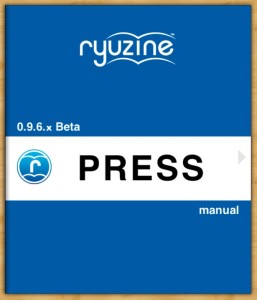
bleed-cover

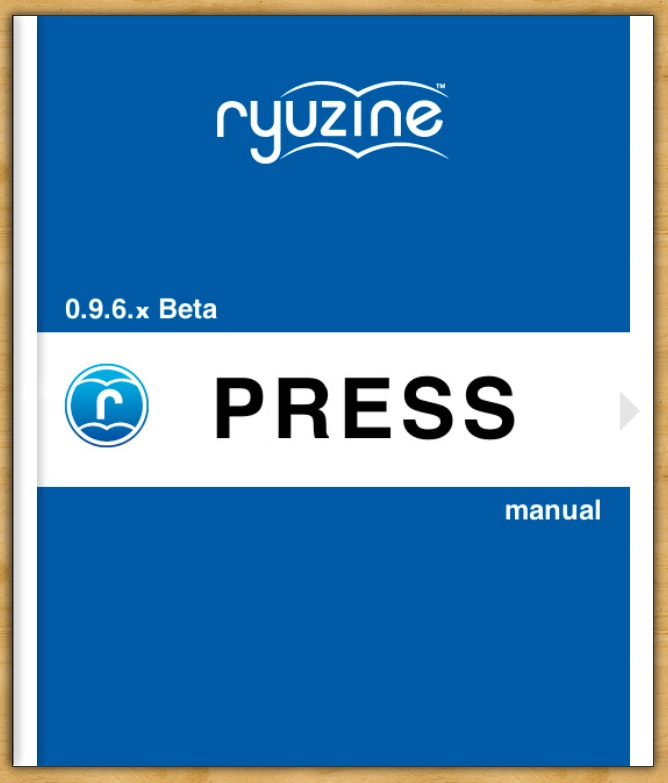
2 | contain: fits the image, maintaining the aspect ratio, to the SMALLEST size that will fit BOTH the width and height without allowing any of the image to extend beyond the page container edges – though this will probably leave a white border around the image in one or both directions.
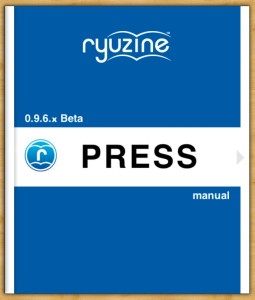
bleed-contain

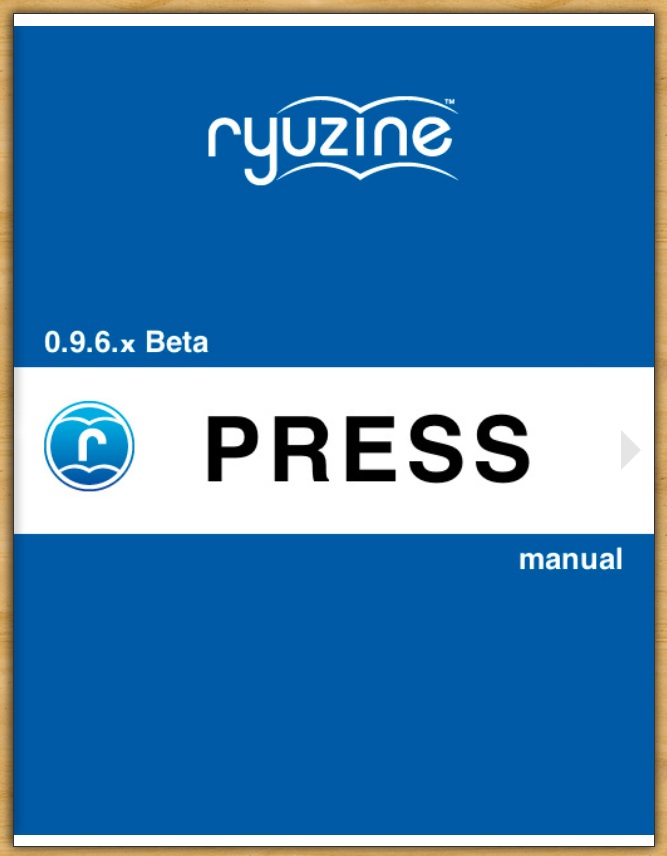
3 | width: centers and scales the image, fitting it by the width so it does not extend beyond the left or right edges of the page container, but may either go beyond the top and/or bottom or may have a white border above/below the image.
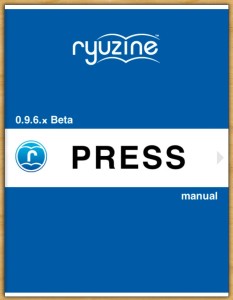
bleed-width

4 | height: center and scales the image, fitting it to the height of the page container, but may allow it to extend past the left/right edges or fall short of and leave a white border on the left/right of the image.

bleed-contain

Generally “cover” and “width” give the similar results and “contain” and “height” give the similar results – but may render slightly different bordering if they are not an exact fit for the space.

You can also set a background color with the “color” parameter and a valid HEX code (either like #cccccc or #ccc shorthand), HTML color name, or an rgb/rgba color set. If you are using a cover bleed setting that is rendering white bars around your cover art you can set a background color to make it less obvious or to frame your cover art in a more pleasing way.

The “shift” parameter allows you to adjust the positioning of the background image.  The default position is top and center.  You can use either numerical value pairs ( such as “0 0” or words “top left”).  However you can end up shifting parts of the image so they go beyond the edges of the page container:
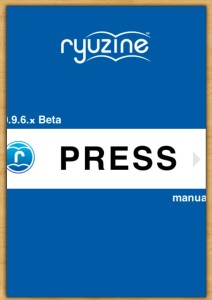
bleed-height-shift-center-center

In the image above the setting was bleed=”height” shift=”center center” which allows the sides of the image to be cropped off. Changing the setting to bleed=”contain” wouldn’t do this.


However you may prefer to put your Ryuzine Press Editions together, we’ve got your covers covered. 😉


+Comic Easel Autofix

If you have a WordPress powered site for a webcomic and have switched to the Comic Easel plugin and/or updated to ComicPress 4.x you may have noticed that your Ryuzine Press Editions that should include comics no longer include comic posts after the upgrade.

This is because Comic Easel uses a custom category type called “Chapters” that are only associated with the custom “comic” post-type.  Pages are assigned to Ryuzine Press Editions by being included in the same category as the edition, and since Comic Easel/ComicPress 4.x comic posts never exist in normal categories there is no way to assign them to editions without “hacking” the Comic Easel files to allow it.  Two different hacks are outlined in the Ryuzine Press manual, but now there is an (experimental) automatic fix!

Go get the latest Ryuzine Press ZIP file.  If you just want to patch an existing installation (which is likely if you’re reading this) all you need to do is overwrite:

~/wp-content/plugins/ryuzine-press/ryuzine-press.php

with the same file in the ZIP archive you downloaded.  You do not need to update the Ryuzine webapp, nor do you need to reinstall anything to the theme (unless you just installed ComicPress 4.x or a new child theme, then you will need to go to Ryuzine Press > Tools > Update Ryuzine  and install to your theme.  If the files are not in the currently active theme it will prompt you to install them).

What this does is check for the custom post-type “comic” and then checks to see if the “Comic Easel” plugin is activated and then attempt to automatically add the regular “Category” selector to Comic Easel so you can assign comics to a Ryuzine Press Edition.  Please be aware this is experimental, it may not work if Comic Easel initiates later than Ryuzine Press, it won’t work if you have set a different custom post-type in the Comic Easel settings.  If this auto-fix doesn’t work for you then you will need to do the manual hack outlined in the Ryuzine Press Manual, which unfortunately needs to be repeated after every Comic Easel update.  If the auto-fix does work for you it should continue to work even after a Comic Easel update.

If you are still using ComicPress 2.x you do NOT need this update!

Note: ComicPress and Comic Easel are developed by Philip M. Hofer (aka “Frumph”).  Please do not direct any bug reports or support questions to him regarding how Ryuzine Press works (or doesn’t) with his plugins and themes.

Ryuzine Writer PHP Patch

Note: This patch is included in Build 20131101.01, go to the Help > About screen in Ryuzine Writer to see the build number.  If you don’t see that number your install is outdated.

Issue:
PHP File Operations fail when Ryuzine Writer is being run from
a server with the latest version of PHP installed.

Cause:
The PHP files included with Ryuzine Writer utilize a form action
that is no longer supported by PHP. This old method was dropped
because it could expose forms to injection attacks.

Installation:

Download the Patch and unzip it.

Drag and drop all the files in the /patch folder to:

[Ryuzine PDK location]/DEV/ryuzinewriter/

For example, on our Mac OS X dev system it would be:

/Applications/XAMPP/xamppfiles/htdocs/Ryuzine_PDK_0.9.6.5/DEV/ryuzinewriter/

And replace/overwrite the PHP files already there.
Reload Ryuzine Writer in your web browser.

If you are still encountering PHP errors try to delete any “tmp” folder
that may be present in your Ryuzine PDK installation and reload the web app
in your web browser.

Patching Previous Versions

  1. Open each of the PHP files in the /ryuzinewriter sub-folder in a plain text or code editor
  2. Find the line with the <form> element (if present)
  3. Change action=“<?php echo $php_self ?>” to action=“”
  4. Save the file
  5. Reload the Ryuzine Writer web app in your browser

ePUB Export Add-On

Druck

We now have an experimental ePub Export Add-On for Ryuzine Writer!  You can now also export your Ryuzine publications to ePub 3.0 format with a couple button clicks.  You’ll need at least Ryuzine Writer 0.9.6.4 and the 21KB zip archive with the add-on itself:

>> GO GET IT HERE <<

Once you’ve got it installed and have PHP File Operations enabled the process goes something like this:

1. Compose or Load a Ryuzine file into the rich-text editor (you don’t even need to “Build” it if you aren’t also creating one in Ryuzine format).
2. Press the [ > ] button and then the [ ePub Export ] button.  The new Workspace loads.
3. Press the “Auto Fill” button to automatically populate the form with information about your publication.
4. Press the “Build” button and wait for a shiny, new ePub file to drop into your downloads folder.

Be aware that this is a version 0.1 “Alpha” release of this Add-On, so there are no guarantees.  Make certain you read the “Known Issues” in the README file bundled with the Add-On.  Files produced with it were tested in Azardi 19, ePubView 1.2, Adobe Digital Editions 1.7.2, and Adobe Digital Editions 2.0 on a Mac.  All of the files produced could be opened, however some would occasionally, randomly crash the latter two Adobe reader apps (still investigating why).  The .epub files produced are unlikely to validate but generally do not contain major errors that prevent them from being opened and read.  Also be aware that rendering of EPUB 3.0 format can vary greatly from one e-reader app or device to another, meaning it is highly unlikely the ePub version of your publication will look exactly like your Ryuzine version.

Got skills and want to help improve it?  We’ve set up a GitHub Repository for this Add-On at: https://github.com/ryumaru/epub-addon where you may find more recent stable and unstable versions.

UPDATE 2013-10-30 – updated to version 0.2 alpha which fixes a problem with form submission that prevented the add-on from building the epub package on servers running newer versions of PHP.  To update just trash/overwrite your existing file in ~/ryuzinewriter/addons/.

UPDATE 2015-08-30 – updated to version 0.3 alpha which is compatible with the new Add-On API for Ryuzine Writer v1.0.  It is included in the Ryuzine PDK download.

MCBA SpringCon

69569_494543940581037_1787298583_n

Ryu Maru spent the weekend at the Midwest Comic Book Association‘s SpringCon!  For those of you who don’t know it is the largest comic book convention in Minnesota, held each year at the State Fairgrounds Grandstand, running both Saturday and Sunday from 10AM – 5PM.

SBJV1

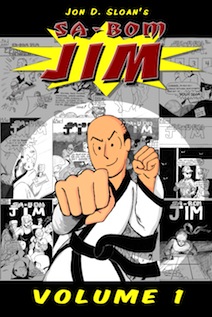
We were there promoting Jon Sloan’s new trade paperback, which collects the complete “volume one” of his comic series “Sa-Bom Jim” in a book over 400 pages thick.  We were also making people aware of the great Ryuzine Press Editions of his (currently being posted online) “volume three” material, and the Ryuzine family of webapps in general.  We were also in good company there “under the stairs” with some of the many “conspirators” of the International Cartoonist Conspiracy.

conspiracylogo

Thanks to some good local press beforehand (and possibly the rainy weather during) there was a pretty good turn-out for this year’s SpringCon.  Thank you to the MCBA, volunteers, and everyone in attendance who made it a positive experience!

Check out our Photo Album over on our Facebook page.

Five Tips for Building Better Ryuzine Publications

One of the cool features of the Ryuzine publishing platform is how you can create a traditional magazine or comic book reading experience through a web browser using nothing more than HTML5, Javascript, and CSS3 technologies.  But the best ways to leverage the format may not be readily apparent.  This article seeks to help you with building better Ryuzine publications that will work for both you and your readers, regardless of what device they prefer to use. Without further ado, here we go!


5. Don’t assume page order dictates the reader’s experience.

When you pick up a physical magazine you probably start at the front, see the Table of Contents, leaf through it, and if you ever do skip around it’s because an article you were reading (which probably broke over more than one consecutive page) was concluded in a column near the back. But you can’t assume that’s how someone will experience your Ryuzine publication (with the possible exception of webcomics, which really only work when experienced in the proper order).

Especially with Ryuzine Press Editions (which exist concurrently as blog posts outside the editions), but also for other publications where a specific page’s bookmark may have been shared, a reader may come into the publication almost anywhere. Ryuzine tries to help people get their bearings by always having a Table of Contents panel available, but you should consider each page of a Ryuzine publication is more like a miniature website unto itself – a sub-section that should only ever spill into another part of the publication if you did so for a reason (in our own sample magazine we show an article that is broken over sections, but the reason is the same as that used in print magazines – to lead readers deeper into the publication and to a page with advertising). As each and every page of a Ryuzine publication is theoretically of infinite length (just like any web page) there really is no technical reason to ever break a story over multiple pages.


4. Don’t go overboard on advertising.

Traditional magazine publishing has long been supported in large part by selling advertising space within the pages. You can place ads on pages in a Ryuzine publication just like you can in a print publication, but Ryuzine also incorporates some built-in web and app advertising options including a mobile style banner, a full-page “splash” ad, and an overlay “box” ad.

But don’t go overboard and make your readers wade through too much advertising to get to your content. The content should be the main focus and only include enough advertising to help cover your expenses in producing it. The ad model is a good fit for online publications given that people are accustomed to things being free (and advertising supported) online, but a site or publication that feels like it is “spamming” people with ads will chase the audience away.

Actually one of the best uses of Ryuzine may be situations where the entire publication itself IS the advertisement. For example using it to create a “sample” of a larger digital publication (perhaps in eBook format) or as an online sample of a print publication. It’s also a great format to adapt organization newsletters (which tend to be short and fast loading content in maybe 8 or 12 pages) or product sales brochures.


3. Don’t just duplicate print content.

If what you want is a digital version that is exactly like an existing print publication you’ll probably be happier with a PDF file. Your readers, however, may not be. Especially if they’re on a phone and have to zoom in and out and pan around just to read it. A Ryuzine publication uses a “responsive” layout that adapts to different screen sizes and allows users to adjust the font size to their personal preference.

You should think about how your publication will look when viewed on small screens and large screens and in both portrait (single page) and landscape (two-page spread) views. The “thisissue.css” file is where you can magically adjust the layout of your content to address the varied viewing scenarios.


2.  Don’t forget the “digital!”

Text and images can obviously be reporduced in a Ryuzine publication just like they can in print. But a Ryuzine publication, by being digital and online, can do things print media can’t. Leveraging the capabilities of the web browser is an important part of creating engaging content that will keep your readers attention, build your audience, and hopefully keep them coming back for more.

You can embed all sorts of “rich content” in a Ryuzine, either in the pages themselves or in the Lightbox Gallery. In fact the whole Lightbox feature was included exactly for this sort of use! Embed a YouTube video, an IFRAME with a linked website displayed in it, VR objects or panoramas, high resolution imagery. There are all sorts of ways you can enhance and expand the “magazine” content with dynamic and enaging WEB content.


1. Avoid running too long.

You’ve probably seen the abbreviation “tl:dr” online. It means “Too Long; Didn’t Read.” Especially on small screen devices a lot of text means a lot of scrolling, but there has long been a bias against presenting a “wall of text” online. Many people find reading on a screen more taxing than reading off of paper, so if you don’t want people to just tune you out don’t go long. They say a picture is worth a thousand words, and online people would rather see pictures on their screens than text. What text is presented is usually just skimmed, so adjust your writing (even consider editing or rewriting) just for your online audience.

Also don’t go too many pages! Nobody really wants to read hundreds of pages online and they want to load hundreds of pages of content even less than they want to read it. A Ryuzine publication is, when stripped of all it’s cool features, a single HTML web page. The entire publication technically exists as a single document and the longer it is the longer it takes to load. If you publication is taking too long to load your readers may think it either has frozen, crashed, or isn’t worth the wait. People online are incredibly impatient! Publications that are more like “newsletters” than a “compendium” will do better. They’ll also be less likely to crash mobile browsers! Most mobile browsers have limits on how much storage a specific web URL can use, and on iOS devices like the iPhone and iPad they’ll simply crash the browser (taking the user back to the Home Screen) instead of loading a really, really big document. The best way to remember that is “short is sweet, long is wrong.”

Writer Add-Ons

addons_cover

Ryuzine Writer version 0.9.6.3 introduces a new “add-on” system we hope may spur some third-party development of extensions to our stand-alone authoring webapp.  In fact, we’ve moved several parts of Writer from core code into optional add-ons.

This new add-on system also has some functions that make it easy to add your own “Start Screen” shortcut buttons, dialog boxes, output options, even entire custom “workspaces” appended to the ones already included in Ryuzine Writer.

Because this is new and of a much more technical nature than the rest of the Writer manual, which is targeted at publishers not programmers, we’ve created a manual “supplement” focused exclusively on this new add-on system available at https://www.ryumaru.com/library/addons096x.htm

It should also be mentioned that the “rich text” editor used in Ryuzine Writer is a highly modified version of the Xinha project, which has it’s own, entirely separate, plug-in and theme system.  Some of the Ryuzine Writer editor functionality and themed appearance is implemented through those systems, but if you want to install or develop a extension for the rich text editor be aware third-party plug-ins may not work with our modified version and (vice versa) if you develop an extension in conjunction with the implementation in Ryuzine Writer your plugin may not work properly in the unaltered editor, so make sure you test it!

Ryuzine Rack Live Examples

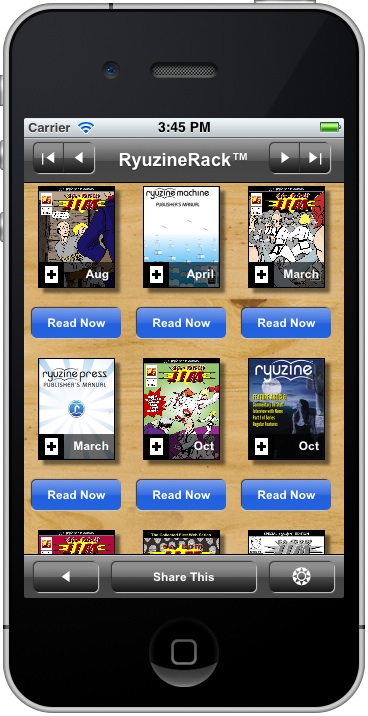
“Ryuzine Rack” is our new newsstand webapp built on the same foundation as Ryuzine Reader, but designed to act as a library, store, or promotions page on your website.

There is a “stand-alone” version that does not require a back-end database.  It uses simple HTML “catalog” files with plain <TABLE> elements to store and organize the data.  You can have as many catalogs as you need, organized however you please, and you can customize them with additional columns and decide which columns are sortable.  Or just use our Ryuzine Writer authoring webapp to easily help you build standard catalog files.  Our site is using this stand-alone version (also available under the “Library” button in the menu up top):

https://www.ryumaru.com/library/

The other version is “Ryuzine Rack for Ryuzine Press” which is integrated with the Ryuzine Press Plugin for WordPress blog sites.  It optionally replaces the Ryuzine Press Editions archive page with Ryuzine Rack.  The admin back-end also has a utility on the Ryuzine Press > Tools > Rack Builder that allows you to add content to the catalog that is not generated by Ryuzine Press or content that isn’t on your site.  You can also use the utility to create additional catalogs.  All of the data is stored in the WordPress database, but is still bundled into plain <TABLE> elements and sent with the webapp, so even on mobile devices sorts and searches occur almosts instantly.  Jon Sloan’s comic web site is using the WordPress-driven version (also available under the “Store” button at the top of his site):

https://www.thedojahng.com/ryuzine-rack/

This is the first version of Ryuzine Rack and does not have any “Help” info in it yet.  While we believe it’s fairly intuitive, here is a quick primer on some of the features:

Item Details (Grid View) – click the [+] in the corner of the cover thumbnail to open the item details info card (to prevent accidental mis-fires while scrolling on touch devices the entire cover is not a button).

Action Button – below each item (in Grid View) and to the right of each item (in List Views) is a button.  It might say “Read Now,” “Buy Now,” “Download,” etc., depending on what the content is.  These buttons take you away from the Ryuzine Rack webapp and to whatever content to which they point.  For “Buy Now” items that is usually a product page on the site wherever the item is being sold (Ryuzine Rack is not e-commerce enabled itself).

Changing Pages – use the navigation buttons at the top of the screen, or on iOS and Android devices you can swipe left/right to change pages.  Keyboard left/right arrows also change the pages, or Home and End keys go to the first and last page respectively.

Sorting List – The descriptors by which the items are sorted appear in the “Sort List” panel.  Tapping the same heading more than once toggles the sorting of the list between ascending and descending by that heading.  For example, all items are initially shown in descending order by date (newest to oldest).  If you go to Sort List > Date it will toggle it to ascending (oldest to newest).

Alternate Views – the default is the newsstand-like cover grid view.  Under the “Views” panel you can select “Detail List” or “Simple List.”  The “Font” size adjustment only works with list views, not grid.

Options – in the bottom bar navigate as far to the right as you can and tap the Options “gear” button.  In the Options panel you have several preferences you can set (which differ from the standard Ryuzine Reader options):

Featured Items – shows or hides the promotion carousel at the top of the first page of search results.

Items per Page – adjusts how many items to show on each page of search results, however this setting is not retained from one session to another.

Filter All – if you click the underlined “Media Type” or “Category” links in an item description it will sort the search results by that term.  If “Filter All” is turned on it will look through the entire catalog for matches to the filter term.  If it is turned off it will only look through the current page of search items for matches.

Page Animations – when you change pages they animate by sliding in and out to the left or right.  If you just want the pages to “pop” into view you can turn off the animation.

iScroll Scrolling – the search results and panels use the iScroll scrolling add-on script.  If this  is causing problems you can disable it.

Theme UI – if the webapp is being themed you can turn that theme off and on here.  Sometimes themes can cause performance issues on lower-end devices and disabling the theme will improve usability.

If you want to use Ryuzine Rack on your own website you can grab the stand-alone version with the Publisher Distribution Kit or the Ryuzine Press version if you use WordPress.  You can use either Ryuzine Rack or Ryuzine Reader or both on your website.

Note: the Opera web browser is no longer officially supported by any of the “Ryuzine” webapps.  Internet Explorer, Firefox, Chrome, or Safari should be used.