NOTE: If you are using the ryuboxlink and ryubox shortcodes and the old format Ryuzine “lightbox” add-on there is a separate post about using the shortcodes in Gutenberg.
The Gutenberg “block” editor is one of the biggest changes in the newer versions of WordPress. If you’ve only ever used the TinyMCE “WYSIWYG” editor it can be a bit confusing. Here is how to use the newer lightbox format in Ryuzine Press running the “ryulightbox” add-on.
In a Classic Block
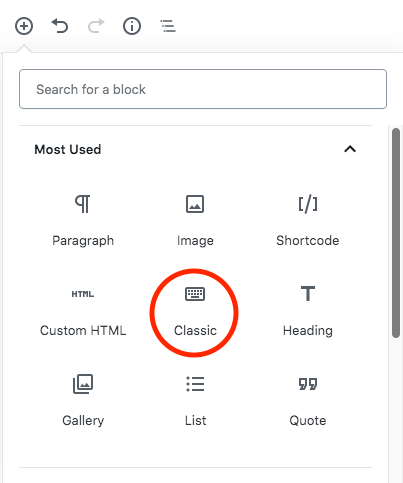
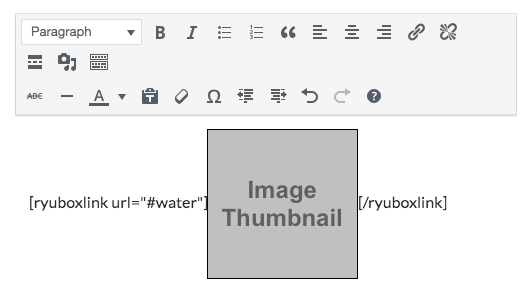
Go to the (+) to add a new block and select “Classic.” If it’s not in your “Most Used” yet it will be in the “Formatting” sub-section. Once you have the Classic Block it’s just like using the old TinyMCE editor:
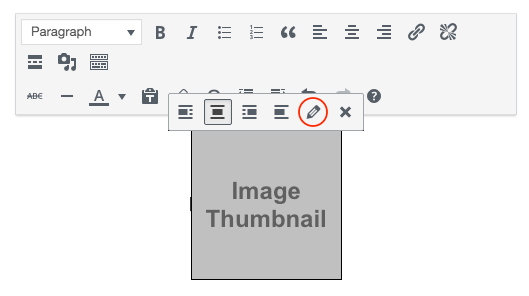
If you click on the image you’ll get the old Image Edit toolbar above it. Select the “Pencil” icon and it will open the old Image Options dialog box. If you need to you can adjust the size of the image from thumbnail, medium, large, full-size, or custom-size from there. But to make it work with the “ryulightbox” add-on you need to click on the “Advanced” to expand the section (if it’s not already expanded):


Rather importantly the thumbnail has to LINK to something! When the “ryulightbox” add-on isn’t loaded (as it won’t be when viewing the post elsewhere on your WordPress blog) the thumbnail will just be a regular link, that either opens the target content in a new tab (if you checked the “Open link in a new tab” box) or in the same window.
Then, in the “Advanced” section you need the Link Rel to be “lightbox” and (optionally) the Link CSS Class to be one of the ryulightbox types.
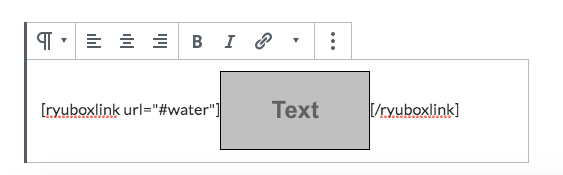
It can also be an anchor link to something embedded in the Ryuzine Press Edition, but then the link will be broken if the post is read elsewhere on your WordPress blog. If you prefer to embed the target content in the Ryuzine Press Edition you should consider using the ryuboxlink and ryubox shortcodes instead, because the links and the content can be conditionally hidden elsewhere on your blog where they don’t work.
In an Image Block
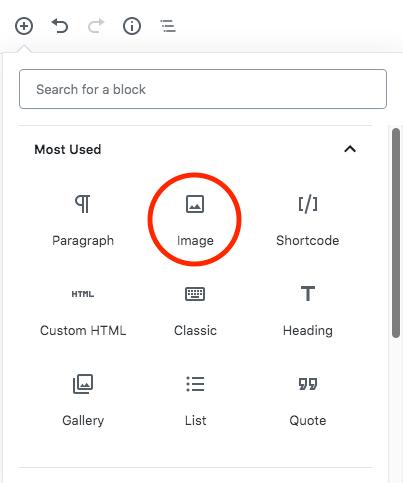
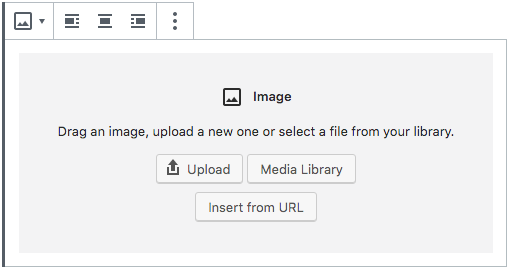
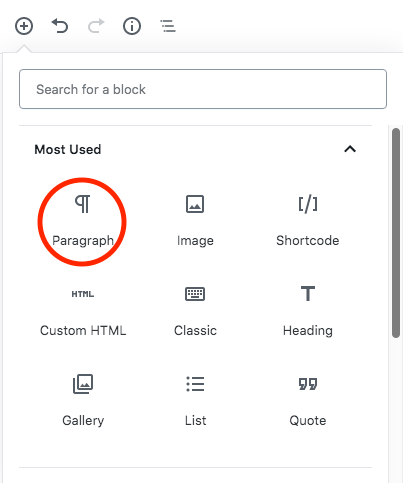
Click the (+) and select “Image” block. That will give you an empty one where you choose the Image Source:
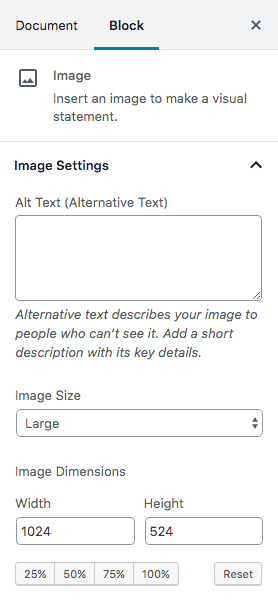
Once you’ve place your image you need to look in Gutenberg’s right sidebar area, under the “Block” tab scroll down to the “Link Settings” sub-section:
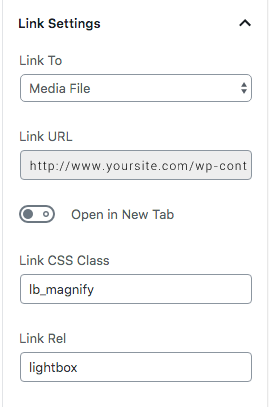
For the Lighbox to work the image MUST link to something! Typically the “Media File” (aka, the larger version of the image) will be the target. The Link Rel to be “lightbox” and (optionally) the Link CSS Class to be one of the ryulightbox types. When the “ryulightbox” add-on isn’t loaded (as it won’t be when viewing the post elsewhere on your WordPress blog) the thumbnail will just be a regular link, that either opens the target content in a new tab (if you turned on the “Open link in a new tab” switch) or in the same window.
The valid content types are:
lb_3d, lb_document, lb_info, lb_larger, lb_magnify, lb_minus, lb_movie, lb_photo, lb_plus, lb_video, lb_website, or lightboxbutton. If you leave it blank the generic “lightboxbutton” will be inserted by the “ryulightbox” add-on. This only changes the style of the lightbox link icon in the lower corner of the thumbnail, it doesn’t set the type of content, which can be anything.


 Fullscreen button. It will be available in both WYSIWYG and HTML Editor modes. To return from Fullscreen mode press the
  Restore button. However, the Editor workspace may be squished into a narrow band across the center of the window. If that happens
  Toggle Sidebars off/on or resize the browser window.